
Affinity Complete Guide: Photo Editing & Design Tools

Affinity has entered a new stage as a unified creative application that brings professional photo editing, vector design, and page layout into one workspace. Instead of requiring separate applications for different creative tasks, the all-new Affinity lets users move between image editing, illustration, and layout work while keeping projects inside the same environment.
One of the biggest changes is its pricing model. Canva introduced the all-new Affinity as free for everyone, giving users access to its professional creative tools without a paid Affinity subscription. Canva Premium users can also access Canva AI features directly through Affinity’s Canva AI Studio.
This Affinity Complete Guide explains the major photo editing features, vector tools, layout capabilities, AI functions, layers, masking, non-destructive editing, workspace customization, Canva integration, supported workflows, and the situations where Affinity can be a useful choice.For more information about popular editing software, you can explore photo and video editing app guides on UniversalEdit.
What Is Affinity
Affinity is a professional creative application from the Affinity team at Canva that combines photo editing, vector design, and page layout tools in one platform. The current application is designed around precision, responsiveness, and flexible creative workflows rather than separating these tasks into multiple programs.
Previously, the Affinity family was known primarily through separate products such as Affinity Photo, Affinity Designer, and Affinity Publisher. The all-new Affinity brings the core capabilities of these creative disciplines together so users can switch between different types of work inside a single application.
The application supports non-destructive workflows, allowing users to edit images and designs while maintaining flexibility for later changes. Canva also highlights real-time responsiveness, customizable workspaces, and the ability to handle large projects with extensive layers.
For photographers, this means Affinity can work as a dedicated image editor. For designers, it can also handle vector artwork and page layouts without forcing a move into another application for every project.
Affinity Photo Editing and Image Correction Tools
Photo editing remains an important part of the Affinity experience. The application provides tools for correcting images, retouching photographs, creating selections, working with layers, and producing detailed composite designs.Photographers interested in AI powered photo editing can also explore our Luminar Neo Guide for information about AI enhancement, RAW editing, portrait tools, sky replacement, and creative effects.
A practical Affinity Complete Guide should begin with these tools because they form the foundation of everyday image editing.
RAW Editing
RAW workflows give photographers more control over exposure, colour, highlights, shadows, and other image characteristics before applying detailed edits.For a mobile focused editing workflow, see our Snapseed Guide, which covers RAW editing, selective adjustments, healing, curves, and creative photo tools.
Exposure and Colour Adjustments
You can refine brightness, contrast, colour balance, saturation, and tonal characteristics to create a more balanced photograph.
Cropping and Straightening
Cropping can improve composition, while straightening can correct tilted horizons and other framing problems.
Curves and Tonal Control
Curves provide more precise control over brightness and colour channels than basic sliders.
Sharpening and Detail
Detail adjustments can improve perceived clarity, although excessive sharpening can make textures and skin appear unnatural.
Retouching
Retouching tools can be used to clean distractions, refine photographs, and prepare images for publishing or design projects.
The strength of this workflow comes from combining basic correction with deeper manual control rather than relying entirely on automatic enhancement.
Layers, Masks and Non-Destructive Editing
Layers are central to advanced photo editing because they allow different elements of a composition to be edited independently. Affinity provides a non-destructive approach so users can continue refining their work without permanently committing every adjustment. Canva describes the new Affinity as allowing users to work non-destructively across photos, illustrations, and publications.
A Affinity Complete Guide should also explain how layers make complex projects easier to organise.
Layer Based Editing
Separate photographs, graphics, text, and adjustments can be organised across layers. This makes it possible to change one element without rebuilding the entire composition.
Masks
Masks control which parts of an image or adjustment remain visible. They are useful for targeted corrections, compositing, background work, and blending multiple photographs.
Selections
Detailed selections allow users to isolate subjects or specific areas before applying changes.
Blending and Opacity
Blending modes and opacity controls can help combine layers and create more complex visual effects.
Adjustment Workflows
Adjustments can be applied selectively instead of permanently changing the underlying image, giving photographers more room to experiment.
This approach becomes particularly useful for portraits, product compositions, advertising graphics, conceptual photography, and multi-image projects.
Affinity Vector Design and Illustration
Affinity is no longer limited to photography. The current application combines photo editing with vector design tools, giving illustrators and graphic designers a dedicated space for creating scalable artwork.
The vector environment can be used for logos, icons, illustrations, diagrams, branding systems, shapes, and other graphics where precision matters.
Pen and Curve Tools
Vector paths can be created and adjusted with detailed control over nodes and curves.
Shapes
Basic geometric shapes can be combined and modified to create more complex graphics.
Typography
Text tools allow designers to build titles, labels, logos, and other typographic compositions.
Alignment and Snapping
Precision controls help keep objects aligned and positioned consistently.
Illustration
Vector tools can be used to create detailed illustrations that remain scalable without losing their underlying path based structure.
The integration of vector work with image editing means designers can combine raster photographs and scalable graphics without constantly changing applications.
Affinity Layout and Publishing Features
Page layout is another major component of the all-new Affinity. Canva describes the application as combining photo, vector, and layout capabilities so users can design, edit, and publish in one place.
This gives Affinity broader use cases than a conventional photo editor.
It can be used for brochures, magazines, marketing materials, posters, editorial pages, books, and other multi-page documents.
Page Layout
Multiple pages can be organised inside a project for publications and structured design work.
Text Frames
Text can be placed into structured frames and combined with photographs, illustrations, and other design elements.
Image Placement
Photographs can be positioned inside layouts without leaving the Affinity environment.
Master Style Workflows
Consistent design elements can help maintain visual structure across larger documents.
A single application that handles image editing, vector artwork, and layout can be useful for designers working across several stages of a project.
Affinity AI Tools and Canva AI Studio
AI is becoming part of the new Affinity workflow through Canva’s integration. Canva states that Canva Premium users can access Canva AI directly inside Affinity through Canva AI Studio. These tools include capabilities such as Generative Fill, Expand & Edit, and Remove Background.
The Affinity Complete Guide should treat these tools as productivity features rather than replacements for manual editing.
Generative Fill
Generative Fill can help add or modify content within selected areas of an image using AI generated results.
Expand and Edit
Expand and Edit can extend or modify image content to provide additional composition space.
Remove Background
AI based background removal can isolate subjects more quickly than manual selection in suitable images.
AI Assisted Workflows
AI can speed up repetitive production tasks while users retain control over the final design and image.
Canva has also continued expanding its AI ecosystem around Affinity, including connections with other creative workflows and professional tools.
Because AI results can vary with image complexity, users should review edges, lighting, textures, and generated content before final export.
Workspace Customization and Performance
Affinity is designed to provide a flexible workspace that can adapt to different creative disciplines. Canva highlights customizable workspaces and the ability to mix and match tools according to individual workflows.
Photographers may want a workspace focused on image editing and retouching, while illustrators may prioritise vector tools. Designers working on publications can arrange their environment around layout and typography.
Performance is also a central part of the current Affinity positioning. Canva highlights real-time responsiveness, smooth zooming and panning, and support for very large documents containing thousands of layers.
Large Projects
Affinity is designed to remain responsive when working with complex files and extensive layer structures.
Real-Time Editing
Changes can be previewed immediately, making it easier to evaluate adjustments while designing.
Custom Studios
Custom workspaces can help users keep frequently used tools close at hand.
Cross-Discipline Workflow
The ability to move between photo, vector, and layout tools can reduce the need to switch applications during a project.
Performance will still depend on the computer, document complexity, resolution, and number of layers being used
Canva Integration and Creative Workflow
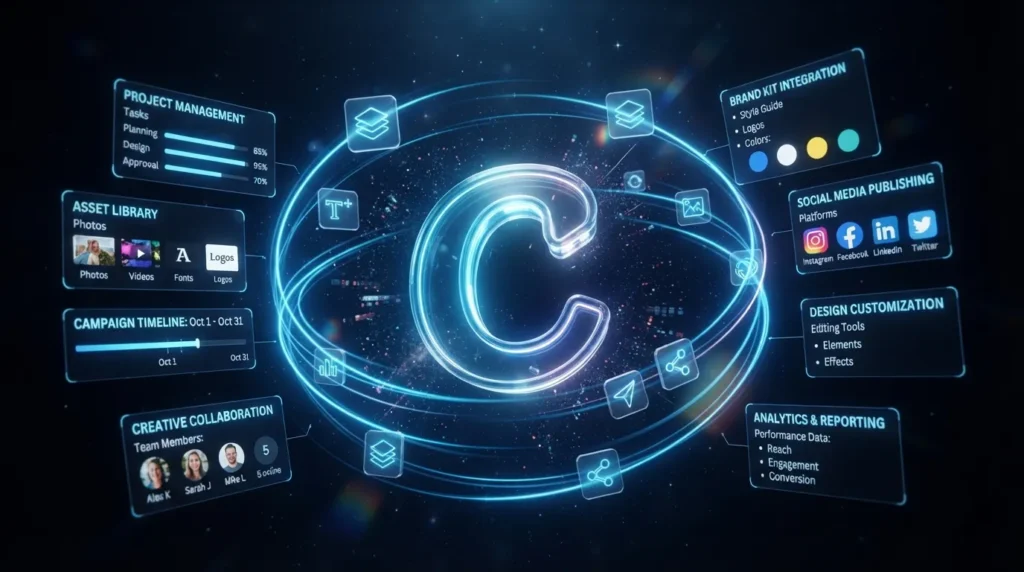
The connection between Affinity and Canva is one of the most important parts of its current direction. Users can create detailed work in Affinity and then bring projects into Canva for collaboration, publishing, and broader content workflows.
This creates a useful division between precision editing and broader content distribution.
For example, a designer can refine a photograph, build vector artwork, or prepare a detailed layout in Affinity, then move the finished work into Canva for collaboration with a team or for publishing across branded content.
Canva has also announced Affinity integrations with Capture One and DaVinci Resolve, allowing those applications to work with Affinity’s native .af file type.
This is particularly interesting for photographers and video professionals because it can make movement between editing, photography, and finishing workflows more connected.
The Affinity Complete Guide perspective here is important: Affinity is not simply an alternative photo editor. It is becoming part of a broader creative workflow that connects precision design with collaboration and content publishing.
Affinity Free Features and Who Should Use It
One of the biggest changes in the current Affinity release is that the full application is now free for everyone. Canva states that there is no stripped-down version or separate paid tier for accessing the core professional Affinity experience.
That makes the software particularly interesting for students, independent creators, emerging designers, photographers, and professionals who want a powerful creative tool without adding another recurring software cost.
Photographers
Photographers can use Affinity for RAW editing, retouching, composites, colour correction, and detailed image manipulation.
Graphic Designers
Designers can work with vector graphics, typography, illustrations, and branding assets.
Publishers
Users creating magazines, brochures, books, and other layouts can combine images and text in the same application.
Creative Students
Students can gain access to professional level tools without paying for an Affinity subscription.
Small Teams
Teams can combine detailed Affinity work with Canva’s collaboration and publishing environment.
The most important limitation is not the number of features but the learning curve. A unified professional application contains many tools, so beginners may need time to understand how the photo, vector, and layout workflows connect.
Affinity Advantages, Limitations and Best Uses
The biggest advantage of Affinity is its combination of photo editing, vector design, and page layout in one application. Users can move from a photograph to an illustration or a complete publication without rebuilding the project in separate software.
Its free pricing model also changes the software’s position in the market. Users who previously avoided professional creative applications because of subscription costs now have access to Affinity’s full professional toolset without an Affinity subscription.
Another strength is its focus on precision and responsiveness. Canva highlights real-time editing, custom workspaces, and support for large projects with thousands of layers.
The limitations mainly relate to workflow complexity. Beginners who only need quick photo adjustments may find a full creative suite broader than necessary. Similarly, users who already have deeply established workflows in specialised applications may not need every Affinity capability.Users looking for a simpler and more accessible alternative can also explore our Pixlr Complete Guide for browser based photo editing, AI tools, effects, and creative features.
However, its growing integration with Canva, Capture One, and DaVinci Resolve makes it increasingly relevant to photographers, designers, and creative teams working across multiple types of content.
Overall, this Affinity Complete Guide shows why the application deserves attention beyond traditional photo editing. It combines image editing, vector design, layout, AI assisted tools, and flexible workspace management in a single creative environment.
Conclusion
Affinity has developed into a much broader creative application than its earlier product structure suggested. The all-new version combines professional photo editing, vector design, and page layout in one environment while maintaining a strong focus on precision, performance, and creative control.
Its move to a free model makes the software particularly attractive to photographers, designers, students, and independent creators who want professional tools without a recurring Affinity subscription.
AI integration through Canva AI Studio adds another layer to the workflow, while Canva, Capture One, and DaVinci Resolve integrations create more opportunities for Affinity to fit into larger creative pipelines.
The application still has a learning curve because it brings several professional disciplines together. That complexity can be worthwhile for users who regularly move between photography, illustration, branding, and publishing.
For creators looking for a flexible professional environment that combines detailed editing with broader design capabilities, Affinity has become one of the most interesting options in the current creative software landscape.



2 Comments