Pixlr Complete Guide: Features, AI Tools & Editing Tips
If you want to edit photos without dealing with a complicated professional editing workflow, Pixlr offers a practical option for beginners, creators, marketers, and casual photographers. This Pixlr Complete Guide explores how the platform combines photo adjustments, creative effects, overlays, text tools, background editing, and AI-powered features in an accessible interface.
Finding the right photo editing app can be difficult because every editor focuses on different needs. Some are built for professional retouching, while others focus on quick social media content. Pixlr sits between these approaches by giving users useful editing controls while keeping many tasks simple enough for everyday use.
This Pixlr Complete Guide explains what Pixlr is, how its editing tools work, its AI features, creative options, supported platforms, advantages, limitations, and the types of users who can benefit from it. If you are exploring different photo editing apps, this guide will help you understand where Pixlr fits, while UniversalEdit offers more guides covering photo and video editing apps, their features, AI tools, and practical editing workflows.
What Is Pixlr
Pixlr is an online-focused photo editing platform designed for creating, adjusting, retouching, and enhancing images. In this Pixlr Complete Guide, it is important to understand that the platform combines traditional image editing with creative and AI-assisted capabilities.
One of Pixlr’s strengths is its accessibility. You can work with images without needing the same type of installation or hardware setup associated with some traditional desktop photo editors.
Pixlr provides tools for basic adjustments such as brightness, contrast, saturation, exposure, and colour. It also includes creative features for adding text, overlays, effects, frames, and other visual elements.
For users who need more control, Pixlr can support tasks such as layering, selections, cutouts, and detailed image adjustments. This makes it useful for both quick edits and more involved creative projects.
Pixlr is best understood as a flexible web-based photo editing platform that combines traditional editing with modern AI-assisted tools.
Pixlr Photo Editing Features
The core editing tools are where Pixlr becomes useful for everyday photography and content creation. A major part of this Pixlr Complete Guide is understanding how these tools can fit into different editing workflows.
Basic controls let you modify exposure, brightness, contrast, saturation, temperature, and other image properties. These adjustments can help correct photographs that look too dark, flat, warm, or cool.
Cropping and resizing tools are useful when you need to prepare an image for a specific platform. You can change the composition, remove unwanted edges, or create dimensions suitable for social media content.
Pixlr also provides retouching and correction options that can help remove or reduce distracting elements. These tools are particularly useful for cleaning up small imperfections in photographs.
For more detailed work, layering and selection-based editing provide greater control over individual elements. You can combine images, place text over photographs, and build compositions from multiple visual elements.
Key Editing Capabilities
- Image adjustments
- Crop and resize
- Colour and exposure controls
- Retouching and correction
- Layers and selections
- Text editing
- Filters and effects
- Overlays and creative elements
- Background editing
- AI-assisted image tools
The practical advantage is that you can use only the tools your project requires. A simple social media image may need just cropping, colour correction, and text, while a more complex composition can involve layers and multiple effects.
Pixlr AI Tools and Smart Editing
Artificial intelligence has become an important part of modern photo editing, and Pixlr incorporates AI features to reduce the amount of manual work required for certain tasks. This makes AI editing an important topic in any Pixlr Complete Guide.AI has also changed how people approach image enhancement, especially for sharpening, restoration, and improving low quality photos.If your main goal is AI photo enhancement and image restoration, Remini is another editing app worth exploring.
AI-powered editing can be particularly helpful when an image requires an operation that would otherwise involve several manual steps. Background removal is a good example because separating a subject from its surroundings manually can take considerable time.
Pixlr’s AI capabilities can also support image generation and creative editing workflows. These features are useful for creators who need visual assets but do not always have suitable source material available.
Another useful application of AI is improving or transforming existing visual content. Instead of treating AI as a replacement for editing skills, it is more practical to view these features as shortcuts for repetitive or time-consuming tasks.
AI works best in Pixlr when it reduces tedious editing while you remain in control of the final visual result.
The quality of AI-generated or AI-edited content can vary depending on the original image and the requested transformation. For important projects, it is worth checking edges, facial details, textures, and small objects before exporting the final image.
Pixlr Filters, Effects and Creative Tools
Pixlr goes beyond traditional photo correction by offering creative tools that can change the overall appearance of an image. In this Pixlr Complete Guide, filters and effects are worth exploring because they can quickly change the mood and visual character of a photograph.
Filters can quickly introduce different colour moods, contrast levels, and visual styles.
Effects can be used to create more noticeable changes. They may work well for social media posts, promotional graphics, thumbnails, digital artwork, and experimental photography.
Overlays provide another way to add visual depth. Light effects, textures, shapes, and other graphic elements can be combined with photographs to create a more distinctive composition.
Text tools are also important for content creators. You can add headings, captions, promotional messages, labels, or other typography directly to an image.
For social media content, these tools can reduce the need to move between a photo editor and a separate design application. You can make the visual adjustment and add the required text within the same workflow.
However, using too many filters and effects can make an image look artificial. In practical editing, subtle adjustments often produce a cleaner result than applying several strong effects at the same time.
For users who want even more creative editing options, Picsart combines photo editing with effects, stickers, templates, and other design-focused tools.
Pixlr Background Removal and Object Editing
Background removal is one of the most useful features for creators who work with products, portraits, thumbnails, advertisements, and social media graphics. This Pixlr Complete Guide also highlights why background editing can be valuable for different types of visual content.
Removing a background manually can require careful selection around hair, clothing, objects, and other complex edges. AI-assisted background removal can simplify this process by identifying the main subject automatically.
Once the background has been removed, you can place the subject over another image or a simple colour background. This creates more flexibility for product graphics, promotional images, profile content, and digital compositions.
Object editing can also help clean up an image or modify selected areas. The exact result depends on the image, the complexity of the object, and the editing method being used.
When working with detailed subjects, always inspect the edges after removing a background. Hair, transparent objects, shadows, and fine textures are common areas where automated tools may require additional correction.
Background removal becomes most useful when you need to separate a subject quickly and reuse it in different designs.
Pixlr for Social Media and Content Creation
Social media creators often need to produce images quickly while maintaining a consistent visual identity. Pixlr can support this workflow with its combination of photo adjustments, effects, text, cropping, and creative design tools.
Instagram posts, Facebook graphics, Pinterest images, YouTube thumbnails, promotional visuals, and other digital content can be prepared using the same general editing workflow.
For example, a creator could crop a photograph, correct its colour, remove the background, add a headline, apply a subtle effect, and export the finished graphic without opening several different applications.
Pixlr can also be useful for bloggers and website owners who need featured images or supporting visuals for articles. Consistent image dimensions, typography, and colour treatment can make a website look more organised.
The platform is especially convenient for users who do not need the complete feature depth of advanced professional editors. This Pixlr Complete Guide shows how its broad selection of tools can support everyday content creation without forcing every project into a complex workflow.
Pixlr for Beginners and Advanced Users
Pixlr can be approachable for beginners because many common editing tasks are straightforward. A new user can start with cropping, brightness, contrast, filters, text, and other basic controls before exploring more advanced functions.
The learning curve increases when you begin working with layers, selections, masks, detailed retouching, and more complex compositions. These features require a better understanding of image editing principles.
Beginners should avoid trying to learn every tool at once. A better approach is to learn the workflow around one specific project, such as correcting a photograph or creating a social media graphic.
More experienced users can take advantage of the additional control offered by layers and detailed editing functions. However, users working on highly complex professional projects may still prefer dedicated applications with deeper colour management, advanced compositing, and specialised production workflows.
Pixlr is particularly suitable for users who want more control than a basic mobile editor without committing to a highly complex editing environment.
Pixlr Supported Platforms and Editing Workflow
One of Pixlr’s defining characteristics is its web-based approach. Browser editing can be convenient because it reduces dependence on a particular computer or installation setup.
A typical workflow starts by opening an image and deciding what needs to change. You might begin with cropping and exposure, continue with colour adjustments, and then move to retouching or creative elements.
For design-focused projects, you can then add text, overlays, shapes, or other visual components. AI tools can be introduced when they offer a practical shortcut for the task.
Before exporting, review the image at full size. Small issues such as unwanted edges, excessive sharpening, poor text alignment, or overly strong effects can become more noticeable after the image is used elsewhere.
The browser-based workflow can also be useful when moving between different editing environments. Your exact experience can depend on your browser, device performance, internet connection, and the complexity of the project.
For anyone learning the platform, this Pixlr Complete Guide provides a useful framework for moving from basic adjustments to more structured editing workflows.
Pixlr Pricing, Free Features and Premium Options
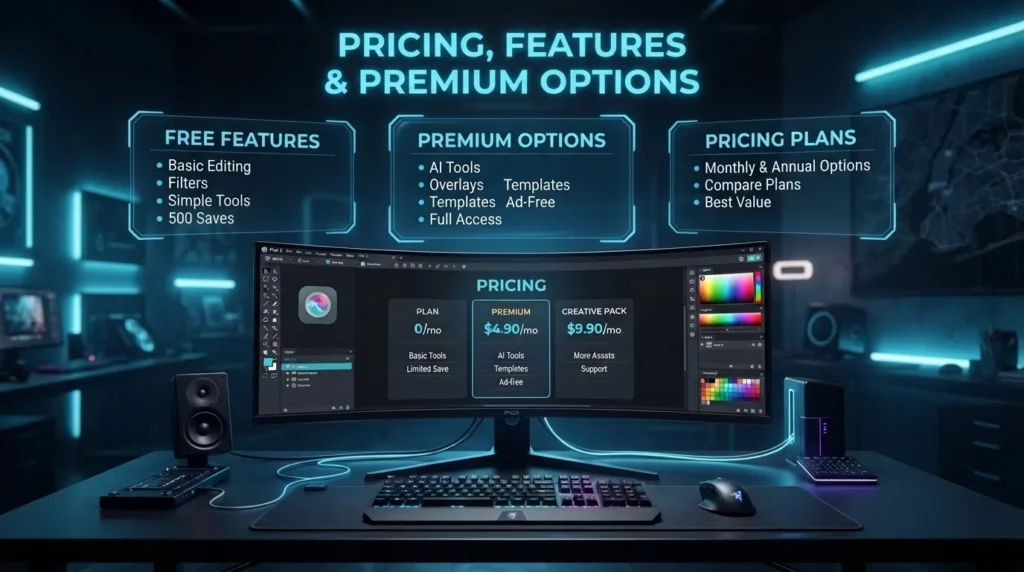
Pixlr provides free access to some editing capabilities, allowing users to explore its workflow without immediately committing to a paid plan. The available tools, AI features, assets, and usage limits can differ between free and paid access.
Premium options are designed for users who need broader access to editing resources and additional capabilities. Depending on the current plan structure, paid access may provide more creative assets, AI features, or fewer restrictions.
Pricing and included features can change over time, so users should check Pixlr’s current official plans before making a purchasing decision.
For occasional editing, the free experience may be enough for basic image adjustments and simple creative projects. Frequent creators may find additional value in paid features if they regularly need AI tools, premium assets, or expanded editing capabilities.
The right plan depends less on the number of available features and more on how frequently you edit and which tools your workflow actually requires. This is an important consideration when using this Pixlr Complete Guide to decide if the platform fits your needs.
Pixlr Advantages, Limitations and Best Uses
Pixlr has several qualities that make it useful for modern content creation. Its accessible workflow, broad editing toolkit, browser-based approach, and AI-assisted features make it suitable for a wide range of everyday image projects.
One practical advantage is the ability to combine traditional photo editing and creative design tasks. You can correct a photograph and then turn it into a social media graphic without necessarily moving to a completely different application.
Advantages
- Accessible browser-based editing
- Useful basic photo adjustments
- Creative filters and effects
- Text and graphic design tools
- AI-assisted editing features
- Background removal capabilities
- Suitable for social media content
- Useful for beginners and casual creators
Limitations
advanced workflow. Photographers and designers working on highly demanding projects may require deeper colour management, more specialised retouching tools, or extensive professional production features.
AI tools can also produce inconsistent results on difficult images. Fine details, complicated backgrounds, transparent objects, and unusual compositions may need manual correction.
Another consideration is that browser-based editing can depend on your internet connection and device performance. Large or complex projects may feel less convenient on slower hardware or connections.
Overall, Pixlr works best for users who value accessibility and creative flexibility and need a capable photo editor for everyday digital content. This Pixlr Complete Guide makes its strengths and limitations easier to evaluate before choosing an editing platform.
Why Choose Pixlr for Photo Editing
Pixlr stands out because it brings accessible editing tools and creative controls into one workflow. Instead of needing a highly complex professional editor for every task, you can use Pixlr for everything from quick corrections to social media graphics and creative image projects.
| Feature | How Pixlr Helps |
|---|---|
| Easy Photo Editing | Provides practical tools for cropping, resizing, colour adjustments, exposure correction, and other everyday edits. |
| Creative Controls | Filters, effects, overlays, text, and graphic elements allow you to create more personalised images. |
| AI Editing | AI-assisted tools can simplify tasks such as background removal, image enhancement, and creative image generation. |
| Background Removal | Helps separate subjects from their backgrounds for product images, portraits, thumbnails, and promotional designs. |
| Social Media Content | Makes it easier to prepare posts, thumbnails, promotional graphics, and other digital visuals. |
| Browser-Based Workflow | Lets you handle many editing tasks online without relying on a traditional desktop editing setup. |
| Flexible Editing | Supports both quick adjustments and more detailed projects involving layers, selections, and creative elements. |
| Beginner Friendly | Allows new users to start with simple tools before gradually exploring more advanced editing capabilities. |
In my practical view, Pixlr’s strongest use case is the middle ground between basic editors and advanced professional software. It provides enough flexibility for meaningful creative work while keeping many everyday tasks relatively approachable.
If your main goal is accessible online photo editing with modern creative capabilities, this Pixlr Complete Guide shows why Pixlr can be worth considering.If you are also exploring mobile focused photo editing, VSCO offers a different approach with its filters, presets, and streamlined editing tools.