Capture One Complete Guide: Photo Editing Features & Tools
Capture One is a professional photo editing and photography workflow application built around RAW processing, colour control, tethered capture, photo organisation, and precise image finishing. It is available for desktop workflows on macOS and Windows, with mobile editing and tethering on iPhone and iPad.
The biggest difference is that Capture One is not simply designed to make individual photographs look better. It is built to connect capture, review, organisation, editing, collaboration, and delivery into a controlled workflow. That makes it particularly relevant to studio photographers, commercial shooters, portrait photographers, product photographers, and creators who process large collections of RAW files.
This Capture One Complete Guide explains the main editing tools, RAW workflow, colour controls, masks, AI assisted features, tethering, Sessions, Catalogs, mobile editing, and export options so you can understand how the application fits into a real photography workflow.For more resources covering different editing software and practical workflows, explore our photo and video editing app guides.
What Is Capture One
Capture One is a professional photo editing and management application developed for photographers who need detailed control over colour, RAW conversion, image organisation, tethered shooting, and delivery. Its interface is built around a Browser for thumbnails and organisation, a Viewer for examining images, and Tool Tabs containing editing and workflow controls.
The application supports RAW files from hundreds of cameras, along with formats such as JPEG and TIFF. Capture One’s current Pro offering lists support for more than 550 cameras, while recent updates have continued expanding camera compatibility, including Hasselblad RAW support and additional Canon and Panasonic models.
A major strength is its flexible approach to working with photographs. You can use a Catalog for a larger long term library or a Session for an individual project, tethered shoot, or portable folder based workflow. Both approaches support non destructive editing, so your original image files are not permanently changed.
Capture One is also designed around customisation. Tool layouts, workspaces, shortcuts, Browser views, and other interface elements can be adjusted to suit different shooting styles and screen arrangements.
RAW Editing and Core Photo Adjustments
RAW processing is one of the main reasons photographers choose Capture One. A RAW file gives the editor more original image data to work with, which can be useful when correcting exposure, recovering tonal detail, controlling colour, or preparing an image for a more refined final look.
A strong Capture One Complete Guide should begin with these fundamental corrections because they influence almost every later stage of editing.
Exposure and High Dynamic Range
Exposure controls let you brighten or darken a photograph, while highlight and shadow adjustments help recover tonal information. HDR controls can also be used to shape the brightest and darkest areas without relying only on a global contrast slider.
White Balance
White Balance controls help correct unwanted colour casts and set the overall temperature and tint of a photograph. This is particularly useful for mixed lighting, studio work, indoor photography, and RAW files captured under changing conditions.
Levels and Contrast
Levels can help control black, midtone, and white points, while contrast adjustments provide broader control over tonal separation. Using these tools carefully can create stronger tonal definition without pushing every area to the same intensity.
Clarity, Structure and Sharpening
Clarity and Structure can increase perceived detail and local contrast, while sharpening is useful for improving edge definition. These tools are best applied according to the subject because too much local contrast can make skin, foliage, or fine textures look harsh.
Crop, Rotation and Keystone
Capture One includes cropping, rotation, and perspective correction tools. Keystone adjustments can help correct converging lines in architectural and interior photographs, while cropping lets you prepare images for different aspect ratios and delivery formats.
Histogram and Exposure Checking
The histogram provides a visual view of tonal distribution. It can help you identify clipping, underexposure, and overly bright areas before you move to more creative adjustments.
In practical editing, it usually makes sense to correct exposure, white balance, and major tonal problems before moving into detailed colour work. That creates a cleaner starting point for the rest of the workflow.
Colour Editing and Advanced Colour Control
Colour is one of Capture One’s most recognised areas. The Color Editor provides Basic, Advanced, and Skin Tone modes, allowing you to target broad colour groups or much narrower colour ranges without changing unrelated parts of an image.
Basic Color Editor
The Basic mode provides straightforward adjustments for common colour ranges. It is useful when you want to refine an overall hue or make a colour slightly richer or more subdued.
Advanced Color Editor
The Advanced mode gives you more precise control over selected colour ranges. You can sample a specific colour and adjust hue, saturation, and lightness within that range, which is useful for products, clothing, landscapes, and creative colour treatments.
Skin Tone Editing
The Skin Tone tool is designed for more controlled portrait colour correction. You can sample a skin colour and adjust hue, saturation, and lightness to create more consistent skin tones across an image set.
Color Balance
Color Balance gives you separate control over colour in shadows, midtones, and highlights. The mobile version also received Color Balance in the August 2026 update, expanding this type of colour correction beyond the desktop workflow.
Styles and Consistent Colour
For photographers processing a series, consistent colour often matters more than making one image look dramatic. Capture One lets you save looks as Styles and combine those starting points with individual corrections for each photograph.
The more advanced colour tools become especially useful when you need to maintain the appearance of a product line, portrait session, wedding collection, or commercial campaign.
Layers, Masks, AI Masking and Retouching
Capture One uses Layers and Masks to move beyond global adjustments. Instead of changing the entire frame, you can target a specific area and apply exposure, colour, sharpness, or other supported adjustments only where needed.
This is where a Capture One Complete Guide becomes particularly useful for photographers moving beyond basic sliders.
Brush and Gradient Masks
You can create masks by painting with a Brush or by using Linear and Radial Gradient tools. These masks are non destructive, so they can be refined later instead of forcing you to start again.
AI Subject and Background Masking
AI Masking can identify subjects and backgrounds automatically. Capture One also provides People Masking, AI Select, and AI Eraser, while Clothes Masking can isolate clothing on one or more people.
Combine Masks
Combined Masks allow multiple mask selections to be added, subtracted, or intersected. This can make complex local corrections easier to build while keeping the underlying masks editable.
Portrait Retouching
Capture One includes assisted retouching controls for tasks such as blemish removal, dark circle reduction, skin evening, contouring, eye adjustments, and teeth refinement. The editing approach is designed to work with sliders rather than requiring a long manual brush workflow for every face.
Healing and Cloning
Healing and Clone tools can help remove distractions or duplicate image areas. These tools are useful for portrait cleanup, product photography, and removing unwanted marks.
Recent updates also brought Enhanced Denoise, Color Balance, and Heal and Clone to mobile, extending more advanced correction work to iPhone and iPad.
Tethered Shooting and Studio Photography
Tethering is one of Capture One’s most important workflow features for studio and commercial photographers. It allows a compatible camera to connect to a computer or supported mobile device so photographs can appear in Capture One as they are taken.
The application combines tethering with camera controls, Live View on supported setups, Next Capture Adjustments, metadata, image review, and other workflow tools. Current plans also support features designed for client viewing and collaborative production.
This Capture One Complete Guide also needs to cover tethering because it can change how a professional shoot is reviewed and managed. Instead of waiting until the end of a session to discover repeated issues, photographers can inspect captured images while production is still happening.
The September 2026 updates expanded second generation wireless tethering to additional Canon cameras and introduced Assisted Review improvements that can flag issues such as closed eyes, missed focus, and black frames while a shoot is still in progress.
For a portrait or fashion shoot, this can create a faster review loop. The photographer can check focus, composition, colour, and expression on a larger screen while continuing to shoot.
Capture One also supports tethering on mobile, including wireless workflows for supported Canon cameras. Mobile tethering can be useful when a full desktop setup is not practical and you still want images to arrive on an iPhone or iPad workflow quickly.
Sessions, Catalogs and Photo Organisation
Capture One gives photographers two major ways to manage their image libraries: Sessions and Catalogs. The right choice mainly depends on whether you are managing an individual project or building a larger long term photo library.
| Organisation Feature | Sessions | Catalogs |
|---|---|---|
| Main Purpose | Individual shoots and self contained projects | Long term photo library management |
| Organisation Style | Folder based | Library and database based |
| Best For | Client jobs, studio shoots, tethered sessions, and separate projects | Managing images across many shoots and years |
| File Structure | Captures, Selects, Output, and Trash folders | Albums, Smart Albums, folders, and image references |
| Tethered Shooting | Well suited to active shoots | Can be used for broader library workflows |
| Portability | Easy to move as a complete project structure | Better suited to a central long term library |
| Ideal Workflow | One project at a time | Multiple projects in one searchable library |
A Session can be easier to move between systems because the project structure remains organised around its folders. This makes Sessions practical for short term production work and shoots that need to remain separate from a larger library.
Catalogs are better suited to photographers who need to search and organise images across many different shoots. They can store image references, adjustments, metadata, albums, Smart Albums, and other organisational structures.
A useful rule is simple: use a Session when the project itself is the main focus, and use a Catalog when the library is the main focus.
Rating, Tagging and Culling
Capture One provides ratings, colour tags, filters, keywords, and culling tools for reviewing image collections. Recent mobile updates also added Keywords and improved ways to find images on the go.
These organisation tools become increasingly valuable as your image library grows because editing quality depends partly on how quickly you can locate the right files, compare similar frames, and build coherent selections.
AI Tools and Assisted Editing Features
Capture One has gradually added AI and assisted editing features without moving away from its photographer focused control. The goal is generally to speed up repetitive decisions while leaving the final adjustments in the photographer’s hands.
The Capture One Complete Guide approach to AI should therefore treat these tools as workflow accelerators rather than automatic replacements for careful editing.
| AI or Assisted Tool | What It Does | Useful For |
|---|---|---|
| AI Masking | Identifies subjects, backgrounds, people, and other areas automatically | Creating targeted masks faster |
| AI Select | Helps isolate selected objects or areas | Local adjustments and object based editing |
| AI Eraser | Removes selected distractions from an image | Cleaning backgrounds and removing unwanted elements |
| Assisted Review | Helps identify issues such as closed eyes, missed focus, and exposure problems | Faster first pass image selection |
| Match Look | Uses a reference image as a visual starting point | Creating a consistent colour direction |
| Enhanced Denoise | Reduces noise while aiming to preserve texture and detail | High ISO and low light photographs |
AI Masking can identify subjects, backgrounds, people, clothing, and selected areas, reducing the time required to build masks manually.
AI Select helps isolate objects or areas for targeted edits, while AI Eraser can be used to remove selected distractions.
Assisted Review is designed to help with first pass image selection by identifying problems such as closed eyes, missed focus, and exposure issues. It is especially relevant for photographers working through large bursts or tethered captures.
Match Look can use a reference image as a visual starting point for another photograph. This can help photographers establish a similar colour direction before making their own refinements.
Enhanced Denoise uses AI noise reduction for high ISO images and is designed to reduce noise while preserving texture and skin detail. It was introduced in desktop workflows and later extended to mobile.
AI features work best when they remove repetitive work while you continue making the final creative decisions.
Styles, Presets, Batch Editing and Efficient Workflows
Photographers rarely edit every image completely from scratch. A consistent workflow usually starts with reusable adjustments, then applies individual corrections where needed.
Capture One supports Styles, adjustment copying, variants, batch editing, and other tools for making repeated work faster. Its official workflow documentation also covers copying adjustments and layers between selected images.
Custom Styles
A Style can store an editing look that you can apply as a starting point to other images. Styles are useful for maintaining a consistent visual direction across a project, especially when lighting conditions are similar.
Copy and Apply Adjustments
You can copy adjustments from one image and apply them to other selected images. This is useful for exposure, colour, crop, sharpening, and many other repeatable corrections.
Variants
Variants let you create multiple edit versions of the same source image without generating separate original files. This can be useful when preparing different colour treatments or export versions.
Batch Work
Batch editing is particularly effective when a group of photographs shares similar lighting and camera settings. The key is to use batch adjustments as a foundation, then inspect important images individually instead of assuming one set of corrections will work perfectly across the entire shoot.
A repeatable workflow can save more time than simply learning additional effects because it reduces repetitive decisions throughout the project.
Capture One Mobile, iPhone and iPad Editing
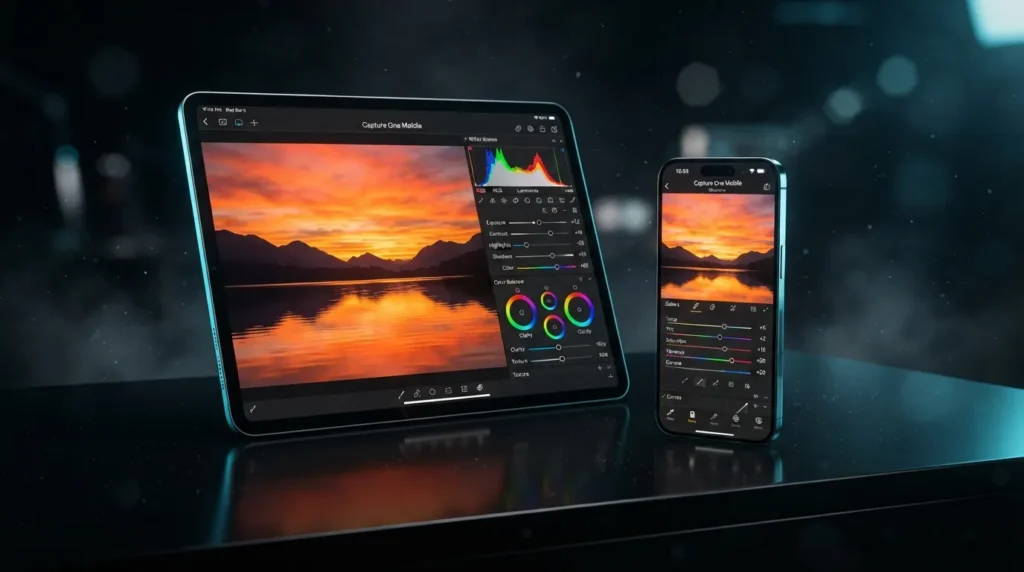
Capture One has expanded beyond desktop photography with a mobile application for iPhone and iPad. The mobile workflow includes editing tools such as Crop, Keystone, Enhanced Denoise, Color Balance, Heal and Clone, Exposure, White Balance, HDR, and Color Editor.
A useful part of the Capture One Complete Guide is understanding that mobile editing is no longer limited to basic adjustments. The August 2026 update expanded several advanced correction tools on mobile, including Enhanced Denoise, Color Balance, Heal and Clone, plus Keywords for image organisation.
Mobile tethering is another important part of the ecosystem. Supported cameras can connect wirelessly to iPhone or iPad so photographers can review captured images without remaining beside a desktop computer.
The practical benefit is flexibility. You can make edits on location, review images during a shoot, or continue post production away from your main workstation.
However, desktop Capture One remains the more complete environment for demanding library management, detailed editing, extensive tethered production, and complex professional workflows. Mobile makes the workflow more portable rather than replacing every desktop capability.Apple users exploring other mobile focused editors can also read our Photomator Guide for more information about RAW editing, AI tools, masking, colour adjustments, and Apple ecosystem integration.
Export, Pricing, System Requirements and Best Uses
Capture One offers several current plans aimed at different workflows. The Pro subscription is focused on desktop use, while All in One combines desktop, mobile, online collaboration, cloud shared settings, and other ecosystem features. A Studio plan adds additional tools for larger production environments, and a Mobile plan is available for iPhone and iPad workflows. Capture One also continues to offer a perpetual desktop license for users who prefer a one time purchase rather than depending on the newest updates.
Capture One supports macOS and Windows for desktop use, while its mobile application is designed for iPhone and iPad. Camera support and feature availability can vary by platform and plan, so photographers should check current compatibility information before choosing a workflow.
Export tools are built into the workflow for creating finished files in formats and sizes appropriate for clients, web publishing, social media, print, or further editing. The application also includes output options, metadata handling, and professional delivery tools as part of its broader workflow.
Who Should Use Capture One?
Capture One is particularly suited to:
- Studio and tethered photographers
- Commercial and product photographers
- Portrait and fashion photographers
- Wedding and event photographers processing large RAW collections
- Photographers who prioritise detailed colour control
- Creators who need both desktop and mobile photography workflows
It may be less suitable as a single application for users who mainly want simple mobile filters or who need a full video editing and motion graphics environment.For photographers focused on Apple based photo editing and library integration, our Darkroom Guide covers its RAW tools, colour controls, masking, batch editing, and Apple Photos workflow.
The strongest use case is a controlled photography workflow where capture, colour, organisation, retouching, review, and delivery all need to work together. If you regularly shoot tethered or process large RAW collections, Capture One’s workflow structure can be more important than any individual editing effect.For photographers and designers who also need photo editing, vector design, and page layout tools, our Affinity Complete Guide provides a closer look at that broader creative workflow.
Conclusion
Capture One brings RAW processing, advanced colour control, masking, retouching, tethered capture, image organisation, AI assisted tools, batch editing, and delivery into one photography focused ecosystem. Its combination of Sessions, Catalogs, Styles, layers, and colour tools gives photographers plenty of control over both individual images and complete shoots.
The most interesting direction in recent updates is the expansion of assisted editing and mobile capabilities. AI masking, Enhanced Denoise, Assisted Review, wireless tethering, and mobile versions of more advanced correction tools are making the workflow faster while retaining manual control.
The Capture One Complete Guide takeaway is simple: the application is built less around quick filters and more around a repeatable professional photography process. That makes it especially relevant for photographers who care about colour consistency, RAW quality, tethering, organised libraries, and efficient post production.
For someone choosing a photo editor, the right question is not simply how many tools an application offers. It is how well those tools fit the way you shoot, organise, edit, review, and deliver your work.