Adobe Lightroom: Complete Guide for Photo Editing 2026

Photography has changed dramatically with the growth of smartphones, mirrorless cameras, social media, and digital content creation. Today, photographers need more than a basic filter app to transform their images into polished, professional-looking photos. They need tools to organize large photo libraries, correct exposure, enhance colors, eliminate distractions, work with RAW files, create consistent styles, and share finished images across devices.
Adobe Lightroom has become one of the most recognized solutions for photographers who want a complete workflow to manage and edit their photos. For more guides, tutorials, and information on photo and video editing tools, explore UniversalEdit.
Unlike simple photo filtering apps, Adobe Lightroom combines photo organization and non-destructive editing into a single ecosystem. It allows users to import photos, adjust exposure and color, apply presets, create masks, remove unwanted objects, sharpen images, blur backgrounds, and prepare photos for different platforms. Adobe also continues to add artificial intelligence features that reduce repetitive editing tasks and help users achieve professional results faster.
What is Adobe Lightroom
Adobe Lightroom is a photography-focused organizing and editing platform developed by Adobe. It is designed for photographers, content creators, social media users, and professionals who need detailed control over their images without completely relying on complex compositing workflows. The software is available in desktop, mobile, and web experiences, allowing users to access and edit their photos from multiple devices.
One of its biggest advantages is its non-destructive editing approach. Instead of permanently changing the original photo, Lightroom stores editing instructions and allows users to return to the original image or modify settings later. This makes the workflow particularly useful for photographers who need to experiment with different styles without damaging their original files. Adobe describes the modern Lightroom ecosystem as a cloud-connected photography workflow where edits can be synced between compatible devices.
Adobe Lightroom desktop, mobile and web
Adobe Lightroom is available in several forms, including the cloud-focused desktop app, mobile apps, and a web-based experience. The cloud ecosystem is designed to make photos available on all devices, so users can start working on a computer and continue editing from a phone, tablet or browser. Changes made to supported sync photos can appear throughout the Lightroom ecosystem.
This cross-device workflow is especially useful for photographers who travel frequently or creators who capture photos on smartphones but prefer to make detailed adjustments on larger screens. The web version also provides access to photos and editing tools through a browser. For users who prefer a traditional desktop catalog-based workflow, Lightroom Classic remains a standalone application with its own organization and syncing capabilities.
Photo Organization and Library Management
Adobe Lightroom makes it easier to organize large photo collections without relying on complicated folder systems. You can import images into your library, create albums, arrange photos into folders, and sort them based on different criteria. This is especially useful for photographers who regularly work with hundreds or thousands of images.
The Adobe Lightroom library also includes tools such as ratings, flags, color labels, keywords, and metadata, helping users quickly identify their best photographs. You can mark important images as favorites, reject unwanted shots, and filter your collection based on specific attributes. These options make finding a particular photo much faster.
Another useful feature is search, which helps you locate images using keywords, dates, locations, and other available information. With an organized library, you can spend less time searching for files and more time editing them. This makes Adobe Lightroom a practical choice for photographers managing both personal collections and professional projects.
RAW Photo Editing
RAW photo editing is one of the most important strengths of Adobe Lightroom for photographers who want detailed control over their images. RAW files contain more original image information than compressed formats such as JPEG, giving you greater flexibility during editing. You can adjust exposure, white balance, highlights, shadows, contrast, and colors without heavily affecting the original file. This makes RAW editing especially useful for professional photography, landscapes, portraits, weddings, and challenging lighting conditions. With Adobe Lightroom, photographers can develop RAW images while keeping their original files safe.
Another advantage of RAW editing is the ability to recover details from difficult exposures. If a photograph contains overly bright highlights or dark shadows, you can often bring back useful information through careful adjustments. White balance can also be corrected after taking the photograph, which is helpful when the original lighting creates an unwanted color cast. The editing process remains non-destructive, allowing you to experiment with different settings and return to the original image whenever necessary.
Adobe Lightroom also supports advanced RAW workflows for photographers who need consistent results across large collections. You can apply presets to multiple RAW photographs, synchronize adjustments between similar images, and then fine-tune individual photographs when required. This can significantly reduce editing time during weddings, events, travel shoots, and other photography projects. Combined with color grading, masking, sharpening, and noise reduction, RAW processing gives photographers extensive control over the final appearance of their images.
Exposure and Basic Adjustments
One of the first editing stages in Adobe Lightroom is usually correcting the fundamental characteristics of a photograph. The editing controls allow users to adjust exposure, contrast, highlights, shadows, whites, and blacks. These tools provide control over the overall brightness and tonal balance of an image.
For example, if a photograph is slightly underexposed, increasing exposure can brighten the scene. If highlights appear too bright, lowering highlights can recover some visible detail. Shadows can be increased to reveal darker areas, while blacks and whites can be adjusted to create stronger tonal separation. These controls are simple enough for beginners but powerful enough to form the foundation of professional workflows.
Color Editing and Color Grading
Adobe Lightroom provides powerful color editing tools that allow photographers to control the mood, tone, and overall appearance of their images. You can adjust temperature, tint, vibrance, and saturation to correct unwanted color casts or create a specific visual style. These controls are useful for both simple corrections and creative editing. By balancing colors carefully, you can make photographs look more natural, vibrant, cinematic, warm, or cool depending on the desired result.
The HSL and Color Mixer tools provide more detailed control over individual colors in a photograph. You can adjust the hue, saturation, and luminance of specific color ranges without changing the entire image. For example, you can make blue skies deeper, enhance green landscapes, or reduce overly strong skin tones while keeping other colors unchanged. Adobe Lightroom also provides Point Color for more precise color selection and targeted adjustments, giving experienced users greater control over individual tones.
Color grading can then be used to create a consistent creative look across an entire collection of photographs. You can separately adjust the colors of shadows, midtones and highlights to produce different moods and visual effects. Warm highlights combined with cooler shadows can create a cinematic look, while softer tones can produce a subtle, natural look. With Adobe Lightroom, photographers can also save their preferred color settings as presets and apply them to multiple images for a consistent visual identity.
Professional tone control and curves
Adobe Lightroom includes a powerful Tone Curve tool that gives photographers precise control over an image’s brightness, contrast, highlights, midtones, and shadows. Unlike basic exposure sliders, curves allow you to make specific adjustments in specific tonal ranges. You can add control points to the curve and move them up or down to brighten or darken selected areas. This makes the tool useful for both subtle corrections and creative effects.
For example, creating a gentle S-curve can increase contrast by slightly darkening the shadows and brightening the highlights. It can also lift the bottom of the curve to create a faded or matte look, often used in lifestyle, portrait and film photography. Adobe Lightroom provides independent control over different tonal areas, allowing photographers to make adjustments without drastically changing the entire photograph.
Advanced users can also use RGB and individual color channels to create more creative color effects. Adjusting the red, green, or blue channels can change the color balance within specific tonal ranges and help create distinctive photographic styles. When combined with exposure, color grading, and masking tools, Adobe Lightroom curves provide detailed tonal control that can turn a flat photograph into a more balanced, visually appealing image.
Presets and editing styles
Presets are another important part of Adobe Lightroom. A preset is a saved collection of editing settings that can be applied to another photo. Presets are useful for photographers who want to maintain a consistent style across a large collection of images.
For example, a wedding photographer can develop a soft, warm preset and apply it to hundreds of photographs before making individual corrections. Travel creators can use presets to create a recognizable color style across different destinations. However, presets should not be considered a replacement for editing knowledge because different lighting conditions may require additional adjustments after applying a preset.
Adobe has also introduced film-inspired presets designed around a recognizable cinematic aesthetic, giving creators another way to quickly develop distinctive styles.
AI-Powered Editing Tools
Adobe Lightroom uses artificial intelligence to make many photo editing tasks faster and easier, especially those that would traditionally require detailed manual selections. AI-powered features can identify subjects, skies, backgrounds, people, and other important areas of a photo. This allows users to make specific adjustments without having to manually draw each selection. For beginners, these tools simplify complex editing tasks, while experienced photographers can use them to speed up their existing workflow.
One of the most useful applications of AI is automatic masking and subject selection. Adobe Lightroom can recognize different elements within an image and create masks that can be adjusted independently. For example, you can brighten a person’s face, darken the background, highlight the sky, or change the color of a specific area without affecting the rest of the photo. AI-powered masking is particularly useful for portraits, landscapes, travel photography, and other images where selective adjustments are important.
AI is also being used for tasks such as removing unwanted objects, reducing distractions, improving image detail, and finding photographs more efficiently. Features such as Generative Remove and AI-powered sharpening can reduce the amount of manual work required during post-processing. Adobe Lightroom continues to expand its AI capabilities, giving photographers faster ways to complete repetitive tasks while still allowing them to manually refine the final result.
Masking and Selective Editing
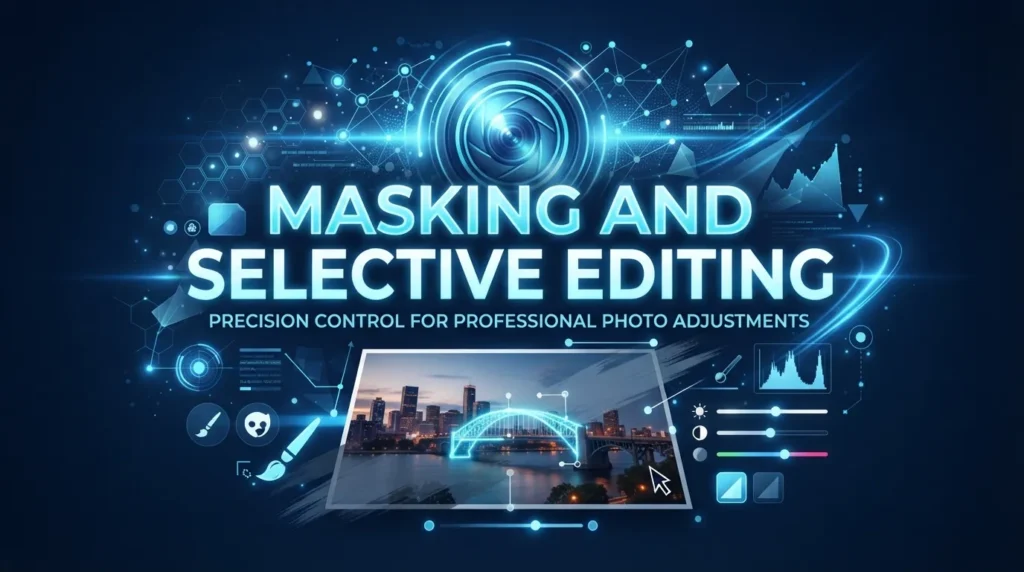
Adobe Lightroom provides masking tools that allow photographers to edit specific parts of an image without changing everything else. A photographer can select a subject, sky, background, or other area and then adjust exposure, color, contrast, sharpness, saturation, or other supported properties within that selection.
Masking is particularly valuable for portrait and landscape photography. A photographer could brighten a person’s face while keeping the background unchanged, darken the sky to create stronger drama, or increase the saturation of vegetation without affecting skin tones. Adobe has expanded AI-based masking capabilities and added more precise selection improvements over time.
AI Object Removal and Background Blur
Adobe Lightroom combines AI-powered object removal and background-blur tools to help photographers clean up images and create stronger visual focus. The Generative Remove feature, powered by Adobe Firefly technology, can remove unwanted objects and distractions from photographs while generating replacement areas that blend with the surrounding scene. This is useful for removing unwanted people, signs, objects, shadows, reflections, or other elements that take attention away from the main subject.
The object-removal tools are particularly helpful for travel, street, portrait, wedding, and landscape photography. For example, a photographer can remove an unwanted person from the background of a travel photograph or eliminate distracting objects from a busy street scene. Instead of manually rebuilding the background pixel by pixel, AI can handle much of the process automatically, while users can review the result and refine it when necessary. This makes Adobe Lightroom useful for both quick corrections and more detailed photo cleanup.
Along with removing unwanted elements, Lightroom’s Lens Blur tools can help create a stronger sense of depth by applying blur to background areas. This can make the main subject stand out more clearly and give an image a more polished appearance. Portraits, flowers, food photographs, products, and lifestyle images can particularly benefit from this effect because controlled background blur can direct the viewer’s attention toward the most important part of the composition.
Lens Blur also provides controls for adjusting the appearance and intensity of the blur, allowing photographers to create different visual styles. Depending on the image, you can produce a softer background, stronger subject separation, or a more noticeable bokeh effect. Combined with AI subject detection, these tools can make background adjustments easier without requiring complex manual selections.
Together, AI object removal and Lens Blur give Adobe Lightroom a practical combination of correction and creative tools. You can first remove distracting elements from a photograph and then enhance the background to make the main subject more prominent. These features reduce repetitive editing work while still allowing photographers to review, customize, and refine the final result for a natural-looking image.
Portrait Retouching and HDR Editing
Adobe Lightroom provides a versatile set of tools for improving portraits while also handling high-dynamic-range photographs. For portrait editing, photographers can adjust exposure, skin tones, facial areas, colors, contrast, and background elements using selective editing and masking tools. These controls make it possible to enhance a subject without applying the same adjustment to the entire photograph, helping maintain a more natural and balanced appearance.
For skin and facial refinement, Lightroom includes retouching options that can help reduce unwanted blemishes and distracting imperfections. AI-powered masking can also identify people and specific areas of a portrait, making it easier to brighten the face, improve skin tones, enhance eyes, or adjust the surrounding background. Adobe Lightroom allows photographers to keep these adjustments subtle, which is important when the goal is to improve a portrait without making the skin or facial features appear unnatural.
HDR editing provides another useful workflow for photographs containing a wide range of brightness levels. High Dynamic Range processing can help preserve detail in bright highlights while recovering information from darker areas of the image. This is especially useful for landscapes, sunsets, architecture, interiors, city scenes, and other situations where the difference between the brightest and darkest parts of a photograph is significant.
With Adobe Lightroom, photographers can use HDR capabilities to create a more balanced image while maintaining realistic colors and tonal detail. Instead of heavily brightening shadows or reducing highlights with basic adjustments, an HDR workflow can provide greater flexibility when working with high-contrast scenes. On compatible devices and workflows, Lightroom can also display and edit HDR content with a wider range of brightness and color than standard images.
Combining portrait retouching with HDR editing makes Lightroom suitable for many different photography workflows. A photographer can refine skin and facial details in a portrait while maintaining balanced exposure, or process a high-contrast environmental portrait where both the person and background contain important details. These tools give Adobe Lightroom flexibility for both everyday corrections and more advanced professional photo-editing projects.
Sharpening and Noise Reduction
Adobe Lightroom provides sharpening tools that help improve the clarity and perceived detail of photographs. Sharpening can make edges, textures, and fine details appear more defined, which is particularly useful for portraits, landscapes, architecture, product photography, and images that look slightly soft after capture. Lightroom provides controls such as Amount, Radius, Detail, and Masking, allowing photographers to control how strongly sharpening is applied and where it affects the image.
Noise reduction is equally important when working with photographs captured in low-light conditions or at high ISO settings. Digital noise can appear as unwanted grain, color speckles, or loss of fine detail, especially in darker areas of an image. Adobe Lightroom includes noise-reduction tools that can help reduce these distractions while preserving as much important image detail as possible. AI-powered Denoise can also be useful for compatible RAW files, helping photographers clean up noisy images more efficiently.
For the best results, sharpening and noise reduction should be used together rather than independently. Excessive sharpening can make noise and unwanted textures more noticeable, while aggressive noise reduction can make photographs appear overly smooth or lose fine details. Adobe Lightroom allows photographers to balance both adjustments according to the image, helping create a cleaner and sharper final result while maintaining a natural appearance.
Adobe Lightroom Across Mobile, Cloud and Professional Photography
Adobe Lightroom is designed to support photographers across mobile devices, desktops, and web-based workflows, making it useful for both casual photography and professional content creation. The mobile app provides essential editing controls such as exposure, white balance, crop, color, presets, selective adjustments, masking, detail enhancement, and AI-assisted tools directly on smartphones. This makes it particularly useful for social media creators who want to edit and publish photographs quickly after capturing them.
Lightroom also supports a wide range of cameras and lenses, allowing photographers who use dedicated equipment to import and process compatible RAW files. Adobe regularly expands camera and lens compatibility as new models enter the market, helping photographers maintain an up-to-date editing workflow. Cloud synchronization is another important part of the modern Lightroom ecosystem.
Users can synchronize supported photographs and edits across compatible desktop, mobile, and web environments, allowing them to continue working on their projects from different devices. For example, a photograph imported on a computer can become available on a mobile device, while supported edits can synchronize across connected Lightroom applications. The exact synchronization experience depends on the Lightroom version, account, storage, and subscription configuration, but the cloud-based workflow is designed to make photo collections more accessible and flexible.
This can be especially useful for photographers and creators who regularly switch between their computer, tablet, smartphone, and web browser. Adobe Lightroom also provides flexible sharing and export options for different types of photography projects. Users can prepare images for social media, websites, portfolios, messaging applications, client delivery, or personal storage by selecting appropriate file formats, dimensions, quality, and other available settings. Social media creators can also use Lightroom to establish a recognizable visual identity by applying consistent presets, color treatments, crops, and tonal adjustments across their content.
A travel creator might use warm colors and controlled contrast, while a fashion creator could focus on clean skin tones and stronger color separation. By combining mobile editing, cloud access, camera support, and flexible export options, Lightroom can provide a connected workflow from capturing an image to preparing its final version for publication. If you also create short-form video content, you can explore our TikTok Trending Try CapCut Template guide for ideas on creating trend-focused videos.
Adobe Lightroom Workflow, Comparisons and Performance
For beginners, Adobe Lightroom can initially appear complicated because it contains many professional editing controls. The easiest way to learn the software is to follow a gradual workflow rather than attempting to master every feature at once. Start by importing an image, correcting its crop and exposure, and then adjusting white balance, highlights, shadows, contrast, and basic color. Once these controls become familiar, users can progress to curves, HSL or Point Color, masking, presets, retouching, sharpening, noise reduction, and AI-powered features.
Professional photographers can build a more advanced workflow around importing, organizing, culling, rating, selecting, applying initial adjustments, synchronizing edits, creating masks, retouching important photographs, and exporting the completed collection. This structured process is especially useful for weddings, events, portraits, travel shoots, and commercial projects involving hundreds or thousands of images. Adobe Lightroom and Photoshop are both powerful Adobe applications, but they focus on different aspects of image creation.
Lightroom is primarily built around photography organization, RAW processing, non-destructive editing, color correction, presets, masking, batch adjustments, and efficient photo management. Photoshop is more suitable for advanced pixel-level manipulation, complex compositing, graphic design, detailed retouching, typography, and creating images from multiple visual elements. For users interested in easy graphic design and visual content creation, explore our Canva Complete Guide to learn more about its features and creative tools.
Many professional photographers use both applications as complementary tools rather than choosing one as a complete replacement for the other.
If you are also interested in learning about video editing workflows, you can explore our CapCut Complete Guide for information about editing tools, features, and workflows. Lightroom Classic is also different from the modern cloud-focused Lightroom application. Lightroom Classic uses a traditional desktop catalog and local-file workflow, while the newer Lightroom experience places greater emphasis on cloud synchronization and access across supported devices. The best option depends on whether a photographer prioritizes detailed local catalog management or convenient cross-device access.
The performance of Adobe Lightroom depends on the computer or mobile device, operating system, processor, graphics hardware, available storage, image resolution, and editing workload. Standard adjustments can generally be handled comfortably on modern devices, while large RAW files, HDR workflows, AI features, high-resolution displays, and demanding exports may require stronger hardware. GPU support is particularly important for Lightroom Classic because graphics hardware can contribute to display performance, image processing, and export acceleration.
Users working with large libraries should also maintain sufficient storage and keep their operating system and graphics drivers updated when appropriate. Lightroom can be a strong choice for beginners because automatic tools and presets make basic editing accessible, but mastering advanced masking, curves, color grading, RAW processing, and professional organization requires practice. Its combination of simplicity for basic tasks and depth for advanced workflows makes it suitable for users who want to grow their editing skills over time.
Adobe Lightroom Advantages, Limitations and Improvements for 2026
One of the biggest advantages of Adobe Lightroom is that it combines photo organization and professional editing within one connected workflow. Photographers can manage large collections, process RAW files, create presets, correct colors, adjust exposure, use masks, remove unwanted objects, apply background effects, reduce noise, enhance details, and prepare images for different platforms. AI-assisted features can reduce repetitive work, while manual controls are still available for users who want precise creative control.
Support for mobile editing, cloud sync, web access, camera and lens support, and flexible export options further increase its usefulness. These features make Lightroom suitable for a wide range of users, including beginners, social media creators, portrait photographers, wedding photographers, travel creators, and professional studios.
For users looking for an easy-to-use AI-based photo design and editing platform, explore our Fotor Complete Guide to learn more about its editing tools and features. Creators working with romance or relationship content can also explore our Love CapCut Template guide for short-form video ideas.
Despite its strengths, Adobe Lightroom has some limitations that users should consider before making it their primary editing application. Its wealth of controls can create a learning curve for beginners, especially when moving from basic adjustments to advanced masking, curves, color management, and professional RAW workflows. Lightroom is also not designed to replace all the features found in Photoshop or specialized graphic design software.
Users who need complex compositions, advanced typography, extensive graphic design, or highly detailed pixel-by-pixel manipulation may need another application in addition to Lightroom. Cloud-based workflows also require users to understand synchronization and storage before importing very large libraries. Learning how local files, catalogs, cloud storage, and synchronized edits work can avoid confusion when managing a large collection of photos.
The development of Adobe Lightroom in 2026 has placed significant emphasis on artificial intelligence, faster editing, improved organization, and creative flexibility. Recent updates have included AI-assisted sharpening, improved subject selection, improved retouching, film-inspired presets, natural language search improvements, human-centric selection features, additional support for cameras and lenses, and tools designed to make photo organization more efficient.
Adobe has also introduced creative capabilities like Generate Video to add motion to photos, along with improvements to existing editing and sharing workflows. These developments show how Lightroom increasingly combines traditional photography controls with intelligent automation. However, the best results still depend on the quality of the original photograph and the photographer’s editing decisions. To get consistently strong results, start with good source material, make subtle corrections rather than excessive adjustments, use presets as starting points rather than final answers, carefully review AI-generated results, and follow a repeatable workflow from import and selection to editing, retouching, and final export.
Final Verdict
Adobe Lightroom is a complete and powerful photo editing ecosystem designed for modern photographers. It combines advanced RAW processing, professional color grading, presets, curves, masking, HDR editing, sharpening, noise reduction, artificial intelligence tools, object removal and detailed photo organization in a single platform. Its support for mobile, desktop, and web apps, along with cloud sync and flexible export options, makes it very convenient for users who want a seamless, connected editing workflow across multiple devices.
For beginners, Lightroom offers a simple learning path where you can start with basic settings like exposure, contrast, white balance, and cropping before moving on to advanced tools like masking, color grading, and AI-based editing. For professionals, it provides a complete system to manage large photo libraries, apply consistent edits, and handle high-volume workflows efficiently. With continued improvements in 2026, especially in AI features and workflow optimization, Adobe Lightroom remains one of the most trusted and future-proof tools for photographers of all levels.