
iMovie: Complete Guide, Features, Tools & Editing 2026
If you are looking for a simple way to create polished videos without dealing with complicated professional editing software, iMovie is one of Apple’s most accessible options. If you are looking for a simple way to create polished videos without dealing with complicated professional editing software, iMovie is one of Apple’s most accessible options for video creation. You can also explore more photo and video editing apps for different editing needs. It provides a clean interface, timeline editing, transitions, titles, music, filters, sound effects, green-screen tools, and other useful features for creating videos on Apple devices.
The software is designed for beginners but includes enough creative controls for everyday video projects. You can combine clips, trim unwanted sections, improve audio, add text, apply visual effects, and export finished videos for social media, presentations, family projects, or YouTube. Its straightforward workflow makes video editing much easier for people who do not have professional editing experience.
What Is iMovie
iMovie is Apple’s video editing application designed for creating and editing videos on compatible Apple devices. It allows users to import video clips and photos, arrange them on a timeline, trim footage, add transitions, insert titles, adjust audio, and apply visual effects. The interface focuses on simplicity, making common editing tasks easy to understand.
One of the biggest strengths of iMovie is its integration with Apple’s ecosystem. Users can work with media captured on an iPhone, iPad, or compatible Mac and turn those recordings into organized video projects. This makes it particularly convenient for people who already use Apple devices for photography and video recording.
iMovie can be used for many different types of projects, including family videos, travel memories, school assignments, social media clips, presentations, tutorials, and basic YouTube content. It does not attempt to compete directly with advanced professional applications in terms of complex features, but its simple workflow makes it an excellent starting point for learning the fundamentals of video editing.
Video Editing and Timeline Tools
iMovie provides a timeline-based editing workflow where users can arrange video clips, photographs, music, and other media in a logical sequence. You can drag clips into the timeline, change their order, trim unnecessary sections, split footage, and remove unwanted portions. This makes it possible to build a complete video without complicated editing procedures.
The trimming tools in iMovie are useful for removing mistakes, pauses, unwanted camera movement, or sections that do not contribute to the story. Users can also split clips into smaller sections and rearrange those sections to improve the pacing. This simple approach allows beginners to understand important editing concepts such as sequencing, timing, and continuity.
Another useful aspect of iMovie is the ability to combine different types of media in one project. Video recordings can be mixed with photographs, titles, background music, and sound effects. This flexibility makes the timeline suitable for projects ranging from simple family movies to more structured presentations and social media videos.Users who want to explore another mobile-focused editing workflow can also learn more about the KineMaster video editor, which offers additional tools for creating and editing videos.
Titles, Transitions and Visual Effects
iMovie includes built-in titles that can be added to videos to introduce subjects, display names, create opening screens, or provide additional information. Users can choose from available title styles and customize the text according to the project. Titles can help make videos easier to understand while giving them a more organized appearance.
Transitions are another useful part of iMovie. They can be placed between clips to create smoother changes from one scene to another. Simple transitions can be particularly useful for travel videos, photo slideshows, presentations, and storytelling projects where abrupt cuts may feel less suitable.
iMovie also includes visual effects and filters that can change the appearance of video footage. These effects can help create different moods or give clips a more polished look. However, using effects carefully is important because excessive effects can distract viewers from the main content and make a video feel less natural.
Audio Editing and Music
Audio is an important part of video production, and iMovie provides tools for adding and managing sound within a project. Users can add background music, recorded narration, sound effects, and the original audio captured with video clips. Audio elements can be positioned along the timeline to match specific moments in the video.
One useful feature of iMovie is the ability to adjust audio levels so that dialogue remains understandable while background music stays at an appropriate volume. This is particularly important for tutorials, presentations, interviews, and videos containing spoken narration. Proper audio balancing can make a simple video feel much more professional.
iMovie also provides sound effects and music options that can help creators add atmosphere to their projects. Music can be used to create energy, emotion, or continuity between different scenes. Users should still pay attention to music licensing and usage rights when publishing videos publicly, especially on platforms where copyrighted audio can create restrictions.
Green Screen, Picture-in-Picture and Creative Tools
iMovie includes several creative tools that allow users to create more advanced-looking videos without requiring professional editing knowledge. Green-screen editing, for example, can be used to place a subject in front of a different background. This can be useful for presentations, educational videos, creative projects, and simple visual effects.
Picture-in-picture is another useful feature available in iMovie. It allows one video clip to appear over another clip, making it possible to create commentary videos, demonstrations, tutorials, reactions, or presentations with multiple visual elements. Users can position and adjust the overlaid video to create the desired composition.
The application also provides other editing controls that help users improve the appearance and structure of their projects. Combining multiple clips, photos, titles, transitions, and audio elements allows creators to produce videos that feel more organized. These tools provide a useful introduction to concepts that are also found in more advanced video editing applications.
iMovie Features for Beginners
For beginners, iMovie provides a relatively straightforward workflow that reduces the complexity often associated with video editing. Instead of presenting users with a large number of advanced panels and technical controls, it focuses on commonly needed functions such as trimming, arranging, titles, transitions, music, and basic visual adjustments.
Key features that make the application approachable include:
- Simple timeline editing: Arrange and trim clips with an easy drag-and-drop workflow.
- Built-in titles: Add headings, captions, introductions, and other text elements.
- Transitions: Create smoother changes between scenes.
- Music and sound effects: Add background audio and improve the atmosphere of a project.
- Green-screen editing: Replace a selected background with another video or image.
- Picture-in-picture: Place one video over another.
- Filters and effects: Adjust the visual appearance of footage.
- Movie templates: Use structured editing styles to create projects more quickly.
These features make iMovie a practical starting point for users who have never edited video before. Instead of learning advanced color grading, complex compositing, or professional audio mixing immediately, beginners can first understand the basic principles of cutting, sequencing, storytelling, and audio synchronization.If you want to compare iMovie with another beginner-friendly editing option, our guide to VN Video Editor explains its timeline editing, effects, transitions, keyframes, and other video editing features.
iMovie for YouTube and Social Media
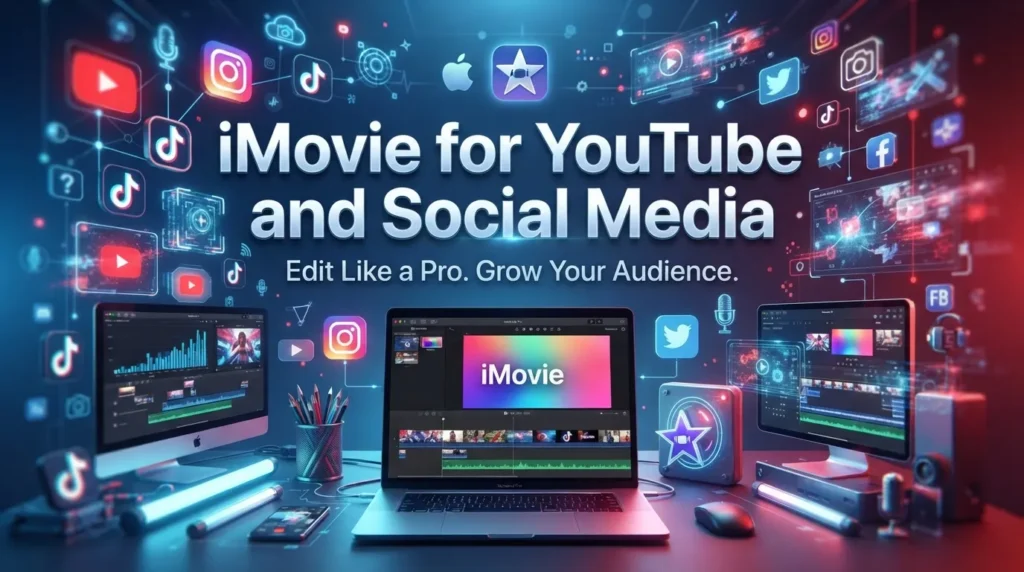
iMovie can be useful for creators who produce straightforward content for YouTube and social media. Users can combine recordings, add titles, improve audio, include background music, and export the finished project for online publishing. This workflow works particularly well for tutorials, vlogs, travel videos, personal projects, and simple educational content.
For social media creators, iMovie can help turn several short recordings into one organized video. You can remove unnecessary sections, arrange clips around a central idea, add text to explain important points, and use music to improve pacing. The final result can then be exported in a format suitable for the intended platform.Creators who want to explore more tools for short-form and social media content can also check our CapCut video editor guide for information about its editing features, effects, transitions, and creative tools.
The application can also be useful for beginners who want to understand video editing before moving to more advanced software. Learning how to cut footage, organize a timeline, synchronize audio, use transitions, and create a visual story provides a foundation that can later be applied to professional applications such as Final Cut Pro or other advanced editors.
Export, Sharing and Apple Ecosystem
iMovie provides export and sharing options that allow completed projects to be saved and distributed for different purposes. Users can prepare videos for personal storage, online publishing, social media, presentations, or sharing with friends and family. Available export options can depend on the device and current version of the application.
The integration of iMovie with Apple’s ecosystem can make moving between devices more convenient. A creator can record footage using an iPhone and then use an iPad or Mac for additional editing, depending on the supported workflow. This can be particularly helpful for users who capture most of their content using Apple hardware.
Another advantage is the familiar experience across Apple’s software ecosystem. Users who already understand basic Apple applications may find the interface easy to navigate. For simple projects, this combination of accessibility, media management, editing tools, and sharing options can provide an efficient way to move from recording to a finished video.
Advantages and Limitations of iMovie
The main advantages of iMovie are its simple interface, beginner-friendly workflow, Apple ecosystem integration, timeline editing, titles, transitions, audio tools, visual effects, green-screen functionality, and straightforward project creation. It can handle many everyday video editing tasks without requiring users to understand complicated professional workflows.
Some of its main strengths include:
- Easy-to-understand editing interface
- Timeline-based video editing
- Built-in titles and transitions
- Music and sound-effect support
- Green-screen editing
- Picture-in-picture functionality
- Filters and visual effects
- Integration with Apple devices
- Suitable tools for beginners
- Useful for personal and social media projects
However, iMovie has limitations for users who need highly advanced professional editing capabilities. Compared with applications such as Final Cut Pro, DaVinci Resolve, and Premiere Pro, it offers fewer advanced controls for professional color grading, complex audio production, advanced motion graphics, sophisticated compositing, and large-scale production workflows.
For this reason, iMovie is best suited to beginners, students, casual creators, families, and users who need a straightforward editor. People producing highly complex commercial, cinematic, or broadcast projects may eventually need more advanced software with deeper control over every part of the production process.
Conclusion
iMovie is a capable and accessible video editing application for Apple users who want to create polished videos without dealing with an intimidating professional interface. Its combination of timeline editing, trimming, titles, transitions, music, sound effects, filters, green-screen editing, and picture-in-picture tools provides everything many beginners need for everyday projects.
For new editors, iMovie provides an excellent way to learn fundamental video editing skills and understand how footage, audio, transitions, and storytelling work together. It is also useful for YouTube videos, travel projects, family movies, school assignments, presentations, and social media content. Users who eventually require more advanced features can take the skills learned in iMovie and apply them to professional editing applications.

2 Comments