GoPro Quik Complete Guide: Features, Tips & Editing
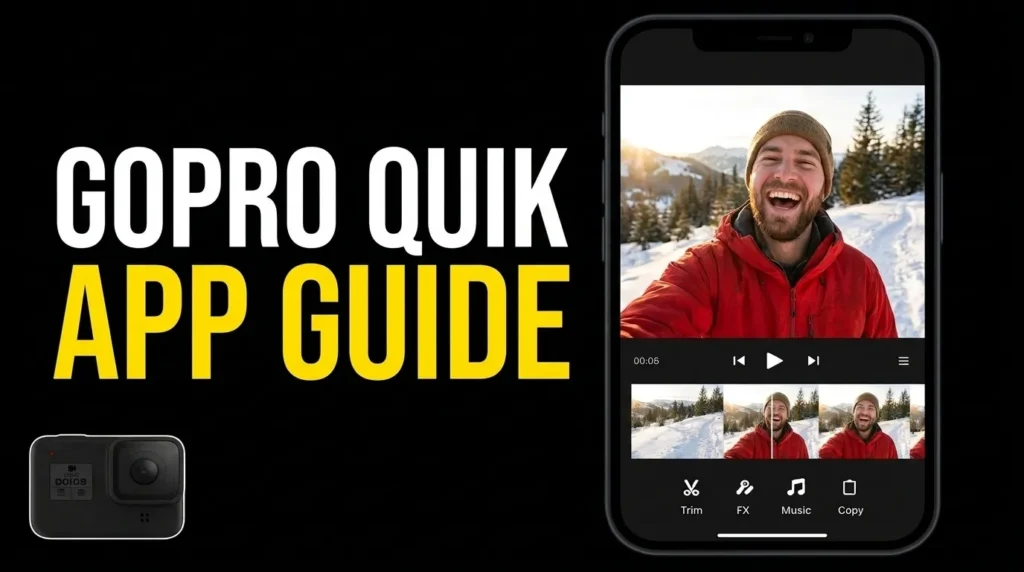
GoPro Quik is a photo and video editing app developed by GoPro for creators who want to turn everyday recordings, travel footage, sports clips, and adventure videos into polished content without spending hours editing. It combines automatic video creation, music synchronization, filters, themes, speed controls, photo adjustments, and cloud based media management in one editing workflow. The app works with GoPro footage and compatible media from smartphones and other cameras, making it useful for beginners, travelers, vloggers, and action sports enthusiasts.
This GoPro Quik complete guide explains the app’s main features, editing tools, supported 360 video capabilities, subscription options, practical workflow, advantages, and limitations. It also covers how to use its tools effectively so you can decide if the app suits your creative needs.If you want to explore more editing tools beyond GoPro Quik, visit our guide to photo and video editing apps to discover options for different devices, editing styles, and skill levels.
What Is GoPro Quik
GoPro Quik is a video editor and media management application designed to simplify the process of organizing, editing, and sharing photos and videos. Instead of requiring users to build every edit manually, it can automatically select footage, arrange clips, synchronize edits with music, and apply transitions and visual styles. Users can also make their own adjustments to create a more personal result.
The app is especially useful for people who record outdoor adventures, cycling trips, hiking, water sports, vacations, family occasions, and everyday activities. GoPro camera owners can connect their footage to the editing workflow, while smartphone users can work with compatible media already saved on their devices.
Unlike a full professional editing suite, Quik prioritizes speed and convenience. Its automated tools help beginners create shareable videos, while its manual editing options provide additional control over framing, color, speed, music, and visual effects. This balance makes the GoPro Quik complete guide relevant to both new creators and experienced users looking for a quicker editing process.
GoPro Quik Main Features at a Glance
The app combines standard editing tools with automated creation, cloud services, and specialized 360 video features. The exact availability of individual tools depends on the device, app version, subscription, and supported camera.
| Feature | What it does | Best use |
|---|---|---|
| Automatic video editing | Builds edits from selected photos and clips | Quick travel and adventure videos |
| Music synchronization | Matches edit points to music beats | Reels, Shorts, and montages |
| Themes and transitions | Applies coordinated visual styles | Consistent video presentation |
| Filters and color adjustments | Changes the appearance of footage | Enhancing outdoor and lifestyle clips |
| Trim and crop | Removes unwanted footage and adjusts framing | Cleaning up recordings |
| Speed controls | Speeds up or slows down clips | Action highlights and dramatic moments |
| Frame Grab | Extracts a still image from a video | Capturing a memorable moment |
| Cloud backup and syncing | Stores supported media and syncs projects | Managing footage across devices |
| 360 Reframe | Converts selected views from compatible 360 footage into conventional video | Immersive action content |
| Keyframes and CameraFX | Controls motion and creates dynamic 360 effects | Creative camera movements |
These features are documented across GoPro’s official product and support pages. Some advanced options and cloud benefits require a qualifying subscription.
Automatic Video Editing and Highlight Creation
One of Quik’s most useful features is its ability to turn a collection of recordings into a finished video with less manual work. Users can select photos and clips, start an edit, and let the app combine the selected media with music, transitions, and a visual theme. After the first version is created, users can adjust clip selection, rearrange footage, and personalize the result.
The automatic workflow is particularly useful after a trip or sporting event, when you may have dozens of clips but only want to share the most memorable moments. Eligible GoPro subscribers can also receive automatic highlight videos from supported footage uploaded to GoPro Cloud. GoPro documents specific requirements for these highlights, so availability should not be assumed for every import or device.
| Automatic editing tool | How it helps |
|---|---|
| Auto Edit or Studio Edit workflow | Creates an initial edit from selected media |
| Automatic music matching | Coordinates clip changes with the soundtrack |
| Theme selection | Applies a consistent look, transitions, and effects |
| Clip rearrangement | Lets you change the order of your story |
| Highlight suggestions | Surfaces potential edits from supported camera or phone media |
A useful practical tip is to choose footage with a clear beginning, middle, and ending before generating an edit. Automatic editing saves time, but selecting relevant clips usually makes a bigger difference than applying more effects.
Music, Beat Sync, Themes, and Transitions
Music can change the energy of a video, and Quik includes tools that help creators coordinate visuals with a soundtrack. Its beat synchronization feature analyzes the selected music and aligns important edit points with the rhythm. This can make a montage feel more deliberate without requiring users to place every cut manually.
Themes combine visual elements such as transitions, effects, and music into a coordinated style. They provide a convenient starting point for travel recaps, family videos, outdoor adventures, and social media posts. Depending on the available version and subscription, users can choose from a selection of themes and music options.
| Music and styling feature | Practical benefit |
|---|---|
| Beat Sync | Helps align edits with the rhythm |
| Built in music library | Provides soundtrack options inside the app |
| Personal music | Allows compatible user supplied tracks |
| Themes | Applies a coordinated visual style |
| Transitions | Makes changes between clips feel smoother |
| Filters | Helps create a consistent look across footage |
Music availability can vary by platform, region, and subscription. Before publishing a video commercially, check the applicable music license and platform rules rather than assuming every included track is cleared for every use.
Video Editing Tools, Speed Controls, and Image Adjustments
Quik includes essential editing controls for creators who want to refine individual clips after generating an automatic edit. You can shorten a recording, change its framing, adjust its speed, modify its appearance, and manage its audio. These tools help remove distractions and make footage fit the purpose of the final video.
The main manual editing options include:
- Trim: Remove unwanted sections from the beginning or end of a clip.
- Crop and aspect ratio: Reframe footage for different viewing formats.
- Rotate and flip: Correct the orientation of a recording.
- Speed adjustment: Create slower or faster playback.
- Speed ramping: Change speed across sections of a clip when the premium Speed Tool is available.
- Freeze Frame: Hold a moment on screen to emphasize an action.
- Exposure and contrast: Improve the brightness and tonal balance of footage.
- Vibrance and highlights: Refine color intensity and bright areas.
- Volume control: Adjust the original clip’s audio.
- Filters: Apply different visual treatments to photos and videos.
- Stickers and text overlays: Add simple decorative or informational elements where supported.
- Frame Grab: Extract a still image from a video.
For a more polished result, start by correcting the clip’s framing and exposure. Add speed effects and filters after the basic image looks right. This order helps avoid relying on effects to disguise footage that needs a simple correction.If your creative projects also involve detailed photo editing or graphic design, explore our Affinity Complete Guide for more information about its creative tools and image editing workflow.
360 Video Editing, Reframe, Keyframes, and CameraFX
Quik stands out from many general purpose mobile editors because it supports creative editing for compatible GoPro 360 footage. Rather than treating a 360 recording as a fixed camera angle, users can choose a view and turn the spherical recording into a conventional video. This allows a single recording to produce different perspectives without needing to repeat the original action.
The GoPro Quik complete guide would be incomplete without these specialized tools, particularly for people using a compatible GoPro MAX camera.
| 360 editing feature | What it offers |
|---|---|
| Reframe | Selects a view from 360 footage and exports conventional video |
| MotionFrame | Lets you explore different angles by moving your phone while reviewing compatible footage |
| Keyframes | Defines view or framing positions at selected points in time |
| AI object tracking | Helps keep a selected subject in view |
| CameraFX | Adds dynamic camera movements such as spins, rolls, flips, and Tiny Planet effects |
| POV tools | Can use supported camera data to create a view that follows the direction of travel |
| Digital lens options | Changes the look and perspective of compatible 360 footage |
These features depend on compatible footage, supported devices, and the installed version of Quik. They are not standard options for every ordinary video file.
For the best result, place keyframes at moments where the subject or direction changes. Too many rapid movements can make an edit difficult to watch, while a few carefully placed points create a smoother sense of motion.
Cloud Storage, Auto Upload, and Cross Device Sync
Cloud services are an important part of the Quik experience for subscribers. Supported GoPro footage can automatically upload to the cloud, while photos, videos, and edits can be backed up and synchronized to make them easier to access across supported devices. Cloud based editing can also reduce the need to download every original file to a phone before starting an edit.
The exact storage benefits depend on the subscription. GoPro advertises unlimited cloud storage for GoPro footage and up to 500 GB for footage from other cameras on qualifying plans. Check the current plan terms before relying on a particular storage allowance.
This part of the GoPro Quik complete guide is especially relevant to creators who record long outdoor sessions or regularly move between a camera and a phone.
Cloud features can help you:
- Back up important footage: Reduce dependence on a single device, subject to upload completion and plan terms.
- Save local storage: Use supported cloud editing workflows without downloading all original media first.
- Continue projects across devices: Access synchronized media and edits on compatible devices.
- Organize recordings: Keep footage together for easier editing and review.
- Create automatic highlights: Use supported Auto Upload workflows to generate highlights from eligible media.
Cloud storage is not a substitute for checking backups. Confirm that important files have uploaded successfully before deleting local copies, and remember that uploading large video files requires a reliable internet connection.
How to Use GoPro Quik to Create a Video
Getting started is straightforward, even if you have never used a video editor before. The app can create an automatic edit for you, or you can build a project and make changes manually. The following workflow is a practical starting point for a travel montage, an action clip, or a social media video.
- Install the app: Download GoPro Quik from the official app store for your supported device.
- Import your media: Select compatible footage from your phone or connect and transfer media from a supported GoPro camera.
- Choose your clips: Select the most useful moments rather than including every recording.
- Create an edit: Use the automatic editing workflow or begin a project you can customize.
- Choose music and a theme: Pick a soundtrack and style that match the mood of the footage.
- Refine the sequence: Trim clips, change their order, and remove moments that interrupt the story.
- Adjust the visuals: Correct framing, exposure, color, and speed where necessary.
- Review the soundtrack: Check the balance between music and original audio, especially when speech is important.
- Preview the full video: Watch from beginning to end to spot abrupt transitions, awkward crops, or unnecessary effects.
- Save and share: Export the finished video using the available options, then review the result before posting it.
For social media, choose an aspect ratio that suits the destination platform. Vertical framing often works well for short form mobile content, while landscape framing is usually more suitable for conventional travel films and YouTube videos. Keep important subjects away from the edges so they are less likely to be cropped by platform interfaces.
Advantages and Limitations of GoPro Quik
Quik is designed to make editing quicker, but no single app is ideal for every project. Its biggest strengths are convenience, automatic editing, GoPro integration, and specialized 360 workflows. Its limitations become more noticeable when a project requires complex timelines, extensive audio mixing, detailed compositing, or highly specialized color grading.
| Advantages | Limitations |
|---|---|
| Automatic edits help beginners get started | Automated choices may need manual refinement |
| Music synchronization speeds up montage creation | Music and premium tools can depend on subscription terms |
| Designed to work with GoPro footage | Some advanced features require compatible GoPro media |
| Useful 360 Reframe and motion tools | 360 editing is not available for every file or device |
| Basic trimming, speed, and color adjustments | Not a replacement for a full professional post production suite |
| Cloud workflows can simplify media access | Uploading and syncing depend on internet access |
| Themes and filters simplify styling | Presets can make different videos look similar if used without adjustments |
A useful takeaway from this GoPro Quik complete guide is that automation works best as a starting point, not as a guarantee of a finished professional edit. For a quick highlight reel, the app may handle much of the work. For a documentary, commercial, or complex narrative project, a dedicated desktop editor may provide more precise control over the timeline, audio, color, and effects.If you prefer a browser based editing workflow, explore our Clipchamp video editor guide to learn about its editing tools, features, and practical uses.
Compatibility, Subscription Options, and Who Should Use It
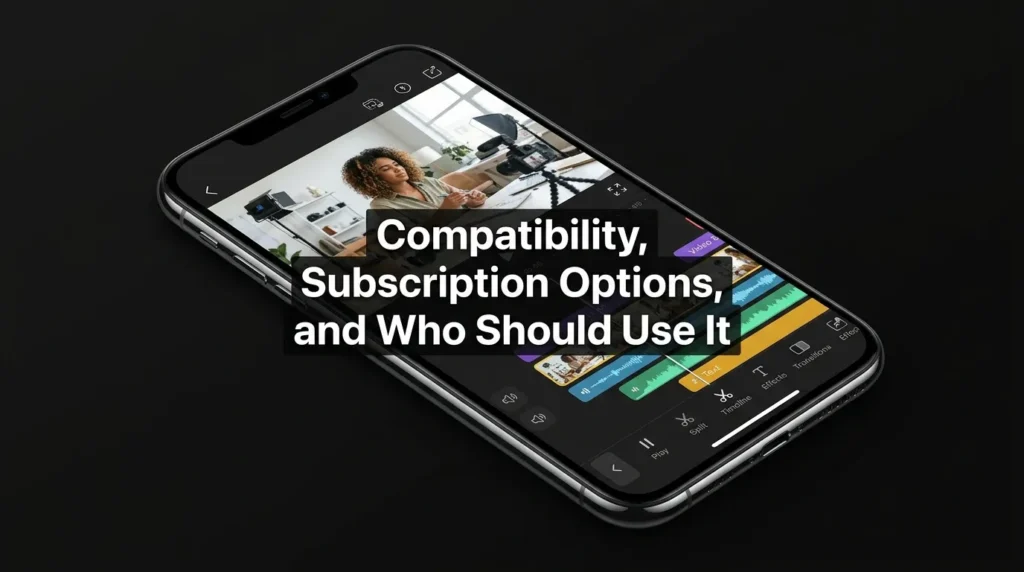
GoPro Quik is available for supported iOS and Android devices, and GoPro also offers a desktop version for macOS. Feature availability differs between platforms, so users should check the current official requirements before installing it or planning a cross device workflow.
The mobile app includes free editing capabilities, while subscriptions unlock additional tools and benefits. GoPro’s published feature breakdown lists free tools such as trimming, filters, frame adjustments, speed controls, and frame grabs, with premium options including additional themes, a larger music library, and expanded editing access. GoPro camera owners may also receive certain additional features. Exact entitlements can change, so confirm the current details on GoPro’s official pages.
Who will benefit most?
- GoPro owners: People who want to transfer, organize, edit, and share action camera footage.
- Travelers: Users who want to turn trip recordings into a highlight video without a long editing session.
- Sports and adventure creators: People who record cycling, hiking, surfing, skiing, or other active experiences.
- Beginners: Anyone who prefers automated edits and ready made themes over a complicated timeline.
- 360 camera users: Creators who want to reframe compatible 360 footage and experiment with camera movement.
- Social media creators: Users who need a faster way to produce short, music synchronized videos.
Creators who mainly edit short videos for social media can also explore the InShot video editing app. It offers another mobile editing workflow for creating engaging videos, making it worth comparing with GoPro Quik based on your preferred tools and editing style.
Quik may be less suitable as a primary editor for professionals who need extensive multi track editing, advanced sound design, intricate motion graphics, or detailed control over every frame. In those cases, tools such as Adobe Premiere Pro or DaVinci Resolve can complement Quik in a broader production workflow.
Conclusion
GoPro Quik is a practical choice for creators who want to turn raw footage into engaging videos with less manual effort. Its automatic editing, beat synchronization, themes, filters, speed controls, cloud services, and 360 video tools cover a wide range of everyday editing needs. Beginners can create a highlight video quickly, while more experienced users can refine the result with manual adjustments and specialized reframing tools.
The most effective way to use Quik is to combine its automation with your own creative judgment. Choose meaningful footage, keep transitions purposeful, adjust the framing carefully, and select music that fits the story. This GoPro Quik complete guide shows that the app is particularly valuable for action camera users, travelers, and mobile creators who prioritize speed and convenience. For more demanding productions, a professional desktop editor may still be necessary, but Quik offers a useful starting point for creating and sharing memorable videos.