Facetune Complete Guide: Features, Tools & Editing Tips

Facetune is a photo and video editing app designed for people who want to enhance portraits, retouch selfies, improve lighting, apply makeup effects, and create polished social media content. It combines AI powered editing tools with manual adjustments, allowing users to make quick improvements or fine tune specific details. Depending on the app version and subscription, its tools can include skin smoothing, blemish removal, teeth whitening, face reshaping, background editing, makeup effects, filters, and video retouching.
This Facetune Complete Guide explores the app’s main features, portrait editing tools, AI capabilities, creative effects, pricing considerations, advantages, limitations, and practical editing workflow. It also explains how to use retouching tools responsibly so your photos look polished without losing their natural appearance.If you want to explore more photo and video editing apps, UniversalEdit provides guides, feature explanations, and practical editing tips to help you choose the right tools.
What Is Facetune
Facetune is a photo editing application developed by Lightricks. It is best known for portrait enhancement and selfie retouching, but its capabilities extend to makeup effects, lighting corrections, creative filters, background adjustments, and selected video editing tools. Its interface is designed to make common editing tasks accessible to people without professional photography experience.
Unlike advanced desktop software that often requires multiple steps and technical knowledge, Facetune focuses on targeted adjustments. Users can improve skin texture, reduce the appearance of blemishes, brighten smiles, refine makeup, and change the overall mood of an image using dedicated editing controls.
The app is particularly popular among social media creators, beauty enthusiasts, influencers, lifestyle photographers, and people who regularly share portraits online. Some tools use artificial intelligence to automate adjustments, while manual controls provide more flexibility when a result needs additional refinement.
For readers following this Facetune Complete Guide, the key distinction is that Facetune specializes in portrait focused editing rather than serving as an all purpose professional photo management and post production suite.
Facetune Features at a Glance
Facetune brings several portrait editing and creative tools into one mobile workflow. The exact features available can differ between iOS and Android, app versions, regions, and subscription plans.
| Feature | Main purpose | Best use |
|---|---|---|
| Skin smoothing | Softens the appearance of skin texture | Selfies and portraits |
| Blemish removal | Reduces the visibility of spots and small imperfections | Close up portraits |
| Teeth whitening | Brightens the appearance of teeth | Smile photography |
| Face reshaping | Adjusts selected facial contours | Portrait refinement |
| Eye enhancement | Emphasizes eyes and selected details | Beauty portraits |
| Makeup tools | Applies or refines makeup effects | Beauty and fashion images |
| Hair editing | Enhances or changes selected hair details where supported | Portrait styling |
| Background editing | Changes or improves the scene behind a subject | Profile photos and social posts |
| Filters and effects | Applies a consistent visual style | Creative photography |
| Lighting and color adjustments | Refines brightness, contrast, and tones | Improving image balance |
| AI editing tools | Automates selected enhancement tasks | Faster editing |
| Video retouching | Applies supported enhancements to video content | Short form social videos |
This overview provides a starting point for the Facetune Complete Guide, but it is important to check the tools available in your installed version rather than assuming every feature is included in the free experience.
Skin Retouching, Blemish Removal, and Face Editing
Skin retouching is one of Facetune’s main strengths. The app offers dedicated tools for improving portrait details, reducing the appearance of blemishes, softening skin, and refining facial features. Users can control the intensity of many adjustments, which makes it possible to create a subtle finish instead of applying the same effect to every portrait.
In this Facetune Complete Guide, it is worth understanding how individual retouching tools differ because each one addresses a specific editing need.
| Tool | Function | Practical tip |
|---|---|---|
| Heal | Reduces the appearance of spots and blemishes | Work on small areas first |
| Smooth | Softens visible skin texture | Keep some natural texture |
| Texture | Adds detail back after smoothing | Use lightly for realistic results |
| Conceal | Reduces the appearance of under eye shadows | Avoid making the area look flat |
| Patch | Copies and blends selected areas to cover imperfections | Choose a similar skin tone |
| Wrinkle Remover | Softens wrinkles in supported areas | Preserve natural facial details |
| Teeth Whitening | Brightens teeth in a portrait | Avoid an unnaturally bright result |
| Face Reshape | Adjusts selected facial contours | Use small changes |
| Face Slimmer | Refines the apparent shape of the face | Compare with the original image |
| Eye Enhancement | Improves the appearance of eyes using available eye tools | Keep color and detail believable |
Facetune also offers AI based enhancement options that can apply several improvements together. The result still depends on the original image, lighting, and the amount of editing applied. For portraits intended for professional profiles or business use, natural adjustments usually communicate more authenticity than heavy retouching.
Makeup, Hairstyles, Eye Color, and Beauty Effects
Facetune goes beyond correcting small imperfections. It includes creative styling tools that let users experiment with different beauty looks without applying physical makeup or changing their hairstyle in real life. Depending on the current version, these options may include makeup filters, virtual hairstyles, hair color changes, eye color editing, beard filters, freckles, and nail effects.
These tools are useful for beauty content, fashion posts, profile photos, and personal style experiments.
| Beauty feature | What it helps you do |
|---|---|
| Makeup Photo Editor | Try makeup looks and refine the appearance of cosmetics |
| AI Hairstyle and Hair Color | Preview different hairstyles and hair shades |
| Hairstyle Analysis | Explore hairstyle suggestions based on facial features |
| Eye Color Editor | Preview alternative eye colors |
| AI Beard Filters | Experiment with beard and mustache styles |
| Freckles Editor | Add a freckled appearance to a portrait |
| AI Nail Simulator | Preview nail shapes and polish styles |
| AI Smile Filter | Adjust the appearance of a smile |
| AI Color Analysis | Explore colors that may complement your features |
| Face Shape Detector | Get face shape analysis and related style suggestions |
| AI Clothes Changer | Experiment with virtual outfit changes |
| Beauty Filters | Apply ready made visual styles to portraits |
The key benefit is experimentation. You can preview a different look before choosing a real hairstyle, outfit, or makeup style. However, AI previews are visual approximations, not guarantees of how a product or style will look in real life.
AI Photo Enhancement, Headshots, and Creative Editing
Artificial intelligence helps automate editing tasks that would otherwise require several manual adjustments. Facetune’s current toolset includes options for one tap enhancement, image brightening, AI generated headshots, background removal, and other targeted transformations. Availability depends on the platform and the feature being used.
This Facetune Complete Guide section focuses on the tools that can save time when preparing images for different purposes.
- AI Image Enhancer: Improves selected aspects of a photo, such as brightness, clarity, and overall appearance.
- One Tap Enhance: Applies automated improvements without requiring every adjustment to be made individually.
- AI Headshot Generator: Creates a polished professional style headshot from supplied images.
- AI LinkedIn Headshot: Helps prepare a professional looking image for a work profile.
- Profile Picture Maker: Helps create a suitable portrait for social platforms and online accounts.
- Passport Photo Maker: Offers tools for preparing and cropping passport style images. Always verify official photo requirements before submitting one.
- Wedding Photo Editor: Provides editing options for portraits, makeup, hair, and backgrounds in wedding related images.
- Instagram Photo Editor and Story Maker: Helps create portrait focused content for social media.
- Tinder Photo Editor: Offers tools aimed at improving dating profile photos.
- AI Shadow Remover: Reduces distracting shadows in supported images.
- Image Brightener: Improves the appearance of dark photos or selected areas.
- AI Color Analysis: Provides color suggestions based on detected visual characteristics.
AI can speed up repetitive work, but it can also change fine details or produce results that do not accurately reflect the original scene. Review generated images closely, particularly for professional headshots, identification photos, and images intended to represent a real person accurately.For users interested in refining image colors and making detailed photo adjustments, our Darkroom Guide offers another option to explore.
Background Removal, Object Erasing, Cropping, and Filters
A distracting background can make an otherwise good photo less effective. Facetune offers tools for removing backgrounds, erasing unwanted objects, blurring selected areas, cropping images, flipping orientation, and applying creative filters. These features can help focus attention on the main subject or adapt an image for a particular layout.
The Vanish or object removal tools can be useful for removing people, text, or clutter from a scene. Results depend on the complexity of the background. An object against a plain wall is generally easier to remove cleanly than one overlapping a detailed pattern or another person.
The main tools include:
- Background Remover: Separates a subject from the original background so you can replace or customize the scene.
- Remove Object or Vanish: Erases unwanted objects, people, or other distractions from a photo.
- Blur Photos: Softens selected areas to direct attention toward the subject or obscure details.
- Crop Images: Removes unnecessary edges and improves composition.
- Flip Images: Reverses the image horizontally or vertically when supported.
- Photo Filters and Effects: Applies visual styles that change the mood, color, or appearance of a picture.
- Color Correction: Refines color balance and visual consistency.
- Lighting Adjustments: Helps improve the appearance of dark or unevenly lit portraits.
- AI Clothes Changer: Changes the appearance of clothing using AI based tools.
- Real Estate Photo Editor: Provides tools intended to improve property images, including brightness and distraction removal.
For a clean result, compare the edited image with the original before saving it. Check edges around hair, clothing, and shoulders after removing a background, as these areas can reveal imperfect selections. When editing property images or product photos, avoid changes that misrepresent the actual item or location.
Facetune Video Editor and Video Retouching Tools
Facetune is not limited to still photographs. Its video editor includes tools for enhancing portraits in motion, applying makeup effects, adjusting lighting, adding filters, and changing the visual appearance of video backgrounds. These capabilities make it useful for creators who publish Reels, TikTok videos, beauty tutorials, and short lifestyle clips.
The video editing tools highlighted in this Facetune Complete Guide include:
| Video feature | Purpose |
|---|---|
| Video Face Editor | Adjusts facial appearance in supported video clips |
| Video Retouch | Applies portrait enhancements to video |
| Makeup Video Editor | Adds virtual makeup effects to clips |
| AI Video Enhancer | Improves the appearance of faces and skin in supported videos |
| Video Filters | Applies different visual styles |
| Background Blur | Softens the background to emphasize the subject |
| Background Noise Removal | Reduces unwanted background noise in supported clips |
| Video Lighting and Color | Helps refine brightness, color, and visual balance |
| Video Overlays and Layouts | Adds creative visual treatments where supported |
To get better results, record your video in reasonably good lighting and avoid excessive camera movement when facial details matter. Review the entire clip after editing, since a change that looks good in one frame may appear less natural during movement.
Facetune’s video tools are focused on appearance and visual enhancement. If you need complex multi track timelines, detailed audio mixing, motion graphics, or advanced cinematic color grading, a dedicated video editor may be a better fit.
How to Use Facetune Step by Step
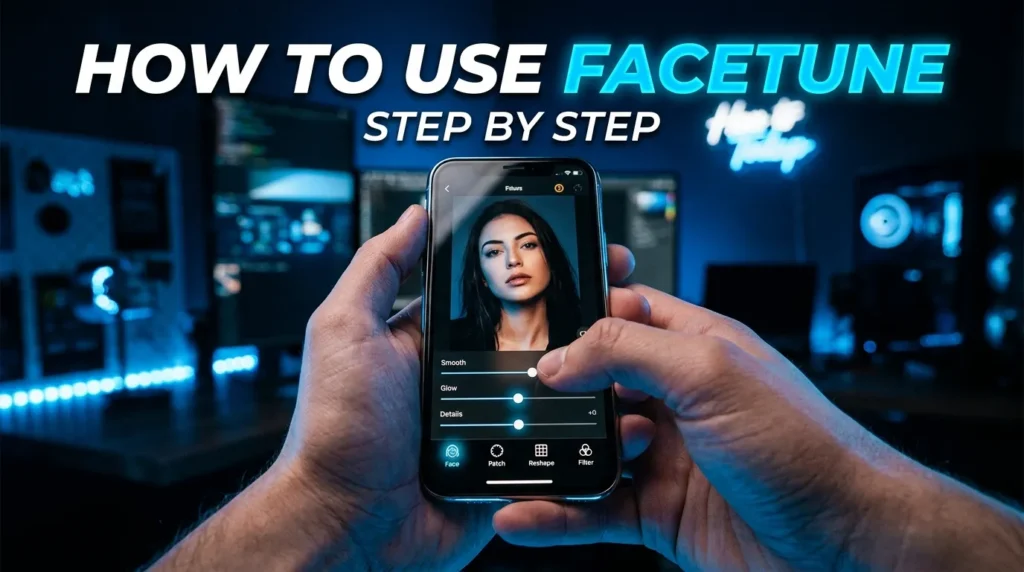
The app is designed to make portrait editing accessible without requiring advanced technical knowledge. You can start with a small correction, apply an automatic enhancement, or experiment with more creative effects. The following workflow explains how to get started while keeping the final image natural.
- Open Facetune: Install the official app on a supported device or use its browser editor where available.
- Choose a photo or video: Select the media you want to edit and review its original quality.
- Make basic adjustments: Crop the image and correct lighting or color before using retouching effects.
- Retouch the portrait: Use Heal, Smooth, Conceal, or other suitable tools to address specific areas.
- Enhance facial details: Adjust teeth, eyes, or facial contours only where needed.
- Try styling tools: Experiment with makeup, hairstyles, filters, or other creative options if they suit the image.
- Edit the background: Remove distractions, blur selected areas, or replace the background if appropriate.
- Review AI results: Inspect the details around hair, skin, eyes, clothing, and image edges.
- Compare before and after: Use the comparison option when available to make sure the edit has improved the photo.
- Save and share: Export the final image or video using the options available in your version.
A practical recommendation from this Facetune Complete Guide is to make the smallest adjustment that solves the problem. For example, use the blemish remover on a specific spot instead of smoothing the entire face heavily. This approach preserves more natural detail and usually produces a more believable result.
Facetune Pricing, Supported Platforms, and Privacy
Facetune offers a combination of free access and paid subscription features. Premium plans can unlock additional retouching tools, AI features, filters, virtual styling options, and other editing capabilities. The company also advertises a free trial for eligible users. Prices, trial eligibility, and available features can vary by country, platform, and billing method, so check the current offer before subscribing.
Facetune has traditionally been available on iOS and Android. Its official website also announced a browser based editor in August 2026, allowing users to edit photos on supported computers, tablets, and phones without installing the mobile app. The web editor currently focuses on a core selection of tools, so it should not be assumed to include every feature available in the mobile app.
| Area | What to know |
|---|---|
| Free access | Some editing options may be available without a subscription |
| Premium subscription | Unlocks additional tools and features according to the plan |
| Free trial | Check the trial length, eligibility, and renewal terms before starting |
| Mobile compatibility | Official apps are available for supported iOS and Android devices |
| Browser editing | The web editor provides selected photo editing tools |
| Export and watermark rules | Confirm the current conditions for your chosen plan |
| Privacy | Review the privacy policy and permissions before uploading photos |
Privacy tip: Portrait editing apps may require access to selected photos, camera features, or other device permissions. Grant only the permissions you need, review the app’s privacy policy, and think carefully before uploading sensitive images to online editing services.
Also check subscription renewal dates if you start a free trial. A trial may convert to a paid plan automatically unless it is cancelled according to the applicable terms.
Advantages, Limitations, and Who Should Use Facetune
Facetune is most useful when portrait enhancement and quick visual improvements are the main priorities. Its combination of manual controls, automated tools, beauty effects, and video retouching makes it accessible to casual users and content creators. However, the app is not designed to replace every professional photo editing workflow.If you prefer a photo editor focused on image enhancement and color adjustments, explore our Photomator Guide photo editing tools to learn more about its workflow and capabilities.
| Advantages | Limitations |
|---|---|
| Beginner friendly portrait editing | Many advanced tools may require payment |
| Dedicated skin and facial retouching | Heavy retouching can make portraits look artificial |
| AI enhancement and creative tools | AI results may change original details |
| Makeup, hair, and styling previews | Virtual previews may not perfectly reflect real life |
| Background and object removal | Complex backgrounds can produce visible editing errors |
| Video retouching and filters | Not a full professional video production suite |
| Mobile and browser based options | Feature availability differs by platform |
| Tools for profile and social media images | Subscription renewal and export conditions need checking |
Facetune is a strong choice for:
- Social media creators: People who want polished selfies, profile photos, and short form videos.
- Beauty and fashion enthusiasts: Users interested in makeup, hairstyle, and color previews.
- Influencers and bloggers: Creators who regularly prepare portrait focused content.
- Professionals: People who want to improve a headshot or profile picture.
- Casual photographers: Users who need quick retouching without learning complex desktop software.
- Small businesses: People who need basic portrait, promotional, or social media image improvements.
It may be less suitable for photographers who need comprehensive RAW processing, large scale image cataloging, advanced compositing, or extensive manual control over every pixel. In those situations, a desktop editor such as Adobe Photoshop or Lightroom may provide a more suitable workflow.Photographers looking for a more advanced photography workflow can also explore our Capture One Complete Guide to learn about its professional photo editing and color adjustment capabilities.
Conclusion
Facetune is a versatile photo and video editing app built around portrait enhancement, beauty effects, AI powered retouching, and creative styling. Its tools cover skin smoothing, blemish removal, teeth whitening, facial adjustments, makeup, hairstyles, background removal, object erasing, filters, AI headshots, and supported video enhancements. This makes it useful for people who want to prepare polished portraits and social media content without a complicated editing process.
The best results come from using the app with a clear purpose. Correct lighting and framing first, apply retouching selectively, and review AI generated changes before sharing the final image. Facetune is particularly effective for quick portrait edits and creative experiments, while advanced photographers may prefer a more comprehensive desktop editor for demanding projects.
Ultimately, this Facetune Complete Guide shows that the app can be a valuable part of a modern editing workflow when convenience, portrait tools, and creative flexibility matter most.