DaVinci Resolve: Complete Video Editing Guide & Features
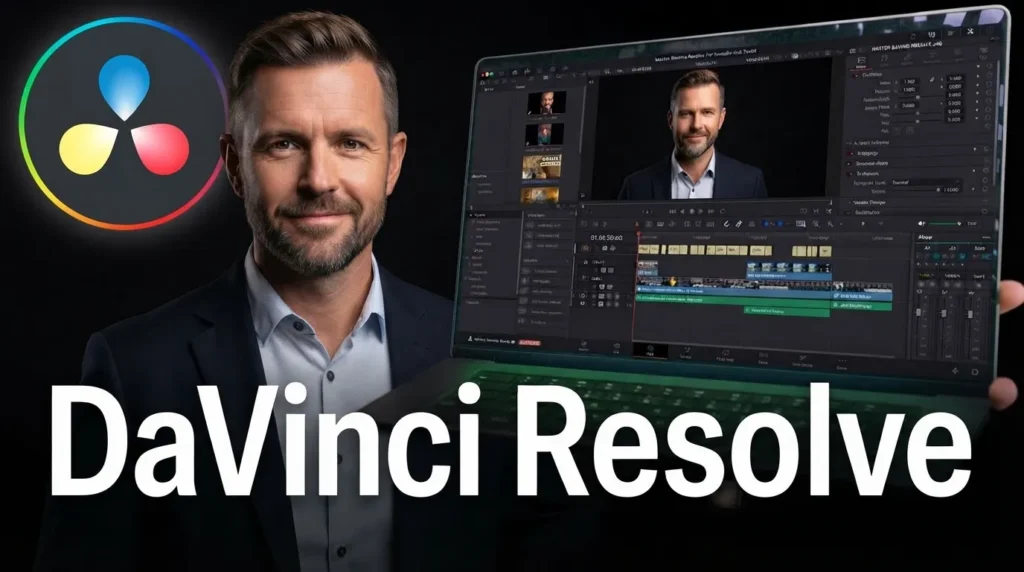
Choosing the right video editing software can be difficult because modern editors are built around very different workflows. Some focus on quick social media content, while others are designed for filmmaking, colour grading, visual effects, audio post production, and large professional projects.
DaVinci Resolve stands out by bringing these different parts of post production into one application. Instead of moving between separate programs for editing, colour correction, visual effects, motion graphics, and audio, you can handle these stages through dedicated pages inside the same software. This makes DaVinci Resolve particularly interesting for creators who want to develop a complete editing workflow.
This DaVinci Resolve Complete Guide explains what the software offers, how its editing tools work, why its colour grading system is widely recognised, how Fusion and Fairlight fit into the workflow, what AI tools can do, and how the free and Studio versions differ.If you want to explore more editing software, photo and video editing app guides on UniversalEdit cover features, workflows, AI tools, and practical editing tips.
The software is developed by Blackmagic Design and is available for Mac, Windows, and Linux. The current DaVinci Resolve 21 release also introduces new features across editing, colour, Fusion, Fairlight, AI, and photo workflows.
What Is DaVinci Resolve
DaVinci Resolve is an all in one post production application developed by Blackmagic Design. It combines video editing, colour correction, visual effects, motion graphics, audio post production, media management, and delivery within a single software environment.
The main advantage is its page based workflow. Instead of opening a separate application for each stage, you can move between Media, Cut, Edit, Fusion, Colour, Fairlight, Deliver, and the newer Photo page depending on the task you are working on.
For example, an editor can organise footage in the Media page, build a rough sequence in Cut, perform detailed timeline work in Edit, create visual effects in Fusion, grade the finished shots in Colour, mix dialogue and music in Fairlight, and then export the project through Deliver.
This approach makes DaVinci Resolve more than a traditional video editor. It acts as a complete post production environment where different creative disciplines can work around the same project.
Another reason the software attracts new users is its free version. You can learn many of the core editing, colour, audio, and collaboration tools without immediately purchasing DaVinci Resolve Studio.
DaVinci Resolve Editing Features
The Edit page provides a traditional timeline based editing environment while the Cut page is designed for faster editing and quick turnaround projects. This gives users two different approaches depending on the complexity and speed requirements of the project.
The Edit page supports drag and drop editing, professional trimming, keyboard shortcuts, titles, transitions, effects, subtitles, closed captions, media management, proxy workflows, and multicam editing.
The Cut page takes a more streamlined approach. Tools such as Source Tape, dual timelines, Sync Bin, Source Overwrite, and smart editing functions are designed to help editors review and assemble footage quickly.
Timeline Editing
The timeline is where your clips, audio, transitions, titles, and effects come together. You can move clips, trim shots, adjust timing, create multiple tracks, and build the structure of the final video.
Professional Trimming
DaVinci Resolve provides several trimming methods for refining edits. The automatic trim cursor changes depending on where you position it, which can reduce the need to repeatedly switch between editing tools.
Multicam Editing
Multicam editing is useful when a project has footage from several cameras. Resolve can synchronise and display multiple camera angles so you can select the preferred view while building the final sequence.
Titles and Subtitles
You can add standard titles, lower thirds, animated titles, and subtitles directly within the editing environment. The software also provides Fusion based title tools for projects that require more advanced animation.
Speed Editing
Speed changes and speed ramps can be used to control pacing and create transitions between faster and slower sections. This can be useful for action videos, travel content, music videos, sports footage, and cinematic sequences.
Proxy Editing
Large video files can make editing demanding on some computers. Proxy workflows allow editors to work with lighter versions of footage and reconnect to the original media during finishing.
The practical advantage of these tools is that you can start with simple cuts and gradually move into more advanced editing without changing applications.If you prefer a more beginner focused editing workflow, our Filmora Complete Guide explains its editing tools, effects, transitions, and overall workflow in more detail.
DaVinci Resolve Colour Grading Tools
Colour grading is one of the areas where DaVinci Resolve has built a particularly strong reputation. The Colour page provides tools for correcting exposure, balancing colour, creating visual styles, matching shots, and working with advanced HDR workflows.
The interface includes primary colour controls that are approachable for beginners while also providing advanced tools such as nodes, Power Windows, qualifiers, tracking, custom curves, HDR colour wheels, and Resolve FX.
Primary Colour Correction
Primary controls let you adjust characteristics such as contrast, temperature, saturation, and mid tone detail. These adjustments are often the first step when correcting footage.
Colour Wheels
Colour wheels provide more targeted control over different tonal areas. They can help you balance shadows, midtones, and highlights while shaping the overall appearance of a shot.
Curves
Custom curves give you more detailed control over brightness and colour channels. They are useful when basic sliders do not provide enough precision.
Nodes
The node based workflow is an important part of advanced grading in Resolve. Instead of stacking every adjustment into one layer, you can organise corrections into separate nodes and build a more structured grading process.
Power Windows and Tracking
Power Windows allow you to isolate specific areas of a frame. Tracking can then help follow a moving subject so that a correction remains attached to the selected area.
HDR Grading
DaVinci Resolve includes tools designed for modern HDR workflows. This can be particularly useful for editors working with high dynamic range footage and delivery formats.
In practical editing, the biggest advantage of Resolve’s colour workflow is not simply the number of controls. It is the ability to move from basic correction to detailed grading within the same project.
DaVinci Resolve Fusion for VFX and Motion Graphics
Fusion is the visual effects and motion graphics environment built into DaVinci Resolve. It uses a node based workflow rather than relying entirely on a traditional layer based system.
Fusion can be used for compositing, title animation, tracking, keying, rotoscoping, particle effects, 2D graphics, 3D scenes, and other visual effects tasks.
Node Based Compositing
Nodes allow you to build visual effects as connected operations. For example, one node can handle a mask, another can apply a colour adjustment, and another can combine the result with a background.
This can feel unfamiliar to beginners who have only used layer based editors. However, once the workflow becomes familiar, nodes provide a structured way to manage complex effects.
Motion Tracking
Fusion includes point, planar, and 3D tracking tools. Tracking can be useful when you need text, graphics, or visual effects to follow movement within a shot.
Keying and Rotoscoping
Keying can help separate subjects from specific backgrounds, while rotoscoping provides more controlled isolation of moving elements.
2D and 3D Motion Graphics
Fusion supports animated titles and graphics in both 2D and 3D environments. This gives creators more control when basic title generators are not enough.
Particles and Compositing
More advanced users can create particle based effects and combine several visual elements into a single composition.
Fusion is one of the areas where the learning curve becomes noticeably steeper. New users do not need to master every node immediately. Learning simple masks, text animation, tracking, and compositing first is a more practical route.
DaVinci Resolve Fairlight Audio Tools
Video quality depends heavily on audio, and DaVinci Resolve includes a complete audio post production environment through the Fairlight page.
Fairlight provides tools for editing, mixing, recording, dialogue processing, effects, ADR, Foley, equalisation, dynamics, and mastering. The current software also includes AI assisted audio features such as Voice Isolation and Music Remixer.
Audio Editing
You can trim, move, synchronise, and organise audio clips alongside your video timeline.
Equalisation and Dynamics
EQ can help shape frequencies, while dynamics processing can control the behaviour of audio levels. These tools are useful for dialogue, music, sound effects, and other project elements.
Voice Isolation
AI assisted Voice Isolation can help reduce unwanted background sound around spoken dialogue. This can be particularly useful when working with recordings made in less controlled environments.
Music Remixer
Music Remixer can provide additional control over elements within supported music content, making it easier to adjust components of a soundtrack.
ADR and Foley
More advanced productions can use Fairlight for automated dialogue replacement and Foley workflows, helping bring audio post production closer to the editing and finishing stages.
The benefit is that you do not need to export your project to a separate digital audio workstation for many common audio tasks.
DaVinci Resolve AI Tools and Smart Features
Artificial intelligence has become a growing part of modern video editing, and DaVinci Resolve uses AI to automate tasks that would otherwise require repetitive manual work.
The DaVinci AI Neural Engine powers features such as facial recognition, object detection, smart reframing, Speed Warp retiming, Super Scale, automatic colour functions, and colour matching.
DaVinci Resolve 21 also introduces additional AI related capabilities, including IntelliSearch, CineFocus, facial refinement tools, and other workflow improvements.
Smart Reframing
Smart reframing can help reposition content for different aspect ratios. This is useful when adapting horizontal footage for vertical social media formats.
Facial Recognition
Facial recognition can help identify people in footage and organise clips based on detected faces. This can save time when searching through large projects.
Speed Warp
Speed Warp uses AI processing to create smoother results when changing footage speed. It can be useful for slow motion and speed based creative effects.
Super Scale
Super Scale can increase the apparent resolution of footage using advanced processing. Results depend on the original footage and the chosen settings.
IntelliSearch
The newer IntelliSearch feature is designed to make content discovery faster by helping users search through project material. This can become particularly useful as projects grow in size.
AI tools are most useful when they remove repetitive work rather than replacing creative decisions. You still need to review the output, particularly around faces, edges, motion, and complex backgrounds.
DaVinci Resolve Workflow, Pages and Supported Platforms
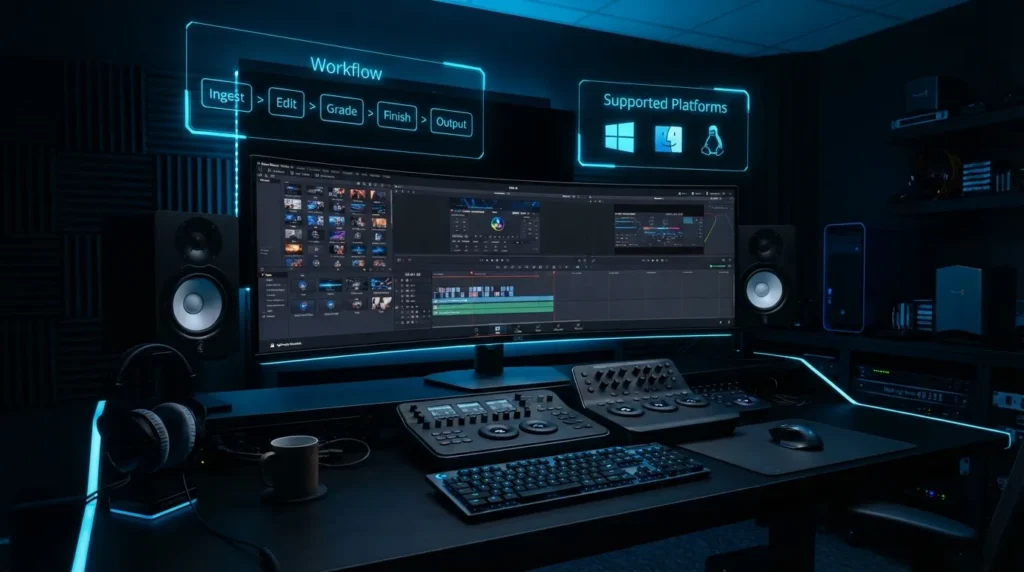
One of DaVinci Resolve’s defining characteristics is its page based structure. Each page has a specific purpose, which helps separate different stages of the post production process.
The Media page handles media organisation, while Cut and Edit focus on editing. Fusion handles visual effects and motion graphics, Colour handles grading, Fairlight handles audio, and Deliver manages final output. The current version also includes a Photo page for still image workflows.
A typical workflow might look like this:
Media → Cut/Edit → Fusion → Colour → Fairlight → Deliver
You do not have to use every page in every project. A short social video may only require Media, Edit, Colour, Fairlight, and Deliver. A complex production may use nearly the entire application.
DaVinci Resolve 21 is available for Mac, Windows, and Linux, giving it broader desktop platform coverage than some professional editing applications.Mac users comparing professional desktop editors can also explore our Final Cut Pro guide to understand how Apple’s editing workflow differs from Resolve.
The software also supports collaboration through Blackmagic Cloud. Multiple creative roles can work around the same project, which can be useful for teams involving editors, colourists, VFX artists, and sound professionals.
DaVinci Resolve Free vs Studio
One of DaVinci Resolve’s biggest advantages for new editors is that there is a free version alongside DaVinci Resolve Studio.
The free version includes a substantial collection of editing, colour, audio, and collaboration features. Blackmagic Design states that the free version supports many 8 bit formats up to 60fps and Ultra HD 3840 × 2160, along with HDR grading and multi user collaboration.
DaVinci Resolve Studio adds more advanced capabilities. These include the DaVinci AI Neural Engine, additional Resolve FX, temporal and AI spatial noise reduction, text based editing, Magic Mask, film grain, optical blur, support for higher bit depth workflows, and resolutions beyond 4K.
| Feature | DaVinci Resolve Free | DaVinci Resolve Studio |
|---|---|---|
| Video Editing | Yes | Yes |
| Colour Grading | Yes | Yes |
| Fusion | Yes | Yes |
| Fairlight | Yes | Yes |
| HDR Grading | Yes | Yes |
| AI Neural Engine | Limited | Yes |
| Advanced Resolve FX | Limited | More tools |
| Noise Reduction | Limited | Advanced options |
| Magic Mask | No | Yes |
| Higher-end formats | More limited | Broader support |
| Cost | Free | Paid |
The current official Blackmagic Design listing shows DaVinci Resolve Studio 21 at €255 on its Netherlands site, although regional pricing can differ.
For beginners, the free version is often a sensible starting point. You can learn the interface and determine which features your workflow actually requires before deciding if Studio makes sense.
DaVinci Resolve System Requirements, Performance and Export
DaVinci Resolve is a powerful desktop application, so hardware can have a noticeable impact on the editing experience. The exact requirements vary by operating system and software version, and demanding tasks such as high resolution footage, Fusion effects, noise reduction, and AI processing can place considerably more load on your system.
Instead of looking only at minimum requirements, creators should think about the type of footage they intend to edit.
A computer handling basic 1080p projects has different needs from a workstation processing multiple streams of high resolution RAW footage with Fusion effects and advanced colour grading.
GPU performance is particularly important for many Resolve workflows because the software makes extensive use of GPU accelerated processing. This becomes more noticeable when using effects, colour processing, AI tools, and high resolution media.
Storage also matters. A fast SSD can make media management, caching, project loading, and general editing more responsive.
Export and Delivery
The Deliver page provides detailed control over encoding, formats, and render settings. Quick Export can also provide a faster route for common delivery requirements, including online platforms.
For professional workflows, you can create custom export presets and manage multiple rendering jobs through the render queue.
The best export settings depend on the destination. You may use different resolution, frame rate, bitrate, codec, and audio settings for YouTube, social media, broadcast, or archival delivery.
A practical approach is to create a master export first and then produce platform specific versions when needed.
Who Should Use DaVinci Resolve
DaVinci Resolve can suit a surprisingly broad range of users, but its strongest advantage appears when a creator wants more than basic timeline editing.
Beginners
Beginners can start with the Edit page and learn basic cutting, trimming, transitions, titles, and audio. The free version also provides an opportunity to learn without an initial software cost.
The interface may look complicated at first because Resolve contains tools for several professional disciplines. Starting with one workflow instead of exploring every page at once makes the learning process easier.
YouTubers and Content Creators
YouTubers can use Resolve for complete production workflows, from organising footage and editing videos to colour correction, audio mixing, thumbnails through the Photo page, and final export.
It is particularly useful for creators who expect their projects to become more advanced over time.Creators looking for another accessible desktop editing option can also compare its workflow with PowerDirector, which offers a different approach to editing and content creation.
Filmmakers
Filmmakers can benefit from the combination of professional editing, colour grading, Fusion, Fairlight, and delivery tools.
The ability to keep these stages within one application can reduce the need to move project material between different programs.
Colourists
Colourists are one of Resolve’s most obvious target audiences. The Colour page provides extensive tools for primary correction, secondary grading, HDR work, tracking, windows, curves, and node based workflows.
VFX Artists
Fusion gives VFX artists a dedicated environment for compositing, tracking, keying, 2D and 3D graphics, particles, and other effects.
Audio Professionals
Fairlight makes Resolve relevant to users who need serious audio post production alongside video editing.
In my practical view, DaVinci Resolve makes the most sense for creators who want to grow from basic editing into a complete post production workflow. It can be more than a simple video editor, but that breadth also means you should expect a longer learning period than you would with a lightweight mobile application.
Final Verdict
DaVinci Resolve has evolved far beyond being simply a colour grading application. It now brings editing, colour correction, visual effects, motion graphics, audio post production, AI assisted tools, collaboration, and delivery into one environment.
Its free version makes the software accessible to beginners and independent creators, while Studio provides additional tools for users with more demanding production requirements.
The biggest learning challenge is also one of its biggest strengths. There are many pages, tools, and workflows to understand, so Resolve can take time to master.
For creators who want to grow their editing skills, work on more complex projects, or build a complete post production workflow, DaVinci Resolve is one of the most capable options available.
The best way to approach it is to learn progressively. Start with editing, then add colour, audio, Fusion, and AI tools as your projects require them.
Overall, DaVinci Resolve is a strong choice for creators who want depth, flexibility, and a complete desktop video production environment without being locked into a simple editing workflow.