BeFunky Complete Guide: Features, Tools & How to Use
BeFunky is an online photo editing and graphic design platform that allows users to improve photographs, apply creative effects, retouch portraits, create collages, and design attractive visual content. Its simple interface and collection of editing tools make it a convenient option for beginners, photographers, bloggers, and social media creators who want to enhance images without using complicated software.
The platform combines photo editing, collage making, and graphic design features in one workspace, allowing users to complete different creative tasks efficiently.If you want to explore more tools, you can discover different photo and video editing apps and find options for your creative projects
Whether you want to correct image colors, improve portrait details, experiment with artistic filters, or create professional-looking graphics, BeFunky offers tools for a variety of editing needs. Its features are designed to make everyday photo editing easier while providing creative options for different projects. In this BeFunky Complete Guide, we will explore its main features, photo editing tools, artistic effects, portrait retouching options, pricing plans, advantages, limitations, and step-by-step editing process.
What Is BeFunky
BeFunky is a web-based photo editing and graphic design platform designed for users who want to improve images without learning complicated editing software. It provides a collection of tools for adjusting photographs, applying artistic effects, enhancing portraits, creating collages, and designing graphics.
The platform brings three major creative tools together: Photo Editor, Collage Maker, and Graphic Designer. Each tool serves a different purpose, allowing users to complete several creative tasks within one platform.
The Photo Editor focuses on improving image quality and appearance. The Collage Maker helps combine multiple photographs into attractive layouts, while the Graphic Designer provides templates and design elements for creating visual content.
The BeFunky Complete Guide is particularly useful for understanding how these tools work and how they can support different creative projects.
Main purposes of BeFunky include:
- Editing and enhancing digital photographs.
- Adjusting brightness, contrast, exposure, and colors.
- Applying artistic effects and creative filters.
- Retouching portraits and improving selfies.
- Creating photo collages from multiple pictures.
- Designing posters, banners, invitations, and social media graphics.
- Adding text, shapes, and other design elements.
- Preparing visual content for websites and online platforms.
BeFunky Main Features at a Glance
BeFunky offers several editing and design features that help users complete different creative tasks. Its tools cover basic photo corrections, artistic transformations, portrait adjustments, collage layouts, and graphic design.
The following table explains some of its main capabilities.
| Feature | Description | Best Use |
|---|---|---|
| Photo Editor | Provides image adjustment and editing tools | Improving photographs |
| Crop and Resize | Changes image dimensions and composition | Preparing images for different platforms |
| Photo Effects | Applies artistic styles and visual filters | Creative photography |
| Touch Up | Provides portrait enhancement tools | Improving selfies and portraits |
| Background Editing | Helps modify or remove image backgrounds using available tools | Product and profile images |
| Collage Maker | Combines multiple pictures into one layout | Photo collections |
| Graphic Designer | Creates designs using templates and elements | Marketing graphics |
| Text Tools | Adds customized text to images | Posters and social media posts |
| Overlays | Adds visual elements over photographs | Creative compositions |
| Batch Editing | Helps apply selected adjustments to multiple images where supported | Repetitive editing tasks |
These features make BeFunky useful for people who need more than basic filters. Its combination of photo editing and graphic design tools allows users to create different types of visual content without constantly switching between applications.
In this BeFunky Complete Guide, understanding the purpose of each feature can help users choose the right tools for their projects and avoid unnecessary editing steps.
BeFunky Photo Editing Tools and Adjustments
The Photo Editor is one of the central parts of BeFunky. It provides tools for improving image quality, correcting visual problems, adjusting colors, and changing the overall appearance of photographs.
Users can upload an image and begin with basic adjustments before applying creative effects. This workflow is useful for photographs that need better lighting, balanced colors, or improved composition.
Important photo editing tools include:
- Crop: Removes unwanted areas and improves image composition.
- Resize: Changes image dimensions for websites, social media, and other uses.
- Exposure: Adjusts the brightness of an image.
- Contrast: Improves the visual difference between light and dark areas.
- Saturation: Controls the intensity of image colors.
- Temperature: Makes an image appear warmer or cooler.
- Sharpness: Helps improve the definition of image details.
- Blur: Softens selected visual areas or creates a softer appearance.
- Vignette: Adjusts the edges of an image to emphasize its main subject.
How These Adjustments Improve Photos
A photograph does not always need complicated editing to look better. Sometimes, small corrections to brightness, contrast, and color are enough to improve its appearance.
For example, an outdoor photograph captured under strong sunlight may contain overly bright areas. Adjusting exposure and highlights can help balance the image. Similarly, increasing contrast slightly can make a flat photograph appear more defined.
A useful approach is to start with basic corrections and apply decorative effects only after the image looks balanced. This helps preserve natural details and prevents excessive editing.Users looking for additional image adjustment and color editing capabilities can also explore advanced photo editing tools available in applications such as Darkroom.
BeFunky Effects, Filters, and Artistic Editing
BeFunky provides creative effects that allow users to change the visual style of their photographs. These effects can transform ordinary pictures into more expressive images without requiring advanced manual editing techniques.
Filters and artistic effects are useful for social media posts, personal photography, creative projects, and visual storytelling.
Common types of creative effects include:
| Effect Category | Purpose |
|---|---|
| Vintage Effects | Gives photographs an older film-inspired appearance |
| Black and White | Converts colorful images into monochrome photographs |
| Artistic Effects | Creates illustration-like or painted appearances |
| Cartoon Effects | Gives photographs a cartoon-inspired style |
| Color Effects | Changes the overall color mood of an image |
| Blur Effects | Creates softer images or visual depth |
| Texture Effects | Adds surface details and creative visual patterns |
When Should You Use Artistic Effects?
Artistic effects work best when they support the purpose of the photograph. A vintage effect may suit travel memories, while a black-and-white treatment can emphasize contrast and composition. Cartoon or painting-inspired effects can be useful for creative posts and personal projects.
However, applying too many effects can make photographs look unnatural. It is better to experiment with a few options and select the one that complements the subject.
The BeFunky Complete Guide approach is to use filters as creative enhancements rather than relying on them to fix every problem in a photograph.
BeFunky Touch Up and Portrait Retouching Features
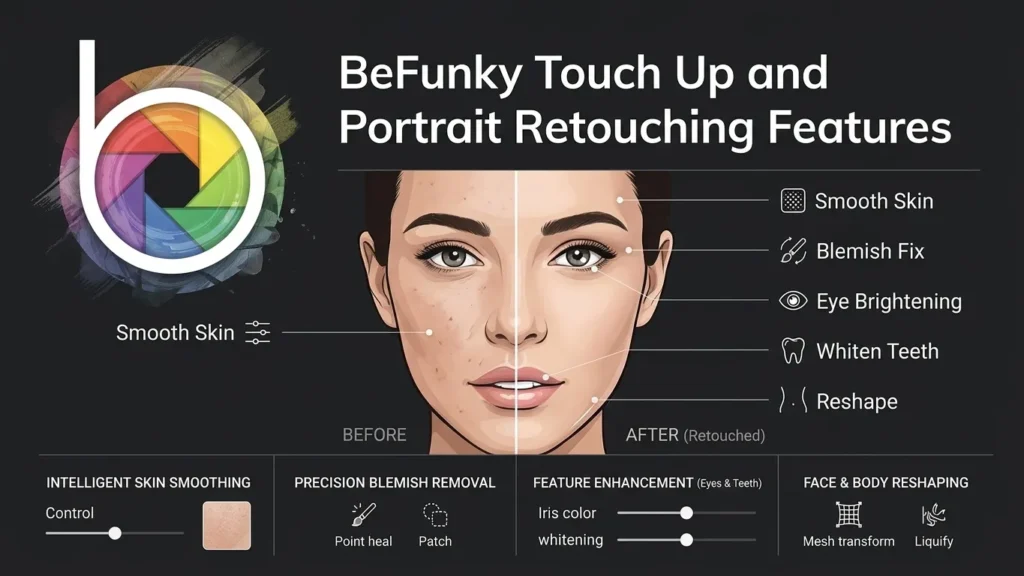
Portrait editing is another important part of BeFunky’s creative toolkit. Users interested in more specialized selfie enhancement can also explore other portrait retouching apps such as Facetune and learn about their editing capabilities.The Touch Up section focuses on improving the appearance of portraits and selfies through dedicated enhancement tools.
These features can help users make small corrections to photographs without manually adjusting every detail.
Portrait editing capabilities may include:
- Skin Smoothing: Reduces the appearance of uneven skin texture.
- Blemish Removal: Helps correct small visible imperfections.
- Eye Enhancement: Improves the appearance of portrait details.
- Teeth Whitening: Provides subtle adjustments to smiles.
- Red-Eye Correction: Helps correct red-eye problems caused by camera flash.
- Portrait Adjustments: Supports improvements to the overall appearance of a face.
Benefits of Portrait Retouching
Portrait retouching is particularly useful for profile pictures, personal photography, social media content, and professional headshots. Instead of applying a heavy filter to the entire photograph, users can focus on specific portrait details.
A natural editing approach is usually better than excessive smoothing or facial adjustments. Keeping skin texture and natural facial characteristics intact helps photographs maintain a realistic appearance.
For the best results, users should make small adjustments and review the image before saving it. This helps maintain a balanced appearance without making the photograph look heavily edited.
BeFunky Collage Maker and Graphic Design Tools
BeFunky is not limited to editing individual photographs. It also includes a Collage Maker and Graphic Designer, allowing users to create complete visual compositions.
Collage Maker
The Collage Maker helps combine multiple photographs into one image. It is useful for displaying travel memories, family pictures, event photographs, product collections, and creative photo arrangements.
Important collage capabilities include:
- Ready-made collage layouts.
- Multiple image placement.
- Customizable spacing and borders.
- Background color adjustments.
- Image positioning and arrangement.
- Creative layouts for different types of photographs.
Users can select a layout, add their photographs, and arrange the images according to their preferred design. This makes it easier to create organized photo collections without manually building every section.
Graphic Designer
The Graphic Designer provides tools for creating visual content using templates, text, shapes, and graphic elements.
| Design Type | Example Use |
|---|---|
| Social Media Posts | Instagram and Facebook content |
| Posters | Events and promotional campaigns |
| Invitations | Personal celebrations |
| Banners | Website and online promotions |
| Flyers | Business announcements |
| Cards | Greetings and special occasions |
| Advertisements | Basic marketing materials |
These tools can be useful for bloggers, students, small business owners, and social media creators who need simple visual designs.
The BeFunky Complete Guide also highlights an important advantage of this combination: users can edit photographs and incorporate them into finished designs without relying on a separate graphic design application for every project.
How to Use BeFunky: Step-by-Step Editing Workflow
BeFunky has a relatively straightforward interface, making it accessible to people who are new to photo editing. The basic workflow involves opening the editor, importing an image, applying adjustments, and saving the finished result.
Follow these steps to get started:
Step 1: Open BeFunky
Visit the official BeFunky website using a compatible web browser. Explore the available editing options from its main interface.
Step 2: Select a Creative Tool
Choose Photo Editor, Collage Maker, or Graphic Designer according to your project requirements.
Step 3: Upload Your Image
Import a photograph from your device. Select an image with sufficient resolution to achieve better editing results.
Step 4: Apply Basic Adjustments
Use crop, resize, exposure, contrast, brightness, and color controls to improve the photograph.
Step 5: Explore Effects and Filters
Open the available effects and filters to experiment with different visual styles. Adjust their intensity when controls are available.
Step 6: Retouch the Image
If you are editing a portrait, explore the Touch Up tools to make suitable corrections.
Step 7: Add Creative Elements
For graphic design projects, include text, shapes, overlays, templates, or other available elements.
Step 8: Preview and Save
Review the finished image and select the available saving or exporting option. Choose a suitable image format and quality setting for your intended use.
Following this process makes the editing workflow easier to understand, especially for beginners who want to improve photographs without learning complicated techniques.
BeFunky Pricing, Free Version, and Premium Features
BeFunky offers free access to selected editing and design tools, along with paid options that provide access to additional capabilities. The exact features available can depend on the current subscription, platform, and product updates.
Before purchasing a subscription, users should check the official pricing page to confirm current plan details.
| Plan Type | General Access | Suitable For |
|---|---|---|
| Free | Selected editing and design tools | Casual users and beginners |
| BeFunky Plus | Additional premium tools, content, and capabilities | Regular photo editors and creators |
Free Version
The free version is useful for exploring the platform and completing basic editing tasks. Users can experiment with available editing tools and determine if the workflow suits their needs.
It can be a suitable starting point for people who only need occasional photo adjustments, simple designs, or basic creative projects.
BeFunky Plus
The paid subscription provides access to additional premium features and creative resources. It may be more suitable for people who regularly edit photographs, create designs, or need a broader selection of tools.
Before subscribing, consider these points:
- Check which features are included in each plan.
- Review export options and image quality limitations.
- Confirm the current subscription price.
- Look for restrictions on premium templates or effects.
- Decide if the additional tools justify the cost.
Choosing the right plan depends on how frequently you use the platform and which features are important for your editing projects.
BeFunky System Requirements, Advantages, and Limitations
Since BeFunky is primarily an online platform, users can access its editing tools through a compatible web browser rather than depending entirely on traditional desktop installation.
A stable internet connection is important because images and editing resources are handled through an online workflow. Performance can also depend on image resolution, browser capability, device memory, and the complexity of the project.
General System Requirements
| Requirement | Recommendation |
|---|---|
| Operating System | Compatible Windows, macOS, or other supported systems |
| Device | Desktop, laptop, or supported mobile device |
| Browser | Updated version of a supported web browser |
| Internet | Stable internet connection |
| Memory | Enough available memory for browser-based editing |
| Display | Screen with suitable resolution for image editing |
These are general recommendations rather than fixed minimum specifications. Users should check BeFunky’s official support information for the latest compatibility details.
Advantages of BeFunky
- Beginner-Friendly Interface: Its tools are relatively easy to understand and use.
- Multiple Creative Tools: Photo editing, collage making, and graphic design are available in one platform.
- Online Accessibility: Users can work through a compatible web browser.
- Creative Effects: Artistic filters and effects provide different visual styles.
- Portrait Editing: Dedicated Touch Up tools help improve selfies and portraits.
- Design Templates: Templates simplify the creation of common graphics.
- Useful for Everyday Projects: It supports personal photography and basic content creation.
Limitations of BeFunky
- Some advanced tools and creative resources require a paid subscription.
- Browser-based editing depends on internet access.
- Complex professional workflows may require more specialized software.
- Performance can vary depending on device specifications and image size.
- It may not provide the same level of detailed control as advanced desktop editing applications.
Overall, BeFunky is a practical option for everyday editing and creative design, but professional photographers may prefer more specialized tools for complex projects.
BeFunky vs Other Photo Editing Apps: Which One Should You Choose
BeFunky competes with several photo editing applications that serve different audiences. Some focus on professional image manipulation, while others prioritize mobile editing, AI enhancement, or graphic design.For photographers who need more advanced RAW processing and detailed image adjustments, professional photo editing software such as Capture One offers a more specialized editing workflow.
The right choice depends on the type of photographs you edit and the features you need.
| App | Main Strength | Ideal User |
|---|---|---|
| BeFunky | Photo editing, collages, and graphic design | Beginners and casual creators |
| Adobe Photoshop | Advanced image manipulation | Professional designers |
| Adobe Lightroom | RAW editing and color correction | Photographers |
| Canva | Templates and graphic design | Social media creators |
| Picsart | Creative effects and image editing | Creative mobile users |
| Fotor | AI enhancement and photo editing | Everyday users |
| Pixlr | Online image editing | Browser-based editors |
| Snapseed | Free mobile photo adjustments | Smartphone photographers |
Why Choose BeFunky?
BeFunky is a suitable option for users who want photo editing, collage creation, and graphic design tools in one place. Its accessible interface makes everyday creative tasks easier, particularly for beginners who do not need the advanced controls of professional desktop software.
However, users who need detailed RAW processing, complex layer-based editing, or advanced professional retouching may find Photoshop or Lightroom more appropriate.
Final Verdict
BeFunky is a user friendly online photo editing and graphic design platform that combines essential image editing tools, artistic effects, portrait retouching, collage making, and creative design features in one place. Its straightforward interface makes it suitable for beginners, bloggers, photographers, and social media creators who want to enhance their images without dealing with complicated editing processes. With features such as AI photo enhancement, background removal, filters, touch up tools, and customizable templates, users can create attractive visuals for personal and professional projects.
This BeFunky Complete Guide demonstrates that the platform is a practical choice for everyday photo editing and creative design tasks. Its biggest strength is the combination of multiple editing and design tools within an accessible online workspace. However, users who require advanced layer management, detailed color correction, or professional RAW editing may prefer dedicated software such as Adobe Photoshop or Lightroom. Overall, BeFunky is worth considering for anyone looking for a convenient editing platform that makes photo enhancement and graphic design easier, especially for beginners and casual creators.