
CapCut Complete Guide 2026: Top Features and AI Tools
Video content has become one of the most effective ways to communicate, educate, entertain, and promote ideas across digital platforms. From social media posts and YouTube videos to business advertisements and educational content, high quality videos attract more viewers and create a stronger impact. If you are looking for a CapCut Complete Guide, understanding the app’s features and capabilities is the first step toward creating professional looking videos with ease. Explore more photo and video editing apps to discover other powerful creative tools.
One of the biggest reasons behind CapCut’s success is its ability to combine advanced editing features with artificial intelligence. Users can edit videos using powerful tools such as transitions, effects, filters, keyframes, auto captions, background removal, motion tracking, and AI powered enhancements without requiring professional editing experience. This CapCut Complete Guide also explains how the application works across Android, iPhone, Windows, macOS, and the web, allowing creators to edit videos anytime and from almost any device.
This CapCut Complete Guide covers everything you need to know about CapCut, including its features, AI tools, editing capabilities, popular templates, supported platforms, advantages, and practical tips for creating professional quality videos. Whether you are a beginner creating your first social media video or an experienced editor looking for advanced creative tools, this guide will help you understand why CapCut has become one of the world’s leading video editing applications.
What is CapCut
CapCut is a powerful all-in-one video editing application developed by ByteDance, the technology company behind TikTok. It is designed to help users create high-quality videos using a simple and intuitive interface combined with professional editing tools. This CapCut Complete Guide explains how CapCut offers features such as video trimming, transitions, filters, visual effects, text animations, audio editing, keyframes, motion tracking, and AI-powered tools, making it suitable for beginners and experienced creators alike. Since its launch, the application has become one of the most widely used video editing solutions for social media content, business marketing, educational videos, and professional projects.
CapCut was introduced to make professional video editing more accessible to everyone. Over the years, it has evolved from a mobile editing app into a complete creative platform by adding desktop software, a web-based editor, cloud storage, and advanced AI capabilities. Regular updates continue to introduce new templates, effects, creative tools, and intelligent editing features that keep the application aligned with the latest content creation trends and user needs.
Today, CapCut is available on Android, iPhone (iOS), Windows, macOS, and through a web browser, allowing users to edit videos across multiple devices with ease. The application offers both a free version and a paid CapCut Pro subscription. The free version includes a wide range of editing tools that are sufficient for most creators, while the Pro version unlocks premium templates, advanced AI features, exclusive effects, fonts, transitions, cloud storage, and other professional resources. This CapCut Complete Guide helps you understand the differences between the free and Pro versions so you can choose the option that best fits your editing needs.
Why Millions of People Use CapCut
CapCut has become one of the world’s most popular video editing applications because it combines beginner-friendly tools with professional editing capabilities. As explained in this CapCut Complete Guide, its clean and intuitive interface allows new users to start editing immediately, while advanced features such as keyframes, motion tracking, masks, chroma key, multi-layer editing, and colour grading provide experienced creators with the flexibility to produce high-quality videos. This balance between simplicity and powerful functionality makes CapCut suitable for users of every skill level.
Another major reason for CapCut’s popularity is its extensive collection of AI-powered tools and ready-made templates. Features such as AI Auto Captions, Background Removal, Text-to-Speech, Voice Changer, AI Video Enhancement, and Smart Cutout help users complete complex editing tasks in just a few clicks. This CapCut Complete Guide also highlights how thousands of trending templates allow creators to produce professional-looking videos quickly without manually applying transitions, effects, or animations, making the editing process faster and more efficient.
CapCut is also optimized for modern content creation and social media platforms. It supports fast exports in high resolutions, including 1080p and 4K, while maintaining excellent video quality. Videos can be created specifically for TikTok, Instagram Reels, YouTube Shorts, Facebook, and other digital platforms using the correct aspect ratios, effects, and export settings. This CapCut Complete Guide shows why its combination of speed, creative freedom, and social media optimization has made CapCut the preferred choice for millions of creators, businesses, educators, and influencers worldwide.
Complete Features of Capcut
CapCut offers a complete range of video editing features designed for beginners, creators, and professionals. From basic editing tools to advanced AI features, effects, animations, and high-quality export options, it provides everything needed to create engaging and professional videos.
Basic Editing Feature
CapCut provides essential editing tools like trimming, cutting, splitting, cropping, rotating, and merging clips to help users create videos easily.
| Feature | Description |
| Trim | The Trim tool allows users to remove unwanted portions from the beginning or end of a video clip. It helps keep only the most important scenes, making videos shorter, cleaner, and more engaging. |
| Split | The Split feature divides a video into multiple sections, allowing users to edit individual clips separately. It is useful for adding different effects, transitions, text, or animations to specific parts of a video. |
| Cut | The Cut tool removes unnecessary scenes or mistakes from the middle of a video without affecting the remaining footage. This helps improve the flow and pacing of the final edit. |
| Merge | Merge combines multiple video clips into one continuous video. It is useful for creating vlogs, tutorials, travel videos, and cinematic edits by joining different scenes seamlessly. |
| Crop | The Crop feature lets users adjust the visible area of a video by removing unwanted edges or changing the aspect ratio. It is commonly used to optimize videos for platforms such as TikTok, Instagram Reels, and YouTube Shorts. |
| Rotate | Rotate changes the orientation of a video by turning it 90, 180, or 270 degrees. It helps correct videos that were recorded in the wrong direction or creates unique visual effects. |
| Flip | The Flip feature mirrors videos horizontally or vertically with a single click. It is useful for correcting camera angles, creating symmetrical effects, or enhancing creative video compositions. |
Advanced Editing Feature
Advanced tools such as keyframes, multi-layer editing, motion tracking, masking, speed ramping, and chroma key allow creators to make professional-level edits.
| Feature | Description |
| Multi-layer Editing | Edit multiple video, image, text, and audio layers on a single timeline. It provides greater creative control for complex video projects. |
| Keyframes | Add keyframes to animate the position, size, rotation, and opacity of objects. This creates smooth and professional motion effects. |
| Masks | Apply different mask shapes to hide or reveal specific parts of a clip. Masks are commonly used for creative transitions and visual effects. |
| Blending Modes | Blend two or more layers together using different visual effects. This helps create cinematic looks and artistic compositions. |
| Chroma Key | Remove green or blue screen backgrounds and replace them with custom images or videos. It is widely used for professional video production. |
| Motion Tracking | Automatically tracks moving objects and attaches text, stickers, or effects to them. This creates dynamic and interactive edits. |
| Picture in Picture (PIP) | Place multiple videos or images on the screen at the same time. It is useful for reaction videos, tutorials, and presentations. |
| Curve Speed | Customize video speed using adjustable speed curves instead of fixed speeds. This creates smoother and more natural motion effects. |
| Speed Ramping | Combine slow-motion and fast-motion effects in a single clip. It is popular for cinematic edits, action videos, and social media content. |
| Reverse Video | Play video clips backward with a single click. It creates unique visual effects and creative storytelling styles. |
AI Features
CapCut uses artificial intelligence to simplify editing with tools like AI captions, background removal, AI enhancement, voice generation, and smart video creation.
| Feature | Description |
| AI Auto Captions | Automatically generates subtitles by converting speech into text. It saves time and improves accessibility. |
| AI Background Removal | Removes the background from videos without requiring a green screen. It makes subject isolation quick and accurate. |
| AI Voice Generator | Converts written text into realistic AI-generated speech. It supports different voices for narration and videos. |
| AI Voice Changer | Changes the tone, pitch, or style of recorded voices instantly. It is useful for entertainment and creative projects. |
| AI Script Writer | Generates video scripts based on a topic or prompt. It helps creators produce content faster. |
| AI Video Generator | Creates videos automatically using AI with minimal manual editing. It speeds up content creation. |
| AI Image Generator | Produces AI-generated images from text descriptions. It is useful for thumbnails, artwork, and creative designs. |
| AI Avatar | Creates digital avatars that can present or narrate videos. It is ideal for educational and marketing content. |
| AI Character | Generates animated AI characters for storytelling and creative videos. It adds engaging visual elements. |
| AI Expand | Extends video frames beyond their original borders using AI. It helps fit videos into different aspect ratios. |
| AI Enhance | Improves video quality by increasing sharpness, brightness, and overall clarity automatically. |
| AI Upscaler | Enhances low-resolution videos and images to higher resolutions while preserving details. |
| AI Noise Reduction | Removes unwanted visual noise and grain from videos. It produces cleaner and smoother footage. |
| AI Beauty | Automatically enhances facial appearance with natural beauty adjustments. It is widely used in portrait videos. |
| AI Face Retouch | Smooths skin, adjusts facial features, and enhances portraits while maintaining a natural look. |
| AI Object Removal | Removes unwanted objects or distractions from videos using artificial intelligence. |
| AI Sticker Generator | Creates custom AI-generated stickers from text or images. It helps personalize videos quickly. |
Audio Features
CapCut offers powerful audio tools including music libraries, sound effects, voice recording, noise reduction, and audio enhancement for better sound quality.
| Feature | Description |
| Music Library | Access a large collection of royalty-free music tracks for different video styles and moods. |
| Sound Effects | Add sound effects such as clicks, explosions, transitions, and ambient sounds to improve storytelling. |
| Voice Recording | Record voiceovers directly inside the editor without using external software. |
| Voice Enhancement | Improves voice clarity by reducing background noise and balancing audio levels automatically. |
| Fade In | Gradually increases audio volume at the beginning of a clip for smoother playback. |
| Fade Out | Gradually decreases audio volume at the end of a clip to create a natural ending. |
| Beat Detection | Detects music beats automatically, making it easier to synchronize clips with audio. |
| Noise Removal | Removes unwanted background sounds such as wind, static, or environmental noise for cleaner audio. |
Text Features
Text tools in CapCut allow users to add captions, animated text, subtitles, stylish fonts, and creative text effects to improve video storytelling.
| Feature | Description |
| Auto Captions | Automatically creates subtitles from spoken audio, reducing manual work and improving accessibility. |
| Text Animation | Adds animated effects to text, making titles and captions more engaging and visually appealing. |
| Fonts | Choose from a wide range of font styles to match different themes and branding requirements. |
| Templates | Use ready-made text templates with professional layouts and animations for faster editing. |
| 3D Text | Create stylish three-dimensional text effects that add depth and visual impact to videos. |
| Subtitle Editing | Edit automatically generated subtitles by changing text, timing, font, size, colour, and positioning for greater accuracy. |
Video Effects
CapCut provides creative video effects such as blur, glitch, shake, flash, motion blur, and cinematic effects to make videos more engaging.
| Feature | Description |
| Blur | Applies a blur effect to the entire video or selected areas. It is useful for creating depth, hiding sensitive information, or achieving a cinematic look. |
| Glitch | Adds digital distortion, flickering, and RGB shift effects. It is commonly used for gaming edits, tech videos, and futuristic content. |
| VHS | Gives videos a retro VHS tape appearance with scan lines and vintage noise. It creates a nostalgic old-school video effect. |
| Neon | Adds glowing neon lights and colorful outlines to objects or text. It is ideal for modern, cyberpunk, and nightlife edits. |
| Shake | Creates camera shake effects to make action scenes more dynamic and energetic. It is often used in beat-sync edits. |
| Flash | Produces quick light flashes between clips or during transitions. It adds excitement and highlights important moments. |
| Motion Blur | Smooths fast movements by adding natural motion blur. This creates more cinematic and realistic action sequences. |
| RGB | Separates red, green, and blue color channels to create a unique visual distortion effect. It is popular in gaming and glitch edits. |
| Zoom | Automatically zooms in or out to emphasize subjects and create movement. It makes static clips more engaging. |
| Film Grain | Adds subtle grain and texture to videos, giving them a classic film-style appearance. It is commonly used in cinematic edits. |
Filters
CapCut includes various filters like vintage, retro, cinematic, portrait, warm, and black-and-white styles to enhance the visual appearance of videos.
| Feature | Description |
| Vintage | Applies warm tones and faded colours to recreate the appearance of old photographs and films. |
| Retro | Adds nostalgic colour grading inspired by classic cameras and vintage media. It works well for travel and lifestyle content. |
| Warm | Enhances orange and yellow tones to create a cozy and inviting atmosphere. It is popular for portraits and sunsets. |
| Cold | Applies cooler blue tones to create a calm, dramatic, or winter-like appearance. |
| Black & White | Removes all colours to produce a timeless monochrome look. It is ideal for artistic and emotional storytelling. |
| Cinematic | Applies professional colour grading with improved contrast and dynamic tones. It gives videos a movie-like appearance. |
| Nature | Enhances greens, blues, and natural colours to make outdoor scenery more vibrant and realistic. |
| Food | Improves colour saturation and sharpness to make food look fresher and more appealing. |
| Portrait | Optimizes skin tones and facial details while maintaining natural-looking colours. It is ideal for selfies and interviews. |
Transitions
CapCut offers smooth transitions such as fade, zoom, slide, spin, blur, and camera effects to create seamless connections between clips.
| Feature | Description |
| Fade | Smoothly fades one clip into another for natural scene changes. It is widely used in cinematic storytelling. |
| Slide | Slides one video clip across the screen to reveal the next clip. It creates dynamic movement between scenes. |
| Zoom | Uses zoom-in or zoom-out effects to transition between clips. It keeps viewers engaged with smooth motion. |
| Blur | Adds a brief blur during transitions to create seamless scene changes. It gives videos a polished appearance. |
| Flash | Uses quick flashes of light to connect clips. It works especially well with music and beat-synced edits. |
| Camera | Simulates realistic camera movements such as pans and whip transitions. It creates a professional editing style. |
| Spin | Rotates the screen while switching between clips. It adds energy to fast-paced videos. |
| Stretch | Stretches the outgoing clip into the next one for a creative transition effect. It is commonly used in social media edits. |
Animation Features
Animation tools allow users to add entrance, exit, and combination animations to text, stickers, images, and video elements.
| Feature | Description |
| In Animation | Applies entrance animations when text, images, or objects appear on the screen. It makes introductions more engaging. |
| Out Animation | Creates smooth exit animations when elements leave the screen. It improves the overall flow of the video. |
| Combo Animation | Combines entrance and exit animations into one preset. It provides a complete animated effect without manual adjustments. |
Export Features
CapCut supports high-quality exports with options like 720P, 1080P, 2K, 4K, 60FPS, HDR, and HEVC formats for professional results.
| Feature | Description |
| 720P Export | Exports videos in HD quality with smaller file sizes, making sharing and uploading faster. |
| 1080P Export | Produces Full HD videos with sharp details and excellent quality for most social media platforms. |
| 2K Export | Offers higher resolution than Full HD, providing better clarity for larger displays and professional content. |
| 4K Export | Exports Ultra HD videos with outstanding detail and image quality. It is ideal for professional video production. |
| 60 FPS Export | Creates smoother video playback with higher frame rates, making fast-motion scenes look more fluid. |
| HDR Export | Preserves a wider range of colours and brightness for more vibrant and realistic visuals on compatible devices. |
| HEVC Export | Uses the HEVC (H.265) codec to reduce file size while maintaining excellent video quality, making storage and sharing more efficient. |
Top 10 CapCut Templates
1. Slow Motion CapCut Template
- Overview
- Introduction and purpose of the Slow Motion CapCut Template.
- How it helps creators create cinematic slow-motion videos easily.
- Features
- Slow-motion effects and smooth speed adjustments.
- Velocity effects, speed ramping, motion blur, and cinematic transitions.
- Beat synchronization with music and advanced visual effects.
- Best For
- Travel videos, action clips, sports moments, lifestyle videos, fashion edits, and cinematic content.
- TikTok, Instagram Reels, and YouTube Shorts creators.
- Why Trending
- Popular because it transforms normal footage into professional-looking cinematic edits.
- Widely used for viral social media videos and aesthetic content.
2. Healing Thailand CapCut Template
- Overview
- Explain the concept and creative style of the Healing Thailand CapCut Template.
- How it creates peaceful, emotional, and travel-inspired videos.
- Features
- Smooth transitions, calming effects, aesthetic filters, and relaxing music synchronization.
- Soft colour grading and cinematic travel visuals.
- Best For
- Travel memories, nature videos, peaceful moments, lifestyle content, and emotional edits.
- Creators who want relaxing and visually pleasing videos.
- Why Trending
- Popular due to its calming aesthetic and ability to create beautiful travel storytelling videos.
- Frequently used for Instagram Reels and TikTok aesthetic trends.
3. Photo Dump CapCut Template
- Overview
- Explain how Photo Dump CapCut Templates convert multiple photos into engaging slideshow videos.
- How creators use them to share memories in a creative format.
- Features
- Automatic photo arrangement, smooth transitions, beat sync, stylish effects, and music integration.
- Different styles including vintage, minimal, birthday, and couple themes.
- Best For
- Travel photos, personal memories, birthdays, relationships, lifestyle content, and social media posts.
- TikTok, Instagram Reels, and YouTube Shorts creators.
- Why Trending
- Popular because it allows users to transform ordinary camera roll images into engaging videos quickly.
- Matches the growing trend of authentic and unfiltered content.
4. Anime CapCut Template
- Overview
- Explain how Anime CapCut Templates help creators make stylish anime edits.
- How they simplify professional anime video creation.
- Features
- Beat synchronization, anime transitions, shake effects, velocity edits, and cinematic colour grading.
- Support for character edits, AMVs, and anime image transformations.
- Best For
- Anime fans, AMV creators, character edits, fight scenes, and cosplay videos.
- Short-form anime content creators.
- Why Trending
- Popular due to the massive growth of anime content on TikTok, Instagram, and YouTube.
- Helps creators make high-energy edits without advanced editing skills.
5. Love CapCut Template
- Overview
- Explain how Love CapCut Templates are designed for romantic and emotional videos.
- How they help creators showcase special memories.
- Features
- Romantic transitions, heart effects, soft filters, emotional music, and aesthetic animations.
- Designed for couples, anniversaries, and relationship memories.
- Best For
- Couple videos, wedding memories, relationship moments, and emotional storytelling.
- Social media creators sharing personal content.
- Why Trending
- Popular because emotional and relationship-based videos receive strong engagement.
- Used frequently during special occasions and celebrations.
6. Velocity CapCut Template
- Overview
- Explain the concept of velocity editing and how these templates create dynamic videos.
- How speed changes improve visual storytelling.
- Features
- Speed ramping, fast and slow motion combinations, beat matching, and smooth transitions.
- Creates professional action-style edits.
- Best For
- Dance videos, sports clips, gaming edits, fashion transitions, and action content.
- Creators who want energetic videos.
- Why Trending
- Popular because velocity edits dominate TikTok and Instagram trends.
- Creates visually impressive effects with minimal editing effort.
7. Beat Sync CapCut Template
- Overview
- Explain how Beat Sync templates automatically match video changes with music.
- How they improve the rhythm and engagement of videos.
- Features
- Automatic beat detection, synced transitions, flash effects, and motion effects.
- Helps create professional music-based edits.
- Best For
- Music videos, dance content, gaming edits, and trending social media videos.
- Creators who focus on audio-based content.
- Why Trending
- Popular because music synchronization increases viewer retention.
- Frequently used for viral short-form content.
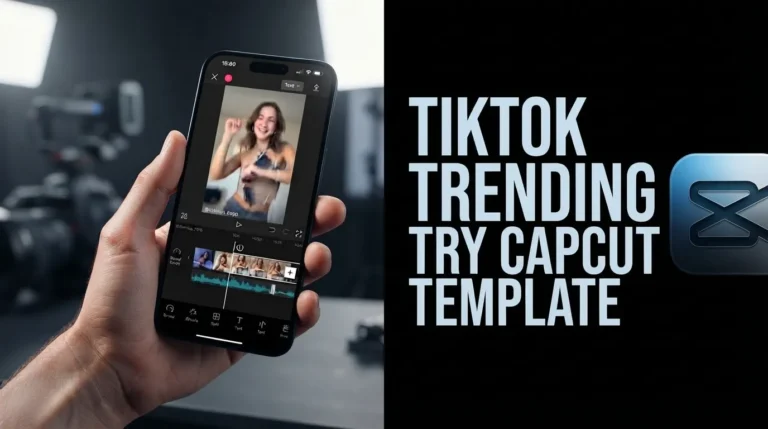
Another popular editing style among short-form creators is the Habibi CapCut Template, which combines beat synchronization, smooth transitions, and stylish effects to create engaging social media videos.
8. TikTok Trend CapCut Template
- Overview
- Explain how TikTok Trend templates help creators follow viral editing styles.
- How they make trend participation faster and easier.
- Features
- Trending effects, popular sounds, viral transitions, and ready-made editing structures.
- Updated regularly according to social media trends.
- Best For
- TikTok creators, influencers, brands, and short-form video makers.
- Users who want to increase engagement.
- Why Trending
- Popular because they help creators quickly participate in viral trends.
- Saves time while producing content that matches current styles.
9. Cinematic CapCut Template
- Overview
- Explain how cinematic templates create movie-style video experiences.
- How they improve storytelling through professional effects.
- Features
- Cinematic filters, colour grading, smooth transitions, slow-motion effects, and dramatic animations.
- Creates professional visual quality.
- Best For
- Travel films, documentaries, storytelling videos, product videos, and creative projects.
- Filmmakers and content creators.
- Why Trending
- Popular because creators want professional-looking videos without complex software.
- Gives ordinary footage a premium appearance.
For creators who prefer a soft, nostalgic, and aesthetic editing style, Lofi Dusk CapCut Templates are another excellent option. These templates add warm tones, cinematic effects, and relaxing visuals that work well for lifestyle videos, travel clips, and Instagram Reels.
10. Healing Brazil CapCut Template
- Overview
- Explain the style and purpose of Healing Brazil CapCut Templates.
- How they capture peaceful travel and lifestyle aesthetics.
- Features
- Smooth transitions, relaxing music, warm colours, nature-inspired effects, and cinematic visuals.
- Designed for emotional storytelling.
- Best For
- Travel videos, beach scenes, nature content, relaxing edits, and aesthetic reels.
- Creators focused on peaceful visual content.
- Why Trending
- Popular because viewers enjoy calming and visually satisfying content.
- Works well with travel trends and aesthetic social media styles.
CapCut AI Tools
CapCut has introduced a wide range of AI-powered tools that make video editing faster, smarter, and more accessible for all types of creators. As explained in this CapCut Complete Guide, these AI features automate complex editing tasks such as generating videos, creating captions, removing backgrounds, improving image quality, and producing digital content with minimal effort. By using artificial intelligence, CapCut helps users save time while creating professional-looking videos without requiring advanced editing skills.
The AI Video Generator, AI Caption Generator, AI Background Remover, AI Voice Generator, AI Avatar, AI Image Generator, AI Character, and AI Enhance tools provide creative solutions for different editing needs. Users can automatically create videos from ideas or scripts, generate accurate subtitles, remove unwanted backgrounds, create realistic AI voices, design digital characters, generate images, and improve video quality. This CapCut Complete Guide explains how these features make CapCut a powerful choice for creators who want to combine traditional editing with modern AI technology.
Whether you are creating content for social media, business marketing, education, or personal projects, the AI tools continue to simplify complex editing workflows. This CapCut Complete Guide highlights how CapCut’s intelligent features help creators work more efficiently, improve productivity, and produce high-quality videos with less time and effort.
CapCut for Different Users
CapCut is designed to meet the needs of a wide range of users, from beginners who are just learning video editing to professional creators and businesses producing digital content. As covered in this CapCut Complete Guide, its simple interface, ready-made templates, AI tools, effects, and automated features make it easy for beginners to create impressive videos without technical knowledge.
Apple users who want another beginner-friendly video editing option can also explore iMovie for creating and editing videos on supported Apple devices.At the same time, advanced editing tools such as keyframes, motion tracking, colour grading, and multi-layer editing provide enough flexibility for experienced creators.
Different types of users can benefit from CapCut according to their content goals. YouTubers and TikTok creators can use templates, transitions, captions, and effects to create engaging short-form and long-form videos. Instagram creators can design aesthetic reels and social media content, while businesses can create promotional videos, advertisements, and branded content. Teachers and students can use CapCut for educational projects, presentations, and online learning materials, while freelancers can use its professional features to provide video editing services for clients. This CapCut Complete Guide explains how CapCut adapts to different creative needs, making it a versatile solution for every user.
Whether you are creating content for social media, education, marketing, or client projects, CapCut provides the tools needed to achieve professional results efficiently. This CapCut Complete Guide demonstrates why its combination of beginner-friendly features, advanced editing capabilities, and AI-powered tools makes it suitable for almost every type of content creator.
CapCut Tips & Tricks: 20 Pro Tips for Better Video Editing
1. Shoot Videos in 60FPS
Recording videos at 60FPS provides smoother motion and better quality, especially when creating slow-motion effects, velocity edits, or cinematic videos. As recommended in this CapCut Complete Guide, higher frame rates give CapCut more frames to work with, resulting in cleaner speed adjustments and smoother transitions.
2. Use Keyframes for Advanced Editing
Keyframes allow you to control the movement, position, scale, and rotation of different elements throughout your video. They are useful for creating professional zoom effects, smooth camera movements, object animations, and dynamic transitions.
3. Enable Motion Blur
Motion Blur helps make fast movements look more natural and cinematic. It is especially useful for velocity edits, action videos, and transition effects because it creates smoother movement between frames.
4. Use AI Auto Captions
AI Auto Captions automatically generate subtitles by analyzing your video’s audio. This feature saves time and improves accessibility while making your content more engaging for viewers on TikTok, Instagram Reels, and YouTube Shorts.
5. Export Videos in 1080P or Higher
Exporting videos in high resolution maintains image quality and makes your content look professional across different platforms. This CapCut Complete Guide recommends using 1080P for everyday videos and 2K or 4K for cinematic projects.
6. Use Beat Sync for Music Videos
Beat Sync automatically matches your clips, transitions, and effects with the rhythm of your chosen music. This creates engaging edits that feel more professional and are ideal for trending social media content.
7. Apply Professional Color Grading
Color grading improves the mood and visual style of your videos by adjusting brightness, contrast, saturation, and tones. Using cinematic colour adjustments can transform ordinary footage into a more polished and professional-looking video.
8. Take Advantage of Templates
CapCut templates allow users to create trending videos quickly without manually designing every effect. They include ready-made transitions, animations, music timing, and visual effects that help beginners create impressive edits.
9. Learn Keyboard Shortcuts (Desktop Version)
Keyboard shortcuts speed up the editing workflow by allowing faster access to common tools such as cutting clips, undoing changes, and navigating the timeline. They are especially useful for creators who edit frequently on computers.
10. Use Cloud Backup
CapCut Cloud Backup helps protect your projects and allows you to access your edits across different devices. This feature is useful for creators who switch between mobile, desktop, and web editing platforms. As highlighted in this CapCut Complete Guide, cloud syncing also makes collaboration and project management much easier.
11. Remove Backgrounds with AI Tools
CapCut’s AI Background Removal tool allows users to remove video backgrounds automatically without using a green screen. It is helpful for creating professional presentations, product videos, and creative social media content.
12. Use Speed Ramping Effects
Speed ramping creates smooth changes between slow motion and fast motion within a single clip. This technique is widely used in cinematic edits, sports videos, travel content, and action sequences.
13. Add Smooth Transitions
Using the right transitions helps connect clips naturally and improves the overall flow of your video. Avoid excessive transitions and choose effects that match the style and mood of your content.
14. Improve Audio Quality
Clear audio is essential for professional videos. Use CapCut’s audio enhancement tools, noise reduction, and volume controls to remove unwanted sounds and create a better listening experience.
15. Use Text Animations Effectively
Animated text can make important information more noticeable and visually appealing. Use text animations for titles, captions, storytelling, and highlighting key moments without overcrowding your video.
16. Use High-Quality Assets
Using clear images, sharp video clips, and high-quality audio improves the final result. Low-resolution media can reduce video quality even when exported in higher resolution. This CapCut Complete Guide recommends starting with the best possible source files for maximum output quality.
17. Organize Your Timeline Properly
Keeping your clips, audio, effects, and layers organized makes editing faster and easier. Proper timeline management helps when working on longer or more complex video projects.
18. Experiment with AI Editing Tools
CapCut provides multiple AI-powered features that simplify editing, including AI captions, AI enhancement, AI effects, and automatic video creation. Exploring these tools can save time and improve creativity.
19. Preview Before Exporting
Always watch your complete video before exporting to check transitions, audio synchronization, text placement, and visual effects. This helps identify mistakes and ensures a polished final result.
20. Optimize Videos for Each Platform
Different platforms have different requirements for video size, duration, and style. Create vertical 9:16 videos for TikTok, Instagram Reels, and YouTube Shorts to achieve better viewing experiences and engagement. Following the recommendations in this CapCut Complete Guide will help you optimize your videos for every major platform while maintaining excellent quality. With these techniques, the CapCut Complete Guide ensures you can produce engaging, professional content consistently.
Advantages of CapCut
1. Beginner-Friendly Interface
CapCut offers a simple and easy-to-understand interface that allows beginners to start editing videos without professional experience. As explained in this CapCut Complete Guide, the organized layout, drag-and-drop tools, and automated features make video editing faster and more accessible for new users.
2. Wide Range of Editing Tools
CapCut provides a complete set of editing features, including trimming, cutting, transitions, filters, effects, text animations, audio editing, keyframes, speed controls, and colour adjustments. These tools help users create professional-looking videos for different types of content.
3. Powerful AI Editing Features
CapCut includes advanced AI-powered tools such as auto captions, background removal, AI voice generation, AI enhancement, and smart editing features. These tools reduce manual work and help creators produce high-quality videos more efficiently. This CapCut Complete Guide explores how AI features simplify complex editing tasks for creators of all skill levels.
4. Large Collection of Templates and Effects
CapCut offers thousands of ready-made templates, transitions, stickers, effects, and animations that help users create trending videos quickly. These templates are especially useful for TikTok, Instagram Reels, and YouTube Shorts creators.
5. Available Across Multiple Platforms
CapCut is available on mobile devices, desktop computers, and web browsers, allowing users to edit videos from different devices. This flexibility makes it convenient for creators who switch between platforms during their editing workflow.
6. Professional Editing Capabilities
Although designed for beginners, CapCut also includes advanced tools such as multi-layer editing, motion tracking, chroma key, keyframes, speed ramping, and colour grading. These features allow experienced editors to create more complex projects. According to this CapCut Complete Guide, these advanced tools make CapCut suitable for both casual creators and professionals.
7. Social Media Optimization
CapCut is designed for modern content creation with features that support vertical videos, trending sounds, captions, and popular effects. It makes creating content for platforms like TikTok, Instagram Reels, and YouTube Shorts faster and easier.
8. Fast Export and Sharing Options
CapCut allows users to export videos quickly in different resolutions, including 1080P, 2K, and 4K depending on device support. Direct sharing options also make it easier to publish edited videos across social media platforms. This CapCut Complete Guide highlights how fast exporting and platform optimization help creators publish high-quality content efficiently. By following the recommendations in this CapCut Complete Guide, users can maximize both video quality and workflow productivity.
Limitations of CapCut
Although this CapCut Complete Guide highlights the app’s powerful editing capabilities, CapCut also has a few limitations that users should consider. Some advanced features require an internet connection, especially AI-powered tools, online templates, cloud features, and certain effects. Users may also need a stable connection to access the latest templates, cloud projects, and online creative resources.
Some premium effects, assets, and advanced editing features are available only through CapCut Pro. Additionally, editing large or complex projects with high-resolution videos may require a powerful device with sufficient storage and processing performance. Certain templates or assets may also include watermarks or usage restrictions depending on their source. Understanding these limitations through this CapCut Complete Guide helps users choose the right tools and workflow for their editing needs.
Frequently Asked Questions
Conclusion
CapCut has become one of the most popular video editing applications because it combines beginner-friendly tools with powerful professional features. From basic trimming and transitions to advanced AI editing, templates, and cinematic effects, CapCut provides everything creators need to produce engaging videos.
With support for mobile, desktop, and web platforms, CapCut makes video editing more accessible for creators, businesses, students, and professionals. Its wide range of features, creative templates, and AI-powered tools help users transform simple clips into high-quality content for modern digital platforms.
One Comment