
Photomator Guide: Complete Photo Editing Tools
Photomator is a photo editing application designed primarily for Apple users who want detailed image adjustments without working through an unnecessarily complicated interface. It combines RAW processing, colour correction, retouching, masking, batch editing, AI assisted tools, presets, and other photography features in a workflow built around Mac, iPhone, and iPad. Apple currently lists Photomator for macOS, iOS, iPadOS, and visionOS.
One of its biggest strengths is the balance between speed and editing control. You can make quick adjustments to one photograph, process a collection of images together, or spend more time refining individual details.
This Photomator Guide explains the application’s main editing tools, RAW workflow, AI features, batch processing, masking, colour adjustments, retouching capabilities, Apple ecosystem integration, export workflow, and its main advantages and limitations.For more guides on popular photo and video editing software, you can also explore photo and video editing app guides on UniversalEdit.
What Is Photomator
Photomator is a dedicated photo editing application from the Pixelmator team that is now part of Apple’s broader creative software ecosystem. It is designed for photographers who need fast editing workflows, detailed image adjustments, and support for a wide range of camera formats.
The application is available through the App Store for Mac, iPhone, iPad, and Apple Vision Pro. Current system requirements listed by Apple include macOS Ventura 13 or later for Mac and iOS 17 or iPadOS 17 or later for iPhone and iPad. Photomator is also optimised for Apple silicon on Mac.
Photomator supports more than 750 RAW formats, including Apple ProRAW. It also supports common image formats such as HEIF, JPEG, PNG, TIFF, and WebP.
The application is particularly focused on photography rather than graphic design. Apple distinguishes Photomator from Pixelmator Pro by positioning Photomator around fast photo editing and batch processing, while Pixelmator Pro is more focused on building designs from images, shapes, and text.
Photomator RAW Editing and Basic Adjustments
RAW processing is one of the most important reasons photographers may choose Photomator. RAW files retain more image information than compressed formats, giving you greater flexibility when correcting exposure, colour, highlights, shadows, and other tonal characteristics.
A practical Photomator Guide should start with RAW development because a balanced source image provides a better foundation for later adjustments.
Exposure
Exposure controls let you brighten or darken the image. Small adjustments can recover a more balanced appearance without changing the character of the photograph.
Contrast
Contrast controls the difference between lighter and darker areas. Increasing it can make an image appear more defined, while reducing it can create a softer appearance.
Highlights and Shadows
Highlight controls help manage bright areas, while shadow adjustments can reveal information hidden in darker portions of a photograph.
White Balance
Temperature and tint controls can help correct unwanted colour casts or create a warmer or cooler appearance.
Saturation and Vibrance
Colour intensity can be adjusted to make an image more restrained or more pronounced. Keeping these controls moderate generally produces more believable results.
Curves
Curves provide more precise control over tonal and colour relationships than basic sliders. They are especially useful when you need to target specific tonal ranges.
The advantage of starting with these basic corrections is that creative effects become easier to judge afterward.Mobile photographers looking for another detailed editing option can also explore our Snapseed Guide for RAW editing, selective adjustments, curves, healing, and creative tools.
AI Photo Editing and Smart Enhancement
AI plays an important role in modern Photomator workflows. Instead of requiring photographers to perform every repetitive correction manually, AI assisted tools can speed up tasks such as background removal, object cleanup, masking, and image enhancement.Photographers interested in a broader AI focused editing workflow can also explore our Luminar Neo Guide for AI enhancement, RAW editing, portrait tools, sky replacement, and creative effects.
For users exploring a Photomator Guide, the important point is that AI works best as an editing aid rather than a replacement for photographic judgement.
AI Enhancement
AI based enhancement can help improve aspects of an image while reducing the number of manual corrections required.
Background Removal
AI can identify a subject and separate it from the surrounding background, making it easier to create clean cutouts or creative compositions.
Object Removal
Unwanted elements can be removed from suitable photographs, which is useful for cleaning distractions from landscapes, travel images, portraits, and everyday photography.
AI Assisted Masking
Automatic selection can simplify the process of isolating subjects or areas of an image before applying adjustments.
Super Resolution
AI based resolution enhancement can help increase image detail or output size in suitable photographs. The result depends on the quality and resolution of the original file.
Automated tools can save time, but photographers should inspect edges, textures, faces, and generated areas at full size before final export.
Colour Correction and Advanced Image Controls
Colour is one of the most important parts of photography, and Photomator provides a range of controls for creating a more balanced or stylised appearance.
Rather than applying a preset immediately, you can correct the image first and then decide how much creative styling it actually needs.
Selective Colour
Targeted colour controls can help adjust specific hues without changing every colour in the image.
Hue and Saturation
These controls allow you to shift colours and control their intensity. They can be particularly useful when one colour dominates a photograph too strongly.
Black and White
Photographs can be converted to monochrome and then refined through tonal adjustments.
Colour Balance
Colour adjustments can help maintain a consistent visual appearance across multiple photographs.
Detail and Sharpness
Sharpening can increase perceived detail, but excessive sharpening can produce visible edges and unwanted texture.
The Photomator Guide approach here should be focused on correction first and styling second. That sequence makes it easier to preserve natural skin tones, realistic landscapes, and accurate product colours.
Masking, Selections and Local Editing
Local editing is useful when you want to change one area of a photograph without affecting the entire frame. Photomator provides masking and selection workflows that allow adjustments to be applied more selectively.
A mask defines the area affected by an adjustment. This can be useful for brightening a subject, darkening the background, changing the colour of an object, or correcting a local exposure problem.
Subject Selection
Automatic subject detection can reduce the amount of manual selection work needed for suitable images.
Background Selection
Background areas can be isolated so that you can make changes without affecting the main subject.
Gradient Based Masks
Gradients can help create smooth adjustments across part of an image, which is useful for skies and other broad areas.
Brush Based Refinement
Manual refinement can improve the accuracy of a mask when automatic detection does not perfectly follow the subject.
Local Adjustments
Once a mask is created, exposure, colour, contrast, and other adjustments can be applied selectively.
This workflow is particularly useful for portraits, landscapes, product photography, architecture, and images where the foreground and background need different treatment.For users who need more advanced layers, masking, compositing, and design capabilities, our Affinity Complete Guide explores a broader creative editing workflow.
Retouching and Object Removal
Photomator can also be used for cleaning unwanted details and improving photographs without changing their overall character.
Retouching is particularly useful for removing small distractions, dust marks, minor imperfections, and unwanted elements that draw attention away from the main subject.
Removing Small Distractions
Small objects can often be removed more naturally when the surrounding background is relatively simple.
Portrait Cleanup
Basic retouching can help address temporary blemishes and minor distractions while keeping the photograph recognisable.
Landscape Cleanup
Photographers can remove small objects such as signs, litter, or other distractions from suitable scenes.
Object Replacement
AI based workflows can go further by generating replacement content in selected areas when a simple cleanup is not enough.
A good Photomator Guide should also emphasise moderation. Retouching works best when viewers notice the photograph rather than the editing.
Batch Editing and Presets
Batch editing is one of Photomator’s practical strengths. Apple specifically recommends Photomator for fast photo editing workflows that include batch editing.
Instead of repeating the same adjustments manually on every image, you can apply a consistent editing approach across a collection of photographs.
This is useful for weddings, events, travel photography, product collections, and other projects where many images were captured under similar lighting conditions.
Applying Adjustments to Multiple Images
A selected editing treatment can be applied across several photographs, reducing repetitive work.
Presets
Presets provide predefined adjustment combinations that can act as a starting point for future edits.
Custom Presets
Photographers can save preferred editing combinations and reuse them when working on similar images.
Consistency
Batch workflows can help maintain similar colour, contrast, and exposure across a collection.
However, batch editing should not mean identical settings for every image. Differences in lighting, subject position, and exposure may require individual refinement after the initial adjustment.
This makes batch processing particularly useful for efficiency while still leaving room for manual corrections.
Apple Photos, iCloud and Pixelmator Pro Integration
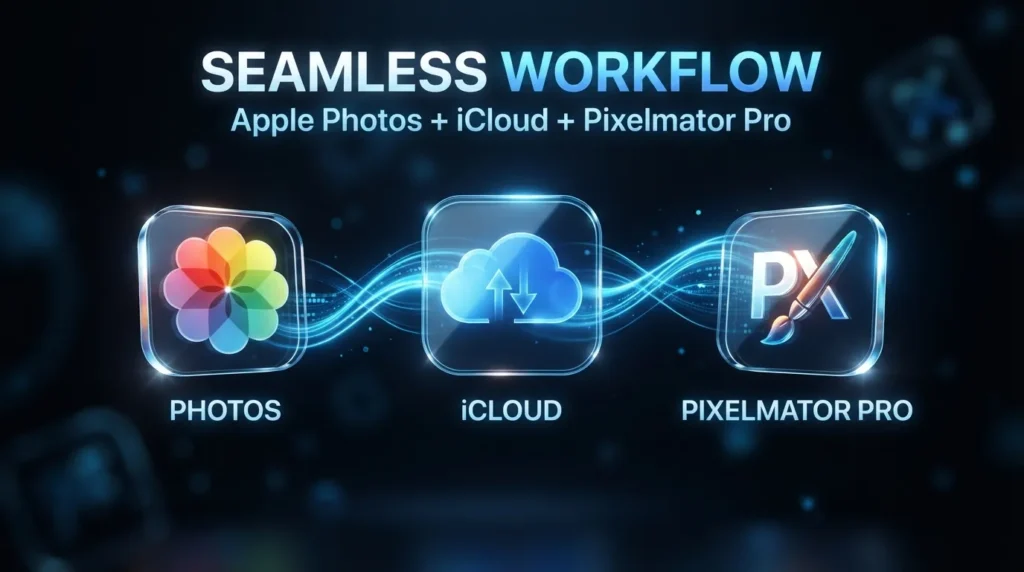
Photomator is closely connected to the Apple ecosystem, which is one of its biggest advantages for Mac, iPhone, and iPad photographers.
Photomator and Pixelmator Pro are designed to work together through iCloud. For example, you can edit a photograph in Photomator, save it to iCloud, and then open it in Pixelmator Pro to add text, shapes, captions, and other design elements.
This creates a useful division between photo editing and broader design work.
Photomator is better suited to fast photography adjustments and batch editing, while Pixelmator Pro is more appropriate when a project requires combining photographs with shapes, text, and other design elements.
An important limitation is that layered PXD files from Pixelmator Pro open flattened in Photomator.
The Photomator Guide perspective here is simple: Photomator works particularly well when photography is already part of an Apple based workflow.
Export, File Formats and Editing Workflow
After the editing process is complete, the final image needs to be exported or shared in a format appropriate for its intended use.
Photomator supports popular image formats, including HEIF, JPEG, PNG, TIFF, and WebP, alongside its extensive RAW support.
Social Media
JPEG or other web friendly formats can be appropriate for online publishing, depending on the platform and required quality.
High Quality Archives
Photographers who need to preserve more editing flexibility may choose a format and workflow suited to their archival requirements.
Client Delivery
Export settings should reflect the client’s requested dimensions, file format, and quality requirements.
Printing
Printed photographs require attention to resolution, dimensions, colour handling, and final image sharpness.
A useful Photomator Guide workflow is to keep your original files safely stored and create exported copies for specific uses. This keeps the original photograph available for future editing.
Platforms, Pricing, Advantages and Limitations
Photomator is available on Mac, iPhone, iPad, and Apple Vision Pro. Apple currently lists macOS Ventura 13 or later for Mac and iOS 17 or iPadOS 17 or later for iPhone and iPad.
Photomator is distributed through the App Store and currently offers a 7 day full featured trial, followed by subscription or lifetime licence options. Apple states that users can choose monthly or yearly subscriptions or purchase a lifetime licence.
Advantages and Limitations
| Area | Strength | Limitation |
|---|---|---|
| Platforms | Available on Mac, iPhone, iPad, and Apple Vision Pro | Primarily focused on the Apple ecosystem |
| Photo Editing | Fast and detailed photography workflow | Not designed for every type of creative production |
| RAW Support | Supports more than 750 RAW formats, including Apple ProRAW | RAW compatibility still depends on the supported format |
| Batch Editing | Useful for processing many images efficiently | Individual images may still need manual refinement |
| Apple Integration | Works closely with Apple’s ecosystem and iCloud | Less practical for users working mainly on Windows or Android |
| Ease of Use | Common adjustments are easy to access | Advanced users may want more specialised controls |
| Design Work | Can pass projects to Pixelmator Pro for broader design work | Complex graphic design and page layout are outside its main focus |
The biggest strength is speed. Photomator is designed around photography rather than trying to cover every type of creative production.
Its support for more than 750 RAW formats, batch editing, Apple ecosystem integration, and editing on multiple Apple devices make it particularly useful for photographers who already work within Apple’s platform.
The interface also keeps many common adjustments accessible without forcing users through a highly technical workflow.
Photomator is less suitable for users who need extensive graphic design, complex vector illustration, or page layout tools. Apple positions Pixelmator Pro as the more appropriate application for creating designs from images, shapes, and text.
It is also primarily an Apple ecosystem application, so photographers working mainly on Windows or Android devices will need another solution.
Overall, the Photomator Guide recommendation is straightforward: choose Photomator when fast, detailed photography editing and Apple integration are more important than broad cross platform compatibility or complex graphic design.
Conclusion
Photomator combines detailed photo editing with a workflow designed around speed and simplicity. Its RAW support, colour tools, masking, AI assisted editing, retouching, presets, batch processing, and Apple ecosystem integration give photographers a broad set of tools without requiring a highly complicated interface.
Its support for more than 750 RAW formats makes it useful for photographers working with files from a wide range of cameras, while its compatibility with Apple ProRAW makes it relevant to Apple focused photography workflows.
The application’s biggest strength is not simply the number of tools it provides. It is how quickly those tools can be combined for everyday photography.
For photographers using Mac, iPhone, or iPad who want fast RAW processing, batch editing, local corrections, AI assisted tools, and a streamlined Apple workflow, Photomator is a strong option.
For highly complex design work, vector graphics, or projects requiring extensive combinations of text, shapes, and images, a broader design application may be more appropriate.



2 Comments