PowerDirector: Features, Tools & Video Editing Guide 2026
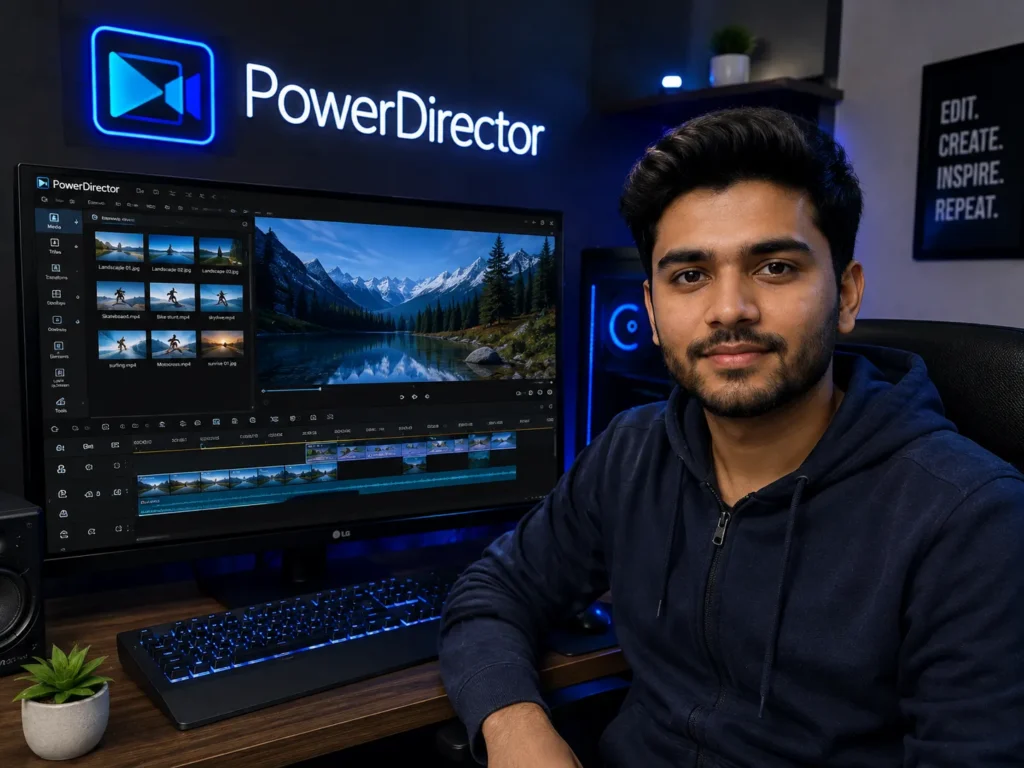
PowerDirector is a feature-rich video editing software developed by CyberLink, designed for beginners, content creators, YouTubers, social media users, and professional editors. It combines traditional timeline editing with AI-powered tools, advanced effects, motion graphics, color correction, audio editing, green-screen capabilities, and a large library of creative assets. You can also explore more guides about popular photo and video editing apps to compare different editing tools and workflows.The current version also includes generative AI features that can create video, images, music, narration, and other content directly within the editing workflow.
This complete guide explains the major features of PowerDirector, including basic editing, AI tools, effects, transitions, titles, audio, motion tracking, chroma key, color adjustment, speed controls, screen recording, templates, export options, and professional workflows. It is designed to help users understand what the software offers and how its different tools can be used for creating modern video content.
What Is PowerDirector
PowerDirector is a video editing application developed by CyberLink that provides a combination of timeline-based editing and AI-assisted creative tools. Users can import videos, photographs, audio files, and other media, arrange them on a timeline, apply effects, add transitions, create titles, adjust colors, edit audio, and export the completed project. It is available for Windows and macOS, with features varying by version and subscription plan.
One of the major strengths of PowerDirector is its balance between accessibility and advanced editing control. Beginners can use drag-and-drop editing, templates, automatic enhancement, and ready-made effects, while experienced users can work with keyframes, masks, chroma key, multi-camera editing, motion tracking, blending modes, and detailed color controls.
The software has also expanded significantly into AI-assisted editing. Current versions include AI Storytelling, Auto Edit, AI Video Enhancement, AI Object Removal, AI Background Removal, AI Motion Tracking, AI Speech-to-Text, AI Text-to-Video, AI Image-to-Video, and several other AI-based features.
Basic Video Editing Tools
PowerDirector provides all the fundamental tools needed to build a video from individual clips. Users can import footage, place clips on the timeline, trim unwanted sections, split videos, rearrange scenes, crop content, and adjust the overall structure of a project.
The timeline-based workflow makes it possible to combine video, images, music, narration, titles, transitions, and effects on separate tracks. This gives creators control over how different elements appear and interact throughout the video.
Some important basic editing capabilities include:
- Trim and Split: Remove unwanted sections or divide a clip into smaller segments.
- Crop: Change the visible area of a video to improve composition.
- Rotate: Correct the orientation of footage.
- Zoom and Pan: Create movement within photographs or video clips.
- Freeze Frame: Hold a specific frame for a selected duration.
- Reverse: Play footage backward for creative effects.
- Clip Markers: Mark important sections of the timeline.
- Pre-Cut: Select useful sections of footage before adding them to the main project.
- Nested Projects: Organize complex editing projects more efficiently.
- Multi-format Editing: Work with different aspect ratios such as 16:9, 1:1, 4:3, 4:5, 21:9, and portrait 9:16 formats.
These tools make PowerDirector suitable for everything from simple social media clips to longer YouTube videos and more structured productions.
AI Editing and Generative AI Features
AI is now one of the most important areas of PowerDirector. CyberLink has added AI tools that can automate repetitive editing tasks, improve footage, remove unwanted elements, generate content, and assist with storytelling.
PowerDirector includes AI Storytelling, which can organize footage into a logical sequence and assist with narration and story structure. Auto Edit can also analyze uploaded clips and photographs, identify useful moments, synchronize content with music, and create an initial video automatically.
Generative AI capabilities go even further. Users can create videos from text prompts, transform still photographs into animated videos, generate images, create background music, translate voices, produce speech, and work with AI avatars. The current AI Model Lab also brings multiple AI models into the creative workflow.
Other AI features include:
- AI Video Object Removal
- AI Background Removal
- AI Video Enhancement
- AI Auto Reframe
- AI Motion Tracking
- AI Object Mask
- AI Frame Interpolation
- AI Text-Based Editing
- AI Library Search
- AI Replace
- AI Talking Avatar
- AI Voice Clone
- AI Speech-to-Text
- AI Text-to-Speech
- AI Voice Translator
- AI Music Generator
These tools can significantly reduce the amount of manual work required for certain editing tasks, although creators should still review AI-generated results for accuracy and consistency.
Effects, Transitions, Titles, and Motion Graphics
Creative effects and transitions allow users to control how their videos look and how individual scenes connect. PowerDirector provides hundreds of transitions, effects, title animations, motion graphic templates, stickers, and other creative assets. The exact number available depends on the edition and plan.
Effects can be applied to individual clips or combined with keyframes and masks for more advanced visual designs. Creators can use effects for cinematic looks, social media content, stylized videos, promotional projects, and entertainment videos.
Titles and motion graphics are particularly useful for YouTube videos, tutorials, advertisements, presentations, and social media content. Animated titles can introduce sections, identify speakers, display important information, or create stronger opening and closing sequences.
Transitions can also help connect different scenes smoothly. Instead of simply cutting from one clip to another, users can apply fades, wipes, slides, zoom-style transitions, and other visual changes. However, transitions are generally most effective when they support the story rather than being added to every cut.
Color Correction, Green Screen, Masks, and Motion Tracking
PowerDirector includes several tools for controlling the visual appearance of footage. Color adjustment tools allow editors to modify elements such as brightness, contrast, saturation, highlights, shadows, and overall color balance. Color Match can also help synchronize the appearance of different clips by matching their visual characteristics to a reference.
Chroma key and green-screen editing allow creators to remove a selected background color and replace it with another video, image, or digital environment. This is useful for presentations, gaming videos, cinematic effects, product demonstrations, and virtual backgrounds.
Masks provide more precise control over specific areas of a frame. Users can apply effects or adjustments to selected regions rather than the entire clip. PowerDirector also supports motion tracking, allowing text, graphics, and other elements to follow moving subjects within a video.
Audio Editing and AI Speech Tools
Audio quality can significantly affect the overall quality of a video, and PowerDirector includes a dedicated collection of audio and speech tools. Users can add background music, sound effects, narration, voiceovers, and other audio elements directly to the timeline.
AI-based audio tools can help improve recordings by reducing unwanted noise and making speech clearer. Current features include AI Audio Denoise, AI Speech Enhancement, AI Wind Removal, AI Voice Changer, Audio Ducking, and AI Voice Clone.
Important audio capabilities include:
- AI Audio Denoise: Detects and reduces unwanted background noise.
- AI Speech Enhancement: Improves voice clarity.
- AI Wind Removal: Reduces wind-related noise in outdoor recordings.
- Audio Ducking: Automatically lowers background music when dialogue is present.
- AI Voice Changer: Applies different voice profiles and effects.
- AI Voice Clone: Creates a voice profile for AI-generated narration.
- Text-to-Speech: Converts written text into spoken narration.
- Speech-to-Text: Transcribes spoken content and can assist with subtitles.
- Background Music: Adds music tracks to projects.
- Sound Effects: Provides additional audio elements for creative sound design.
These tools make PowerDirector useful for YouTube videos, podcasts, tutorials, interviews, advertisements, social media clips, and other projects where clean dialogue and controlled audio are important.
Speed Control, Stabilization, and Video Enhancement
Speed controls allow editors to change the pace of footage. A clip can be slowed down to emphasize movement, sped up to shorten long activities, reversed for creative effects, or adjusted with speed-ramping techniques. CyberLink also provides timeline controls for slowing down and speeding up clips.
Video stabilization is useful when footage contains unwanted camera movement. The stabilizer can help reduce visible shaking and make handheld footage appear smoother. This can be particularly useful for travel videos, action footage, smartphone recordings, and walking shots.
AI Video Enhancement can also improve footage by addressing issues such as noise, lighting, and resolution. AI frame interpolation can generate additional frames to produce smoother motion in supported workflows.
These tools are especially useful when working with footage captured in less-than-ideal conditions. However, enhancement cannot always completely fix severely damaged or extremely low-quality footage.
Templates, Stock Media, and Creative Assets
PowerDirector includes a large collection of creative assets that can reduce the amount of time required to build videos from scratch. Depending on the version and subscription, users can access titles, transitions, effects, stickers, templates, background music, sound effects, and stock media.
PowerDirector’s current ecosystem also provides access to royalty-free stock videos, images, and music from sources including Getty Images and Meta Sound Collection. These resources can be useful when creators need additional footage or audio without having to capture everything themselves.
Templates are particularly useful for beginners and social media creators. A template can provide a starting structure containing titles, transitions, effects, and other elements. Users can then replace the placeholder media with their own footage and customize the design.
Brand Kits are another useful feature for businesses and creators who need consistent branding. Logos, colors, fonts, and other visual assets can be managed to maintain a consistent appearance across different video projects.
Screen Recording, Multi-Camera Editing, and Professional Tools
PowerDirector includes features that extend beyond conventional single-camera video editing. Screen recording allows users to capture their computer screen, while dual-track recording can keep screen and webcam footage as separate editable clips. This is useful for tutorials, software demonstrations, gaming content, online courses, and presentations.
Multi-camera editing allows editors to work with footage from multiple cameras and switch between different angles. This can be useful for interviews, events, performances, educational videos, and other productions where several camera perspectives are available.
Professional-oriented tools also include keyframe controls, blending modes, lens correction, video collage, masks, motion graphics, chroma key, color matching, and advanced timeline controls. PowerDirector supports high-resolution workflows, including 4K editing and, on supported plans and systems, 8K import.
Export, Platforms, Pricing, and Best Uses
PowerDirector provides export options designed for different publishing platforms and production requirements. Creators can prepare videos for platforms such as YouTube and TikTok, while different aspect ratios allow projects to be adapted for landscape, square, and vertical formats.For creators interested in another accessible editing workflow, our VN Video Editor complete guide covers its timeline tools, effects, transitions, audio features, and other editing capabilities.
PowerDirector is available as a perpetual version and through PowerDirector 365 subscription plans.Mac users looking for another editing option can also explore our iMovie complete guide to learn about its features, editing tools, and workflow. Current CyberLink pricing information lists PowerDirector 2026 and PowerDirector 365, with feature availability differing between editions. The subscription version includes additional AI capabilities, premium effects, stock content, cloud storage, and ongoing feature and content updates.
PowerDirector can be useful for a wide range of users:
- Beginners: Templates, automatic editing, drag-and-drop controls, and AI tools simplify the editing process.
- YouTubers: Titles, transitions, audio tools, screen recording, and export options support regular channel production.
- Social Media Creators: Vertical editing, Auto Reframe, templates, effects, and AI generation help create short-form content.Mobile-focused creators can also compare its workflow with KineMaster video editing for social media and short-form content.
- Businesses: Brand Kits, promotional templates, AI tools, stock assets, and professional editing features support marketing projects.
- Filmmakers: Multi-camera editing, color tools, masks, keyframes, chroma key, and high-resolution workflows provide deeper control.
- Gamers: Screen recording, webcam capture, overlays, effects, and live-streaming tools support gaming content.
- Educators: Screen recording, subtitles, voice tools, and timeline editing are useful for tutorials and courses.
For users who want a combination of traditional editing and modern AI capabilities, PowerDirector offers a broad toolset in one application. Its biggest advantage is the ability to start with simple automated workflows and move toward more detailed manual editing as project requirements become more demanding.
Conclusion
PowerDirector is a comprehensive video editing platform that combines traditional timeline editing with AI-powered creation, enhancement, audio processing, motion tracking, background removal, generative tools, and professional production features. Its broad feature set makes it suitable for beginners as well as experienced creators working on more complex projects.
The software’s AI capabilities are particularly notable because they cover both editing and content generation. Users can remove unwanted objects, enhance footage, generate videos from text or images, create music, produce narration, transcribe speech, and automate parts of the editing process.
At the same time, PowerDirector retains conventional editing controls such as keyframes, masks, chroma key, color adjustment, speed controls, transitions, titles, blending modes, and multi-camera editing. This combination allows creators to use AI when automation is helpful while maintaining manual control over important creative decisions.
Overall, PowerDirector is a versatile option for YouTube creators, social media users, businesses, educators, filmmakers, and beginners who want a feature-rich editor with modern AI capabilities. Its exact tools, assets, and AI availability depend on the edition and plan, so users should check the current version before choosing a workflow.


One Comment